Table of Contents
With the link column, you build relationships between tables in SeaTable, without SQL or coding. A record in one table refers to one or more records in another table, for example an order to its customer and to the products ordered. These linked records are the basis of SeaTable’s relational database functions. The column type is called Link to other records.
Which relationships you can model
| Relationship | Example | How to do it in SeaTable |
|---|---|---|
| One-to-one | An invoice belongs to exactly one purchase order. | Link column with the setting Limit linking to max one row |
| One-to-many | A customer has many orders, each order belongs to one customer. | Link column, limited to one row in the orders table and unlimited in the customers table |
| Many-to-many | An order contains several products, a product appears in many orders. | Link column without a limit, no junction table needed |
| Within one table | Tasks and subtasks, employees and their managers | Links within a table |
A link is visible in both tables. When you create the link column, you choose whether the link is shown in an existing column of the other table or whether a new column is created there.
Example: customers, orders and products
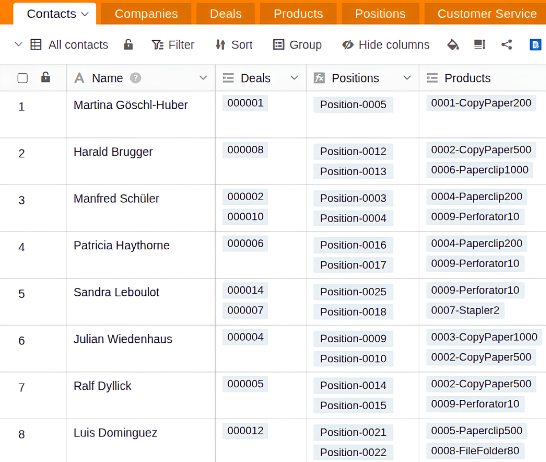
- The Customers table contains name, contact person and address.
- Each record in Orders is linked to one customer.
- Order items link an order to a product and contain quantity and price.
- The Products table contains item number, description and list price.
With a link formula you show the customer name in each order and calculate the revenue per customer in the customers table. The table relationships plugin shows the whole structure as a diagram.
How to link two tables with each other
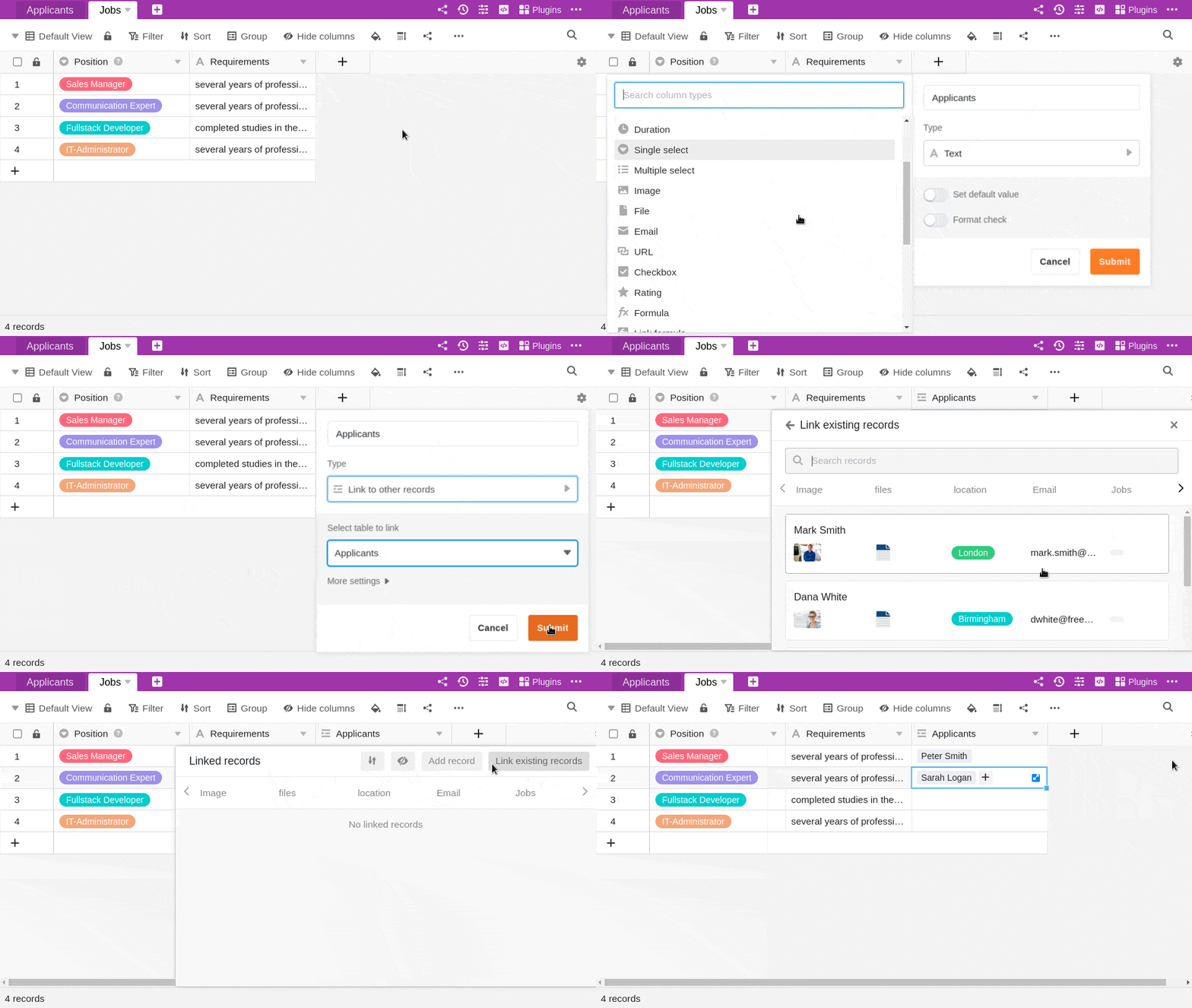
- Create a new column and select the column type Link to other records.
- Give the column a name.
- Under Select table for linking, select the table whose records you want to link to the current table.
- Click Submit.
- The content of the new column is still empty. To fill it, you can link existing records or add record .
As soon as tables are linked, you can call up the information of the linked records via the link dialog. To do this, click on the double arrow symbol in a cell of the link column or double-click. The linked records are listed in the link dialog that opens. Click on an record to view the row details in an additional window.

Link existing records
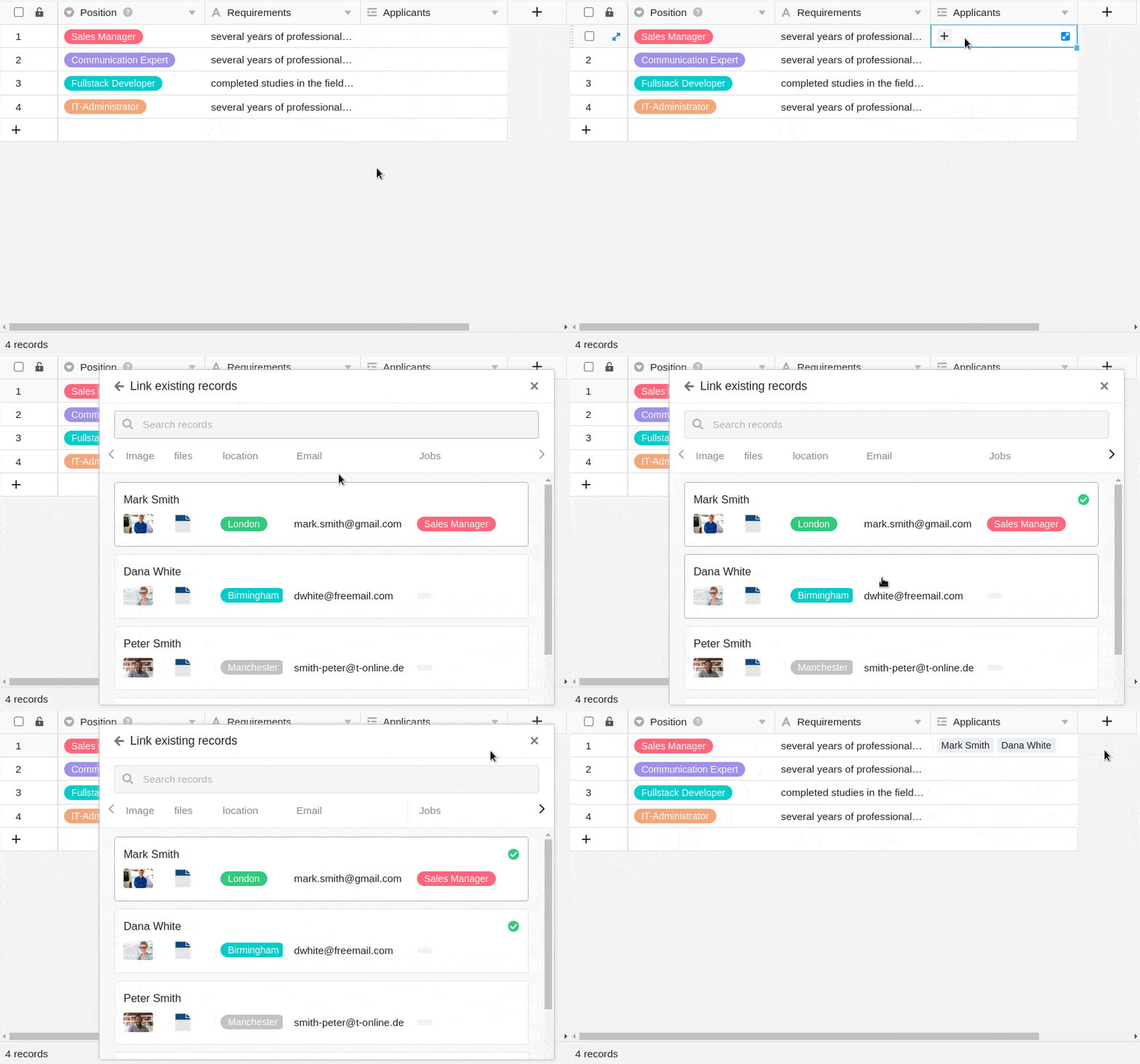
- Click in a cell of the link column and then on the plus icon that appeared.
- Now the available rows of the linked table are listed. Select the row(s) you want to link to the row of your current table.
- In the link column, each row is immediately displayed as a linked record.
Using the integrated search function in the link dialog, you can search the records of the linked table to quickly find the desired row .
Add record
You can even add a new row to a linked table via the link dialog without having to switch to this table. Subsequently, the row is added to the linked table among the existing records and displayed as a linked record in the link column of the opened table.
- Double-click on the cell of a link column or click on the blue double arrow icon to open the link dialog.
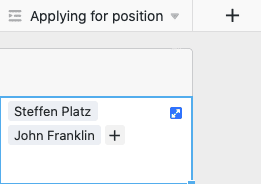
- Click Add record.
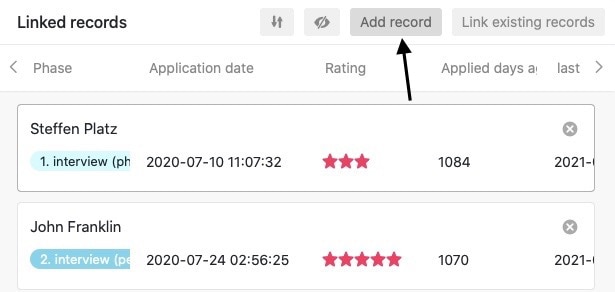
- In the window that opens, fill in the various table columns.
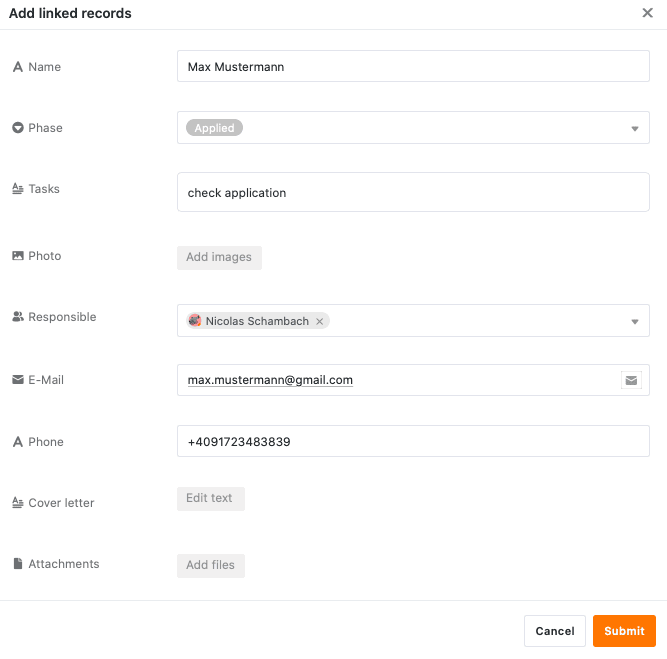
- Click Submit to create the new row .

- The new row is automatically added to the linked table and displayed in the currently opened table as a linked record in the link column.
Edit existing records of a linked table
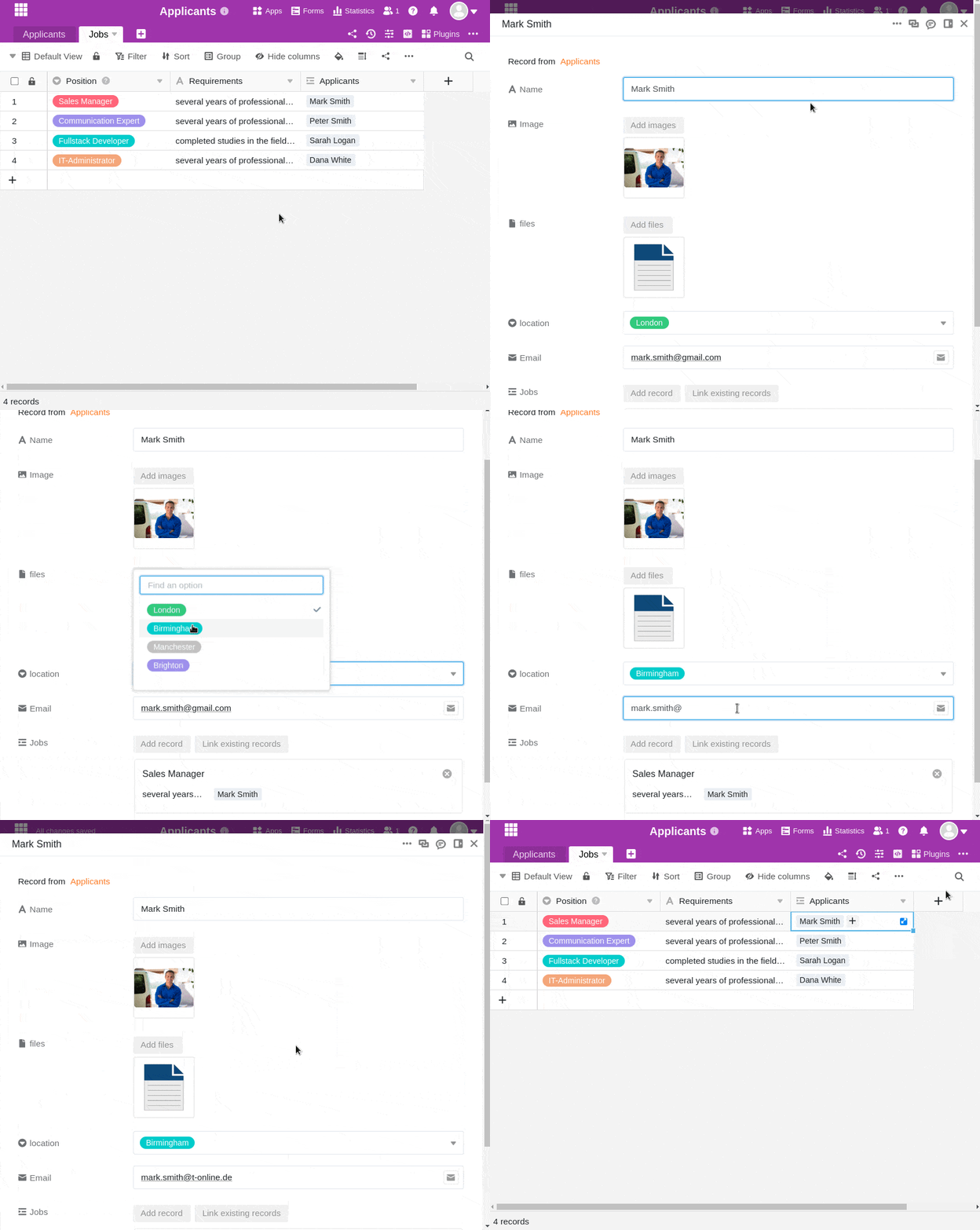
- Click in a cell of the link column.
- Click on the linked record you want to edit.
- The row details open. Make the desired changes there.
- Close the window to save the changes.
Remove links
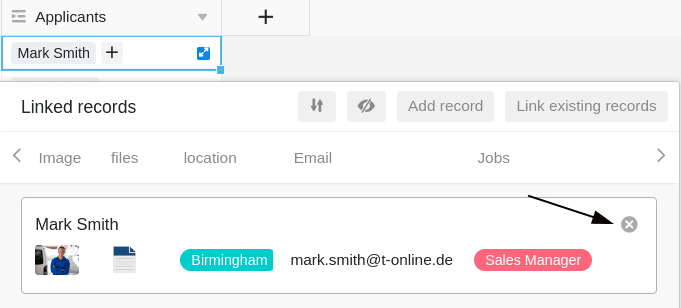
You can remove records linked in a link column with just a few clicks. To do this, simply open the link dialog of the corresponding link column and click on the X symbol to the right of the desired record.
Link column settings
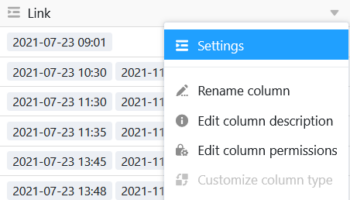
A link column allows you to make and change various settings very easily. To do this, click the triangular drop-down icon of the link column in the table header and then click Settings.
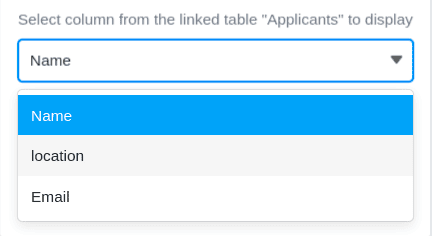
Selection of the linked column from the linked table
In the drop-down menu you can first select the column of the linked table whose entries are to be displayed in the link column.
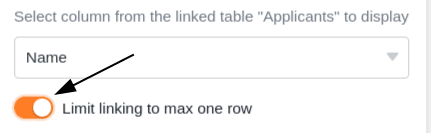
Limit linking to max one row
By activating the corresponding slider you can limit the linking to a maximum of one row. If this setting is active, only one linked record can be added in each cell of the link column.
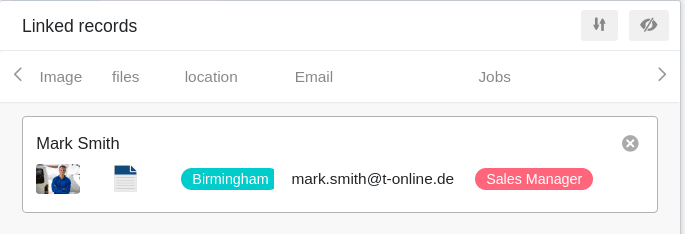
If you have already added a linked record to a cell, the options to add more records are no longer displayed.
This setting can be useful, for example, if an invoice is to be linked to the corresponding purchase order from another table - i.e. if the linked records form logical pairs. In this case, adding more links could lead to confusion and negatively affect work processes.
Limit row selection to a view
By activating this setting you can restrict links to one view of the linked table. To do this, you specify a previously defined view of the linked table. In the link column, you can then link only the records of this view. Linking records from other views is then no longer possible.
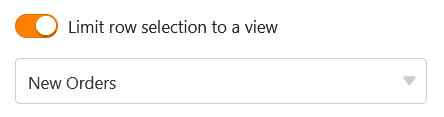
This setting is especially useful for filtered views and can be helpful if you want to specifically link certain records in your tables.
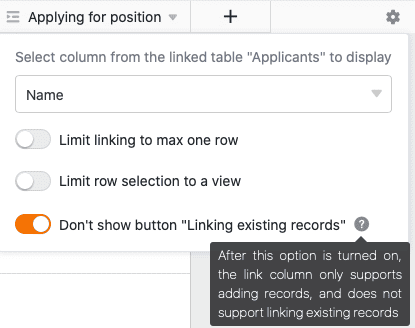
Prevent linking existing records
In the settings of a link column you can also prevent the linking of existing records by activating a corresponding slider. If the slider is activated, the corresponding link column supports only the addition of new rows or records.
Existing records in the linked table can then no longer be linked in the column. Records that have already been linked in the column, however, remain unaffected by the setting.
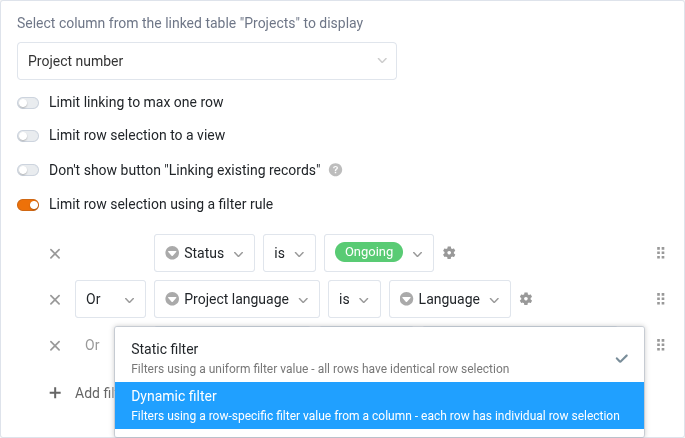
Limit row selection using a filter rule
If you activate this option, the selection of linkable rows can be restricted on the basis of filter rules. The filters themselves can be static or dynamic:
- With a static filter, you use a uniform value to filter the rows in the linked table (e.g. only rows that do not have the value “archived” are linkable). The effect is therefore similar to the Limit row selection to a view option.
- With a dynamic filter, the value used for filtering the rows in the linked table is a column value of the active row (e.g. only rows whose status is identical to the status of the active row can be linked). Rows with different filter values therefore have different linkable rows.
View options of the link dialog
The link dialog of a link column also provides you with various view options.
Adjust the size of the window
To have all linked records at a glance, you can adjust the size of the link dialog window. To do this, simply move the mouse over one of the outer borders until the cursor turns into a double arrow, and drag the border in the desired direction while holding down the mouse button.
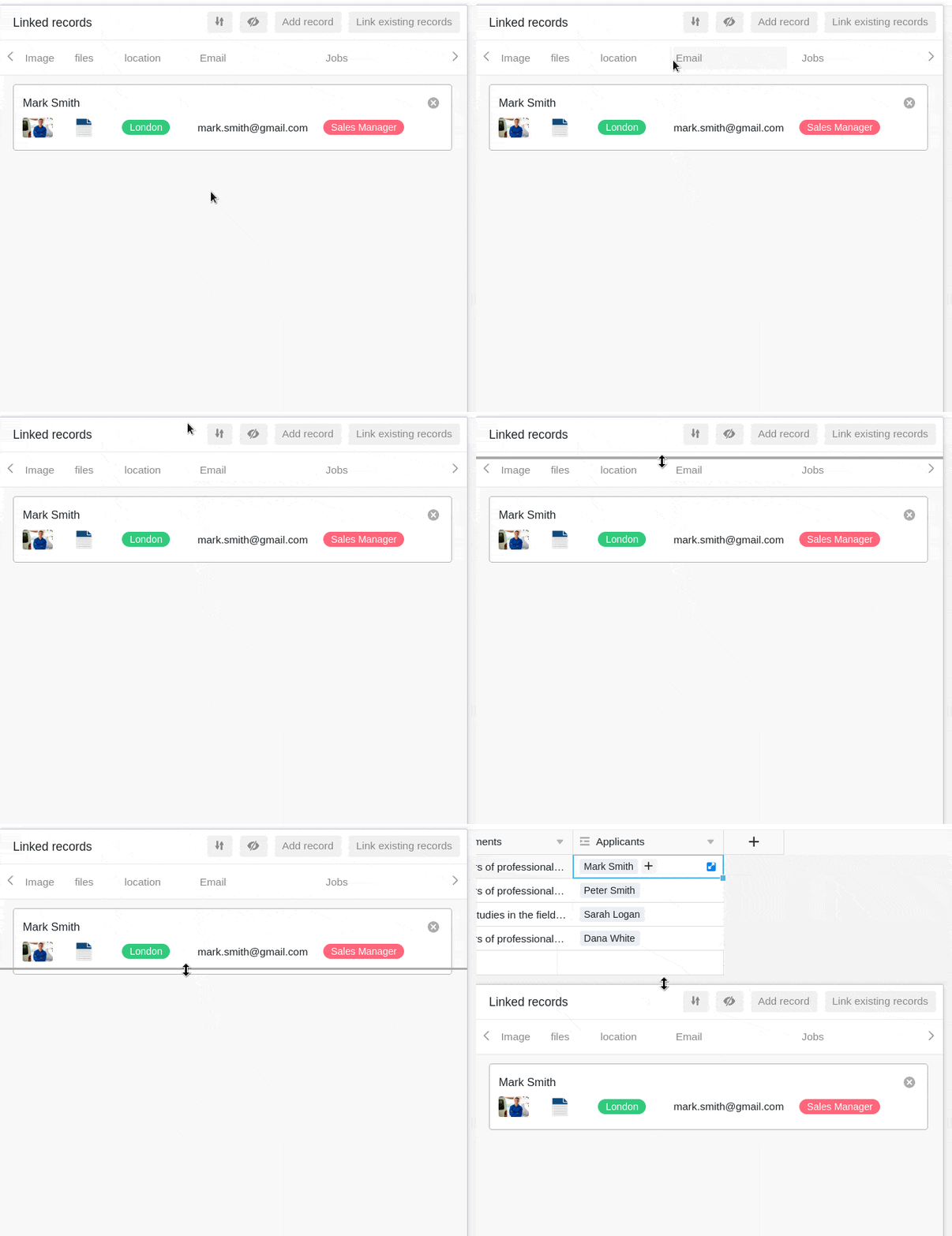
Adjust column width
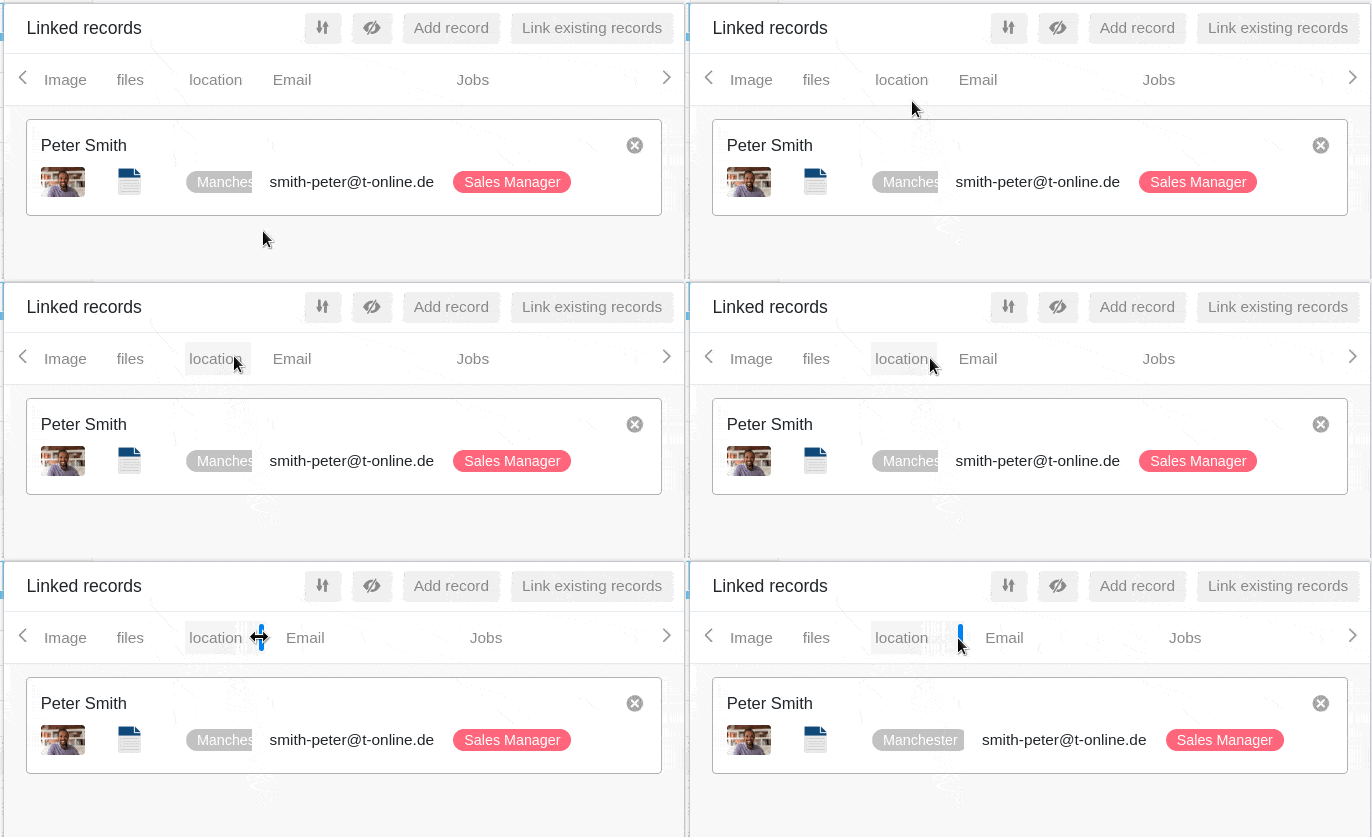
To fit more column records of the linked rows into the window, you can also adjust the width of the displayed columns in the link dialog. To do this, move the mouse over the area between two column names until the cursor turns into a double arrow, and drag the invisible boundary line to the left or right while holding down the mouse button until you reach the desired column width.
Hide columns
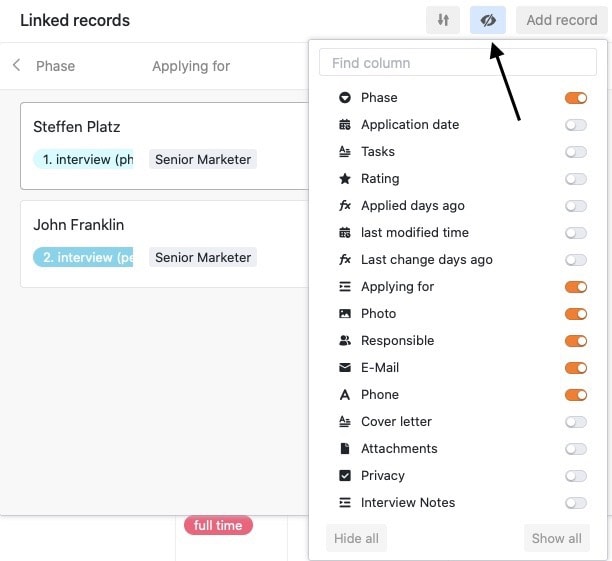
To make the link dialog even clearer, you can hide any number of columns of the linked records by clicking on the eye symbol. A window opens in which you can (de)activate the individual columns with sliders. Accordingly, the columns are hidden or displayed in the overview of the linked records.
Sort records
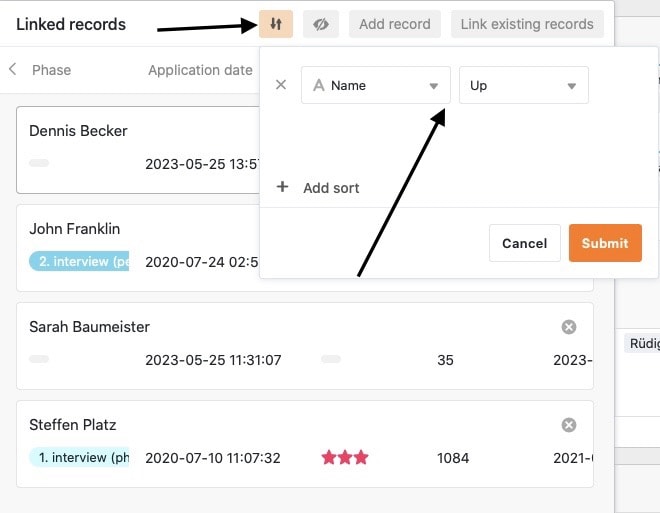
You can sort the linked records in the link dialog by clicking on the arrow icons. Use this function, for example, to display linked records in alphabetical order based on a text column or to sort them by another column.
Use data from linked records: lookup, rollup and more
Linked records first show only one value from the other table, for example the name. To pull in, count or summarize more values, add a link formula column. Five formulas are available:
| Formula | What it does | Example |
|---|---|---|
| Lookup | pulls the values of a column from the linked records | show the customer’s phone number in the order |
| Rollup | summarizes the values of the linked records, e.g. as a sum or average | revenue per customer from all orders |
| Countlinks | counts the linked records | number of orders per customer |
| Findmax | finds the linked record with the highest value | a customer’s latest order |
| Findmin | finds the linked record with the lowest value | a customer’s first order |
Link formulas also work across several levels: a lookup can refer to a lookup or rollup column in the linked table. For example, an order item can show the customer’s name: the order pulls it from the customers table with a lookup, and the order item looks up this column of the order.
See relationships at a glance: the relationship diagram
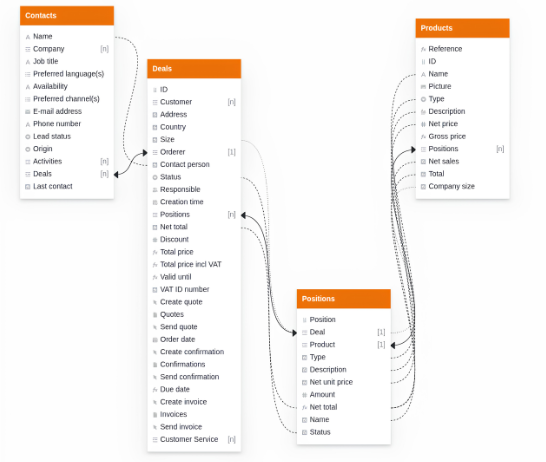
With many linked tables, it is easy to lose track. The table relationships plugin shows all tables of a base with their columns as a relationship chart, a diagram of your data model. Solid lines stand for direct links via link columns, dashed lines for indirect connections via link formulas such as lookup or rollup. You can export the diagram as an image.
Limits
- Changing the column type later: An existing column cannot be converted into a link column. Create a new column instead (see Frequently asked questions).
- One column per lookup: Each lookup column pulls the values of exactly one column of the linked table. For more values, add more lookup columns.
Frequently asked questions
Can SeaTable handle many-to-many relationships?
Do I need SQL to link tables?
Are linked records kept when importing from Airtable?
I can't find this column type. Can't I create a link?