Table of Contents
The text column is one of the most basic column types in SeaTable and is also displayed first in the column type selection menu.
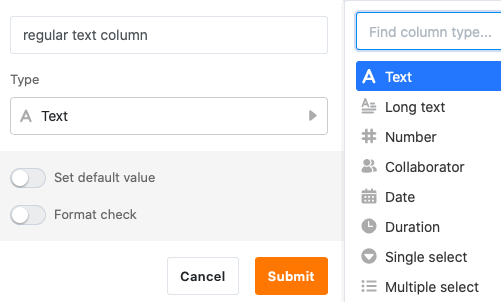
By default, SeaTable automatically adds a text column as the first column to every newly created table. In addition, you can manually add as many text columns to your table as you like. You can find out how to do this here.
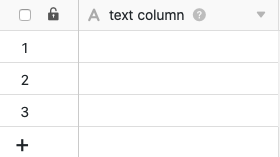
The first column of a table has several peculiarities, as you can read in the linked article.
Using the text column
The text column is particularly suitable for collecting and sorting short alphanumeric strings, for example terms, names, passwords, license plates or IBANs.
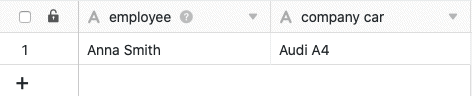
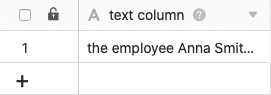
When using the column, it makes sense to keep the entries as short as possible, since only a limited number of characters can be displayed without having to increase the column width.
Other text-based column types
Please note that no formatting options are available for entries in the text column. If you want to capture structured texts with line breaks, lists, images, etc., you should use the Formatted Text column.
There are three other text-based column types in SeaTable for special use cases:
- the email column
- the URL column
- the phone number column
Set default value
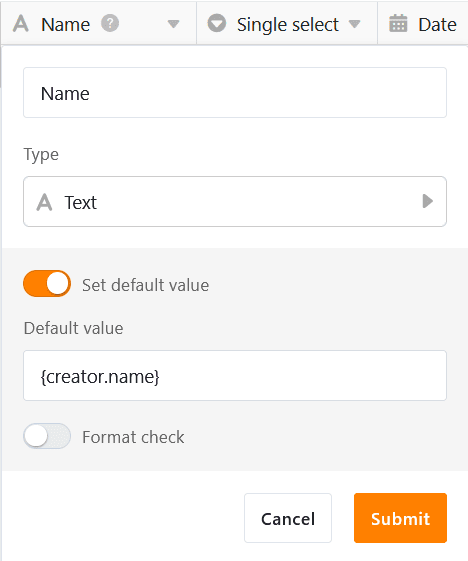
You can define a preset default value for each text column. This is automatically entered in every new row of the table.
If you set the {creator.name} or {creator.id} reference as the default value, the name or ID of the user who added the row is automatically entered.
Validate inputs
When using text columns in your tables, you have the option to validate inputs. Using validation that supports regular expressions, you can validate cell values and highlight cells with content that deviates from the valid format.
You can set up the format check as early as when creating a text column by activating the slider.
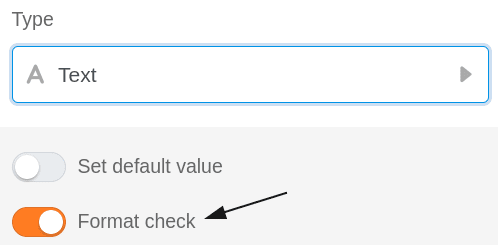
If you want to validate the entries in an already created text column, first click on the triangle icon of the corresponding column and select Customize Column Type from the drop-down menu.
- Activate the Validate input slider
- Define a target format.
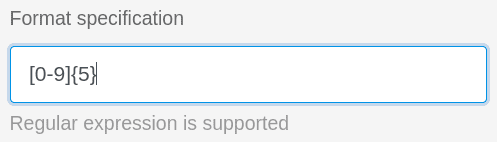
- Confirm with Submit.
Consequence of validation
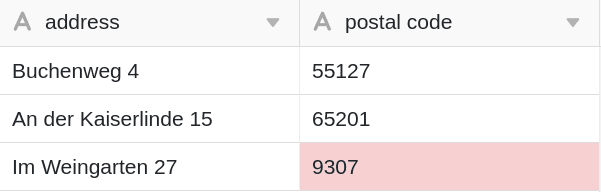
After successful validation, the cells with content different from the target format will be highlighted in red.
Regular expressions
SeaTable supports regular expressions for validating your entries in text columns. You can find some examples in the following table:
| Regular expression | Function |
|---|---|
| [123456] | Check whether an input corresponds to a school grade from 1 to 6. |
| [1-9][0-9]?[0-9]?[a-z]? | Check format of a German house number (3 digits + 1 letter) |
| [0-9]{5} | Checking the format of German postal codes (5x a number between 0 and 9) |
| [0-9/. \-]+ | Checking the format of a phone number |
| Max.*Mustermann | Search for a possible middle name of an author |