Table of Contents
With a link formula, you can display, summarize or relate data from linked tables in your current table: look up values, roll up values into a sum or average, or count linked records. This is where SeaTable shows its advantages as a relational database.
A total of five different formulas are available for the column type. The prerequisite for using the column is the existence of at least one column of the type Link to other records in your table.
Create a link formula column
To apply a formula, you must first add a new link formula column to your table.
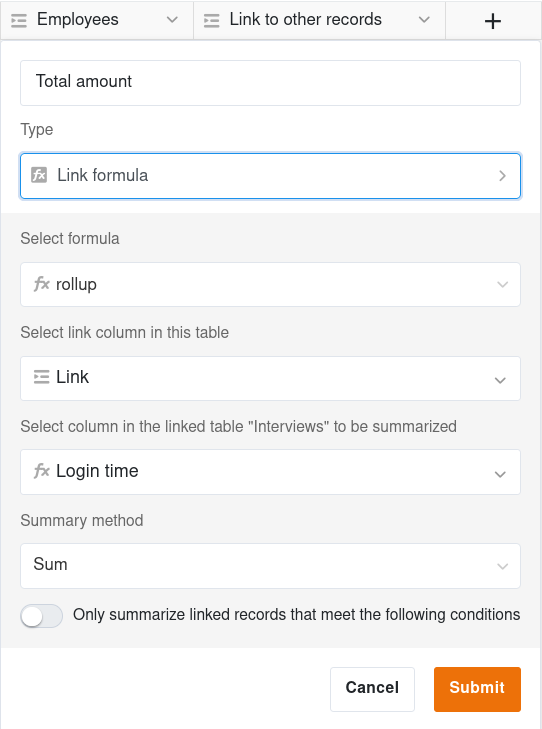
- Click on the Plus symbol to the right of the last column.
- Give the column a Name.
- Select Link formula as the column type.
- Decide on a Formula (e.g. Rollup).
- Select the Link column of the table from which you want to use data.
- Specify the column in the linked table to which the formula should refer.
- Depending on the formula selected, you can make further settings.
- Create the column with Submit.
5 link formulas
The examples refer to a base with the tables Customers and Orders, as in the guide to the link column. You can find more information in the articles on the individual formulas:
| Formula | What it does | Example |
|---|---|---|
| Lookup | pulls the values of a column from the linked records | show the customer’s phone number in the order |
| Rollup | summarizes the values of the linked records, e.g. as a sum or average | revenue per customer from all orders |
| Countlinks | counts the linked records | number of orders per customer |
| Findmax | finds the linked record with the highest value | a customer’s latest order |
| Findmin | finds the linked record with the lowest value | a customer’s first order |
Formulas across several levels
A lookup can also refer to a lookup or rollup column in the linked table. This lets you work across several linked tables: an order pulls the customer’s name with a lookup, and an order item linked to the order looks up this column.
The table relationships plugin shows as a chart which tables are connected through which formulas.
Formatting the results
Each formula in SeaTable has a number, a date or a text/string as a result. The results in a link formula column are automatically assigned a specific format. If you are not satisfied with this, you can re-detect it. To do this, click on the drop-down arrow to the right of the column name and then on Edit format settings.
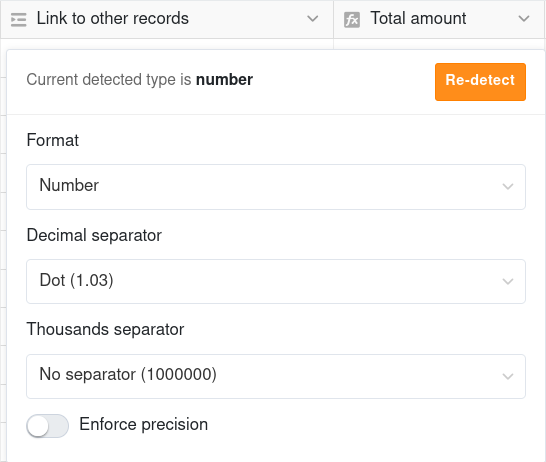
For countlinks and rollup columns, different format settings for numbers are available: percent, currencies or duration as well as decimal separators, thousands separators and precision.