Table of Contents
In an app you can create as many pages, folders and links as you like to make the data in a base accessible to a specific user group, to organize it and to present it in an appealing way.
Manage pages in apps
There are a variety of page types that you already know from other places in SeaTable and can create in your app with just a few clicks.
Create a new page in an app
- Open a base to which you have already added an app.
- Click Apps in the base header.

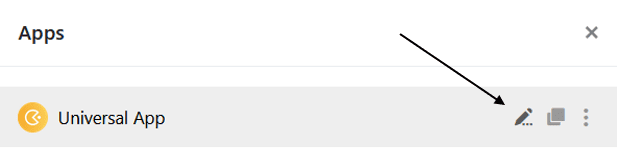
- Hover your mouse over the app and click the pencil icon .
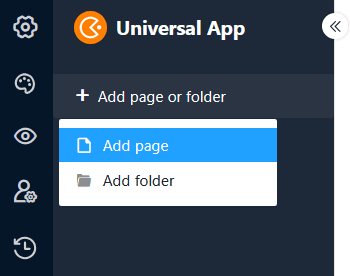
- Click on the orange circle with the plus symbol in the top left and then select Add page.
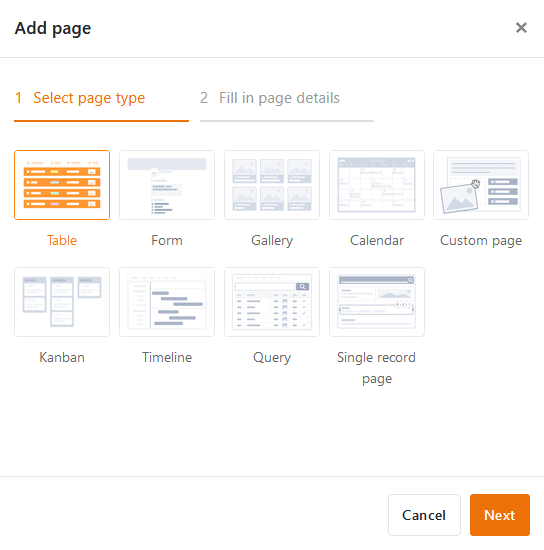
- Select one of the page types
and click Next.
- Give the page a name, define the underlying table and optionally specify an icon for the page.
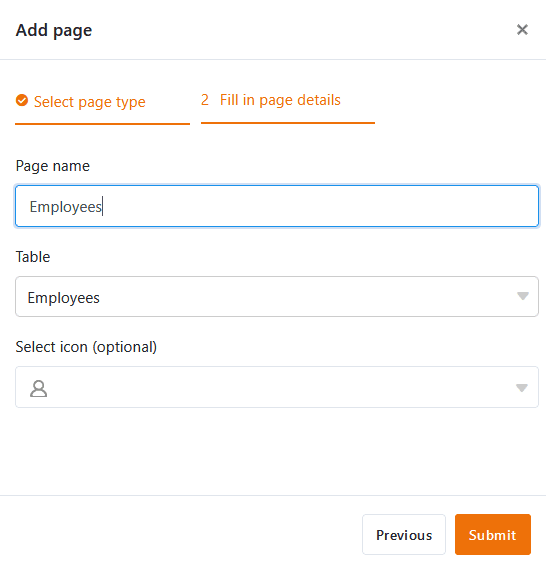
- Confirm with Submit.
Edit the name and icon of a page
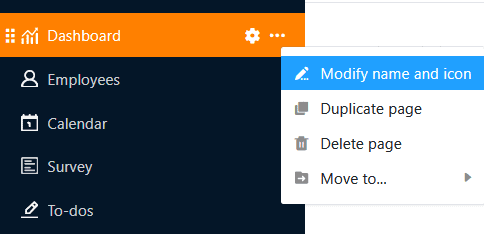
When creating new pages, it often has to be done quickly and you spontaneously choose a name that you want to change later. This is why you can rename pages at any time using the three dots and also change the page icon in this way.
Duplicate page
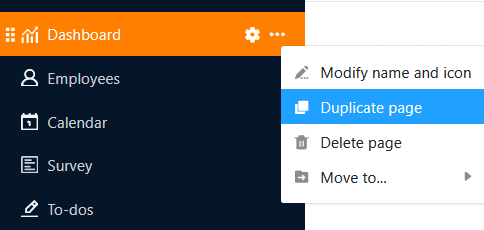
The configuration of pages in the SeaTable App Builder can take a lot of time – especially for individual pages such as dashboards. If you have already created pages that you only want to modify slightly, the SeaTable App Builder offers a function that will save you a lot of time and effort: Click on the three dots and select Duplicate page. The copy takes over all content, settings and authorizations one-to-one from the original page.
Delete page
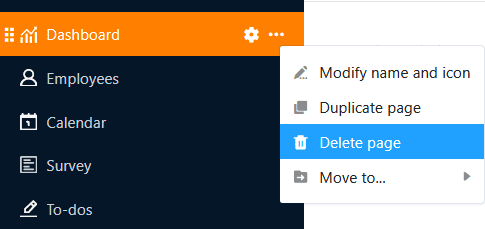
You can delete pages that are no longer required from your app at any time. Please note that the deletion is final and deleted pages cannot be restored. However, the data will of course remain stored in the underlying base.
Move page
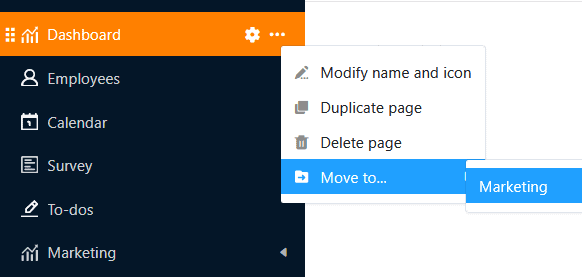
If you have already created a folder in your app, you can move your pages to it using the three dots.
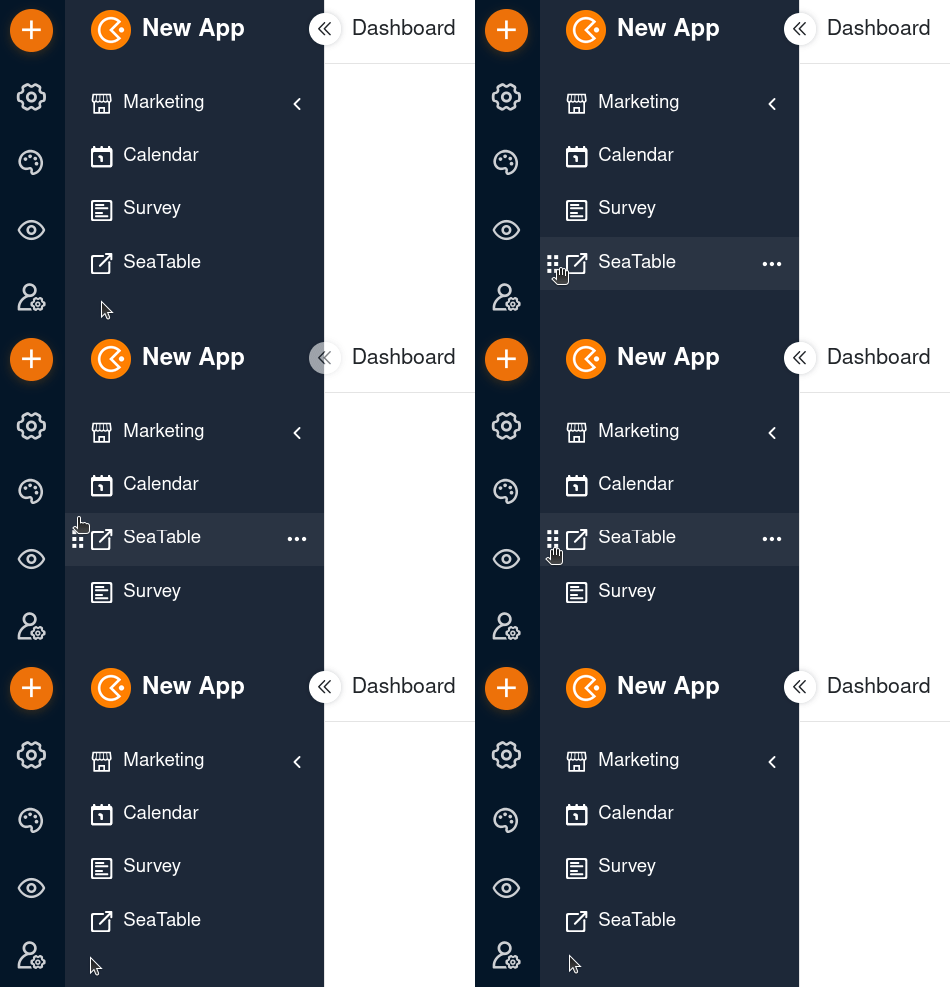
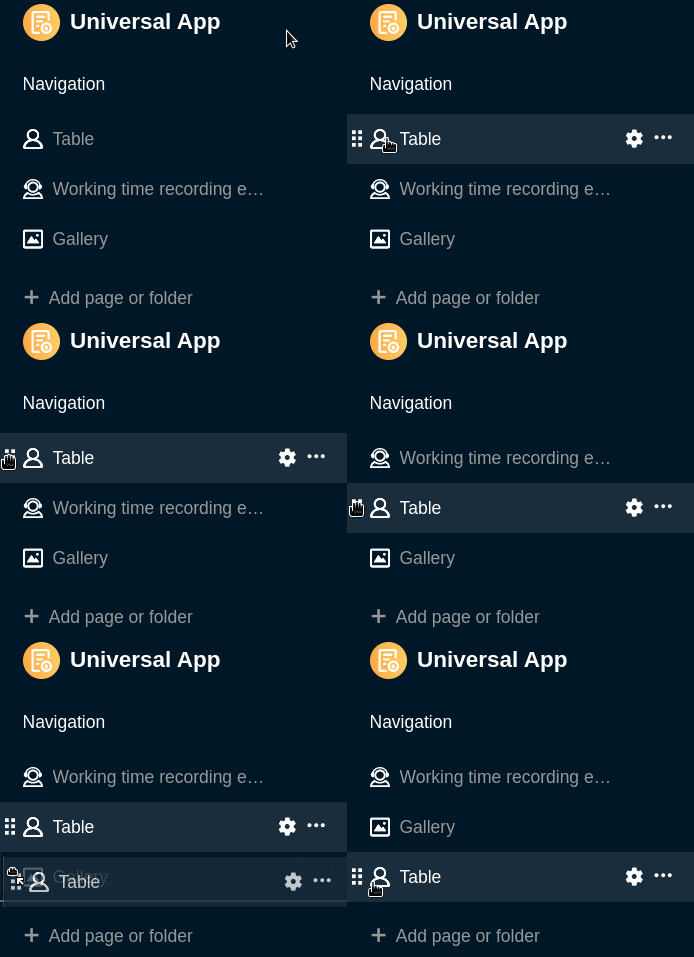
Alternatively, you can also move pages using drag-and-drop. To do this, hold down the mouse button on the six dots in front of the page icon, drag the page to the desired position in the navigation and release.
Manage folders in apps
With a large number of pages and links, folders are helpful to group pages and links thematically and make navigation clearer for users.
Create a new folder in an app
- Open a base to which you have already added an app.
- Click Apps in the base header.
- Hover your mouse over the app and click the pencil icon .
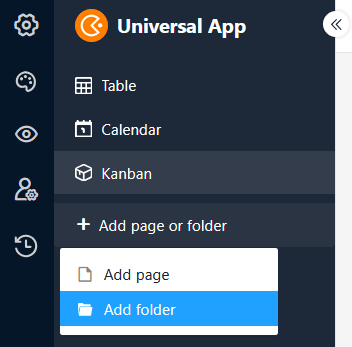
- Click on the orange circle with the plus symbol in the top left and then select Add folder.
- Name the folder and optionally choose a suitable icon for it.
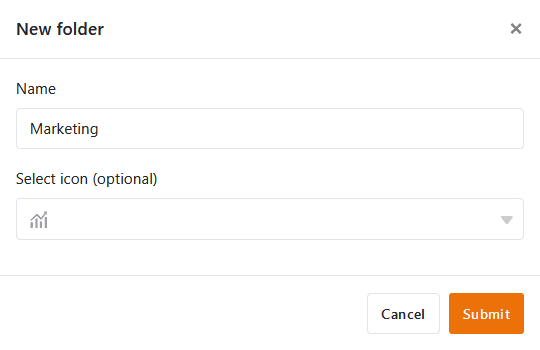
- Confirm with Submit.
Add page to folder
If you have already created a folder in your app, you can click on the three dots in this folder and add a page directly.
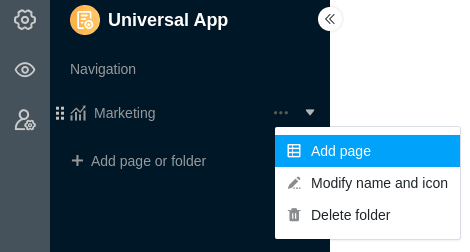
You can also add an external link to the folder in the same way.
Edit the name and icon of a folder
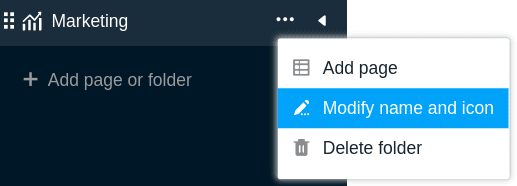
You can rename folders in your app at any time using the three dots. In addition, you can also customize the icon of your folder this way.
Delete folder
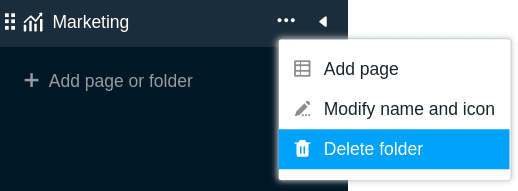
You can delete folders that are no longer required from your app at any time. Please note that all pages in the folder will also be deleted. The deletion is final. This means that neither the folder nor the individual pages can be restored afterwards.
Move folder
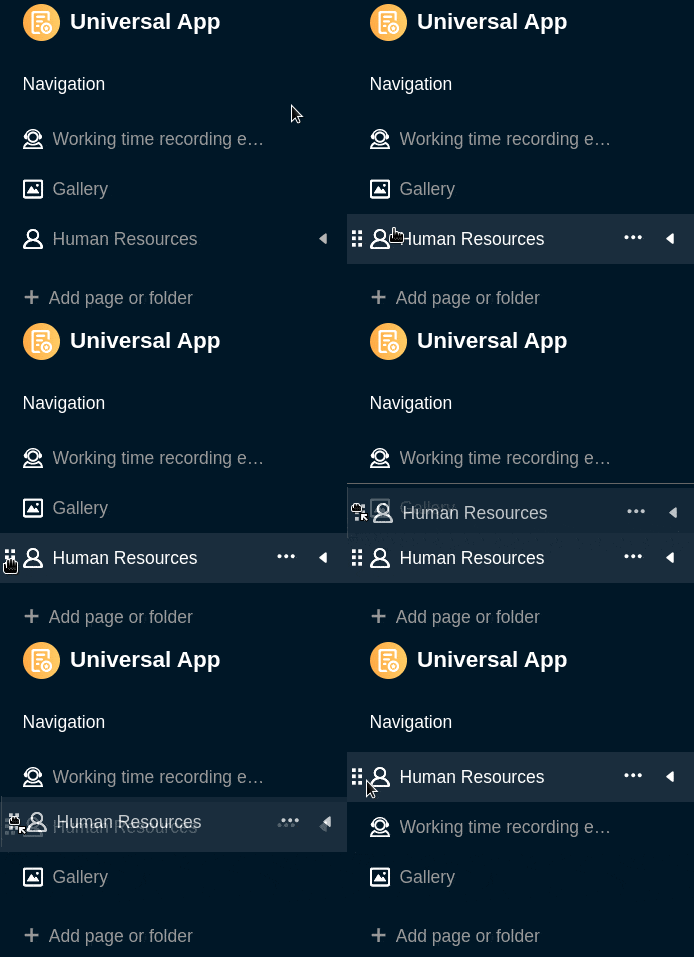
You can only move folders using drag-and-drop. To do this, hold down the mouse button on the six dots in front of the folder icon, drag the folder to the desired location in the navigation and release.
Manage external links in apps
Occasionally you may want to refer to resources that are not stored in SeaTable. Simply add an external link in the navigation so that app users can open the corresponding website with a mouse click.
Create an external link in an app
- Open a base to which you have already added an app.
- Click Apps in the base header.
- Hover your mouse over the app and click the pencil icon .
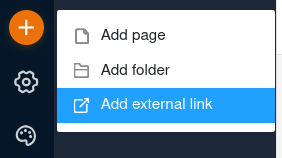
- Click on the orange circle with the plus symbol in the top left and then select Add external link.
- Enter the link address and a title.
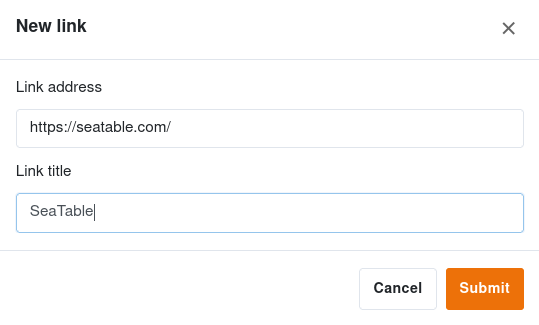
- Confirm with Submit. When you then click on the link in the navigation, the desired website opens.
Edit the address and title of a link
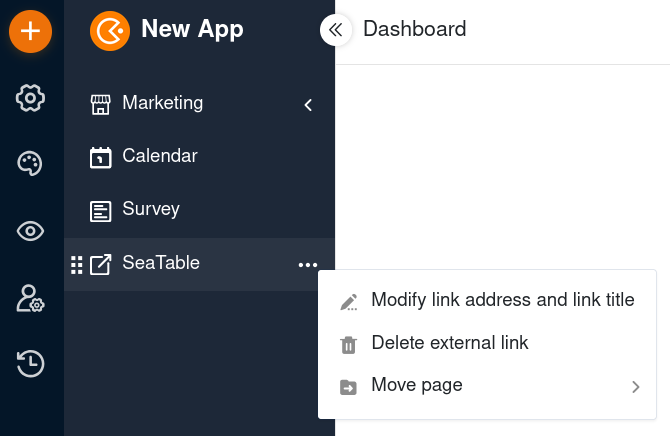
Using the three dots you can rename the link and adjust the link address at any time.
Delete link
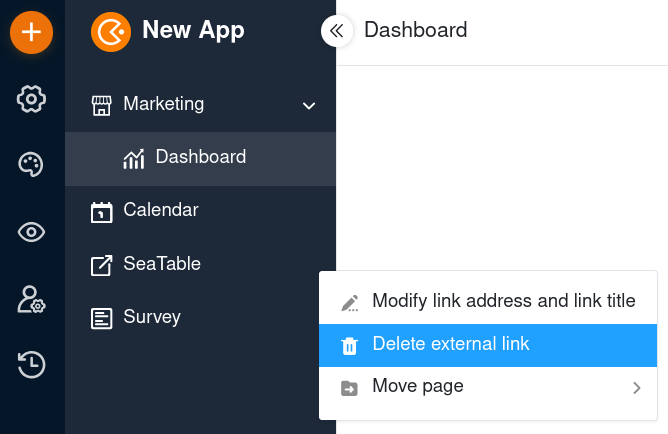
You can delete links that are no longer required from your app at any time. Please note that the deletion is final and deleted links cannot be restored.
Move links
If you have already created a folder in your app, you can move links to it using the three dots.
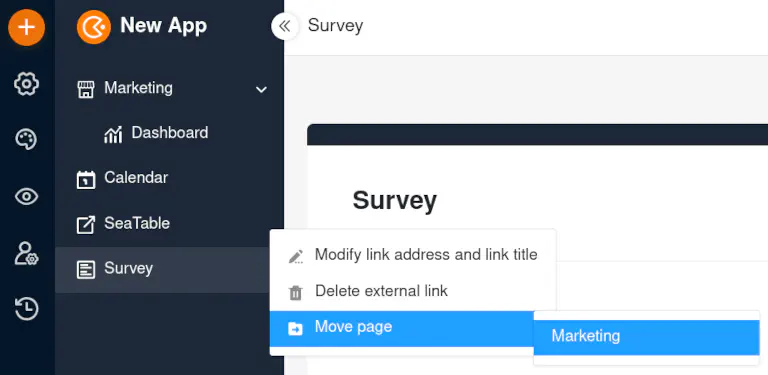
Alternatively, you can also move links using drag-and-drop. To do this, hold down the mouse button on the six dots in front of the link icon, drag the link to the desired position in the navigation and release.