Table of Contents
You have a base full of valuable data. Collaboration begins the moment someone else needs to work with it. In this step you bring in your colleague Malika from Marketing and decide, deliberately, how much of your base she is allowed to see and change.
This is where your two windows come into play. You act as the owner of the base in your main window 🌐, and you check the result through Malika’s eyes in her private window 🕶. From here on, every instruction is tagged with the window it belongs to.
Team membership is not the same as base access
In the introduction you added Malika to your team. It is worth being clear about what that did and did not do. Being a team member means Malika exists in your team — you can share bases with her, @mention her, and add her to groups. It does not give her access to any of your bases. Each base is shared separately and on purpose, so nothing is exposed until you decide to share it.
So Malika is in the team, but looking at her home page right now, your Sales CRM base is nowhere to be seen. Let’s change that.
Sharing your base with a colleague
Malika needs to work in your base, so you will share it with her. Because Malika is in Marketing and your base belongs to Commercial, the right tool here is a direct user share — you hand access to one named person.
In your window 🌐, on the SeaTable home page, open the Sales CRM tile’s menu and choose Share. Under Share to user, select Malika, set the permission to Read-Write, and submit.
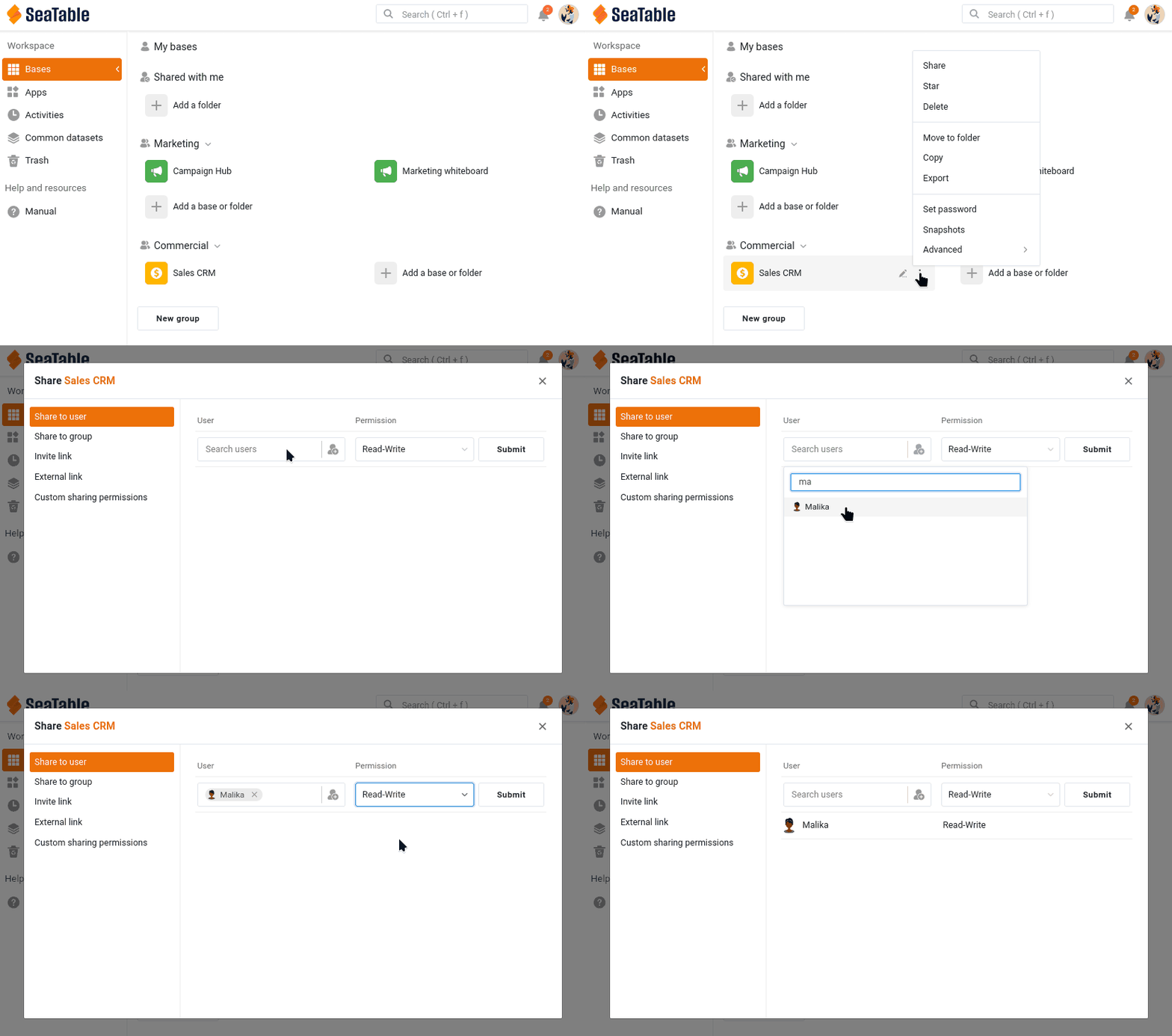
You can also open this dialog from inside the base, through the share icon in the top-right base options.
Please note that you’ll have to type either the username or the whole user email address for the system to find the corresponding user.
You can also share a base with a whole group, but only a group you are a member of — and then everyone in it sees the base. That makes group sharing the way to give the rest of your own Commercial team access, not a way to reach another department. To get data to a separate team like Marketing without adding yourself to their group, you use a common dataset — which is exactly what Step 5 is about.
Now switch to Malika’s window 🕶. The first thing she sees is the notification bell at the top right of her home page showing a new alert: SeaTable has told her that a base was shared with her. Refresh the page and the Sales CRM base also appears in her workspace, in the Shared with me section. Open it, and you can read and edit the data — Malika is now collaborating on your base.
Choosing the right permission level
When you share a base, there is an important decision to make. SeaTable offers three ways to share a base, from the simplest to the most precise.
| Permission | What the colleague can do | When to use it |
|---|---|---|
| Read-Only | See every table, view and value, but change no data. They can still add comments and be @mentioned, so they can take part in the discussion — read-only locks the data, not the conversation. They can also make their own private copy of the base, which is not connected to yours. | The colleague only needs to consult the data, but can still discuss it. |
| Read-Write | See and edit the whole base. They cannot rename the base, install plugins, or re-share it — those stay with the owner. | The colleague is a full working partner on all of the data. |
| Custom sharing | See and edit only the specific tables and views you pick, each set individually to read-write, read-only, or no access at all. | The colleague should work with part of the base but be kept out of the rest. |
For this course you chose Read-Write, so that Malika can take a full part in the steps that follow — commenting, editing, and showing up in the activity log. It also means she can change your data, and even get something wrong, as you will see in Step 4. Keep that share in place.
When a colleague should see only part of the base
Read-Write gave Malika the whole base — including the Deals table and the confidential Total Deal Value and Weighted Value figures you flagged in Step 1. For a close working partner that may be fine. But Malika is in Marketing, and the sales pipeline is need-to-know. This is exactly what Custom sharing is for.
With a custom share you build one permission that bundles several tables and views, each with its own level. For Malika you could, for example:
- give Read-Write access to the
Customerstable, so she can still work with the contact list. - give no access at all to the
Dealstable, keeping the whole pipeline out of her hands. - or, more finely, share only the
Active Customersview rather thanAll Customers, so the confidential columns hidden in that view never reach her.
This is the precise tool for “work with these contacts, but the revenue figures are not yours to see.”
Custom sharing is not the only way to narrow down what someone sees. You can also share an individual view on its own — directly with a team member or a group, or as a Read-Only external link for people who have no SeaTable account at all. Because a view already carries its own filter and hidden columns, sharing just the Active Customers view hands over exactly that slice and nothing more. Like custom sharing, sharing a view is a Plus and Enterprise feature.
A different route avoids base sharing altogether: build a Universal App on top of the base. In an app you design pages of several types, and table pages can use preset filters, sorting and hidden columns, so the people who use the app only ever see the slice you chose to expose — never the underlying base. This suits a wider audience of data consumers rather than collaborators working inside your team.
Taking access away again
Sharing is not permanent. To stop sharing, open the share dialog again and remove Malika.
It is worth seeing this from the other side. While Malika has the base open in her window 🕶, revoke her share from your window 🌐. Back in Malika’s window, refresh or click into the base, and SeaTable tells you the permission was denied — the access is gone the moment you remove it. This is the safety net behind sharing: access is something you grant and can withdraw at any time. For the rest of the course, share the base with Malika again as Read-Write so she can keep working alongside you.
Try it yourself
If you are on a Plus or Enterprise plan, go further than the whole-base share you just set up: build a custom share that gives Malika the Customers table but no access to Deals, and confirm in her window 🕶 that Deals has vanished entirely. That is the precise table-level control the free plan does not offer — and one reason Step 5’s common dataset exists as the free way to share only part of your data. Switch back to a plain Read-Write share afterwards, so Malika keeps full access for the next steps.
Malika can now see and edit your data. But editing in silence is a recipe for confusion — next you will learn how to discuss specific records in context.