Table of Contents
Once several people can edit the same base, a new question appears: who changed what, and when? And the follow-up: if a change was wrong, how do you undo exactly that change without disturbing everything else? SeaTable answers both. It quietly records every edit, and it lets you reverse a single one of them. In this step a colleague’s change goes wrong, and you set it right.
You will work mostly in your window 🌐, but the history you read shows both of you, because you and Malika have both been editing this base since Step 2.
Where SeaTable keeps the history
SeaTable records changes in three places, each answering a different question.
- The activity log on the home page answers “what happened across all my bases lately?” It lists changes from you, your team members and automations, but only for the last 7 days.
- The base log answers “what happened in this base?” You open it from the versions icon within the history dropdown in the base’s top-right corner. It holds the most recent changes (up to the last 1,000 entries), newest first, and you can filter it by who made the change, which table, and when. This is the only one of the three from which you can restore.
- The row log answers “what happened to this one record?” You open a row’s details and switch to its log. It is a focused, read-only timeline for that single row.
The three do not go into the same detail, and that difference shapes the rest of this step. The row log is the precise one: for each change it names the column and puts the value that was replaced next to the one that replaced it. The base log works at the level of the record — who changed which row, in which table, and when — but not which value changed, nor what it was before. So you read a change in the row log, and you undo it in the base log. This step uses both, in that order.
A colleague changes your data
Let’s create the situation. Malika had understood that the customer James Bennett just signed a contract. Because you gave her read-write access back in Step 2, she did not need to ask you — she marked it herself.
In Malika’s window 🕶, find James Bennett in the Customers table and change his Status from Prospect to Client directly in the grid.
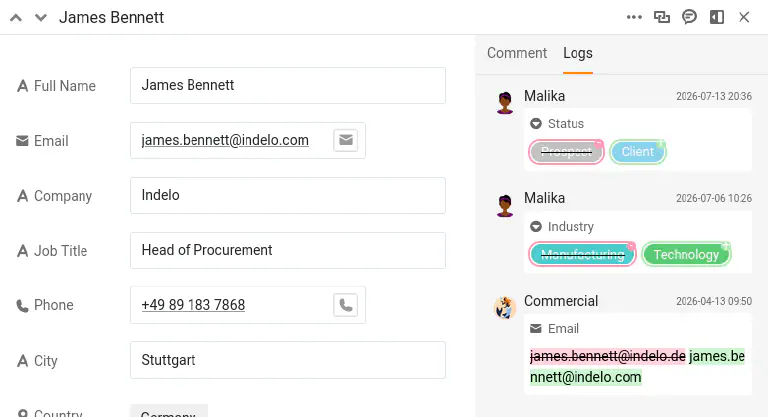
Now switch back to your window 🌐 and open that row’s log to see what happened: click the double-arrow icon on its row number to open the row, then switch to the log. There it is — Status changed from Prospect to Client, stamped with Malika’s name and the time. Note that time; you will need it shortly. Scroll a little and you will also see the Industry change Malika made on this row back in Step 3. With two real accounts at work, the history names each of you correctly, so it is always clear who did what.
A later, unrelated edit
While you have the record open, you notice that James Bennett’s Phone number is out of date. In your window 🌐, correct it — set it to +49 75 899 3917. This is a separate, deliberate change — and, importantly, it happens after Malika changed the Status. Keep that order in mind; it matters in a moment.
The mistake
The phone was easy. The Status is the real problem: James Bennett never signed, so it has to go back to its previous value.
The row log has already told you what that value was: Prospect. So you could retype it and be done. But retyping is not undoing — it is a second change stacked on the first, and it only works here because a single cell is at stake and you had the log open. Restore reverses the change itself, and it reaches where retyping cannot: a deleted row, a deleted column, a whole deleted table. Learn it on the easy case and it is there for you on the hard one.
Restoring a single change
Open the base log from the versions icon within the history dropdown in the top-right corner of the base. It lists every change made in the base, newest first, so narrow it down with the filters along the top: the Customers table, and Malika as the creator.
What is left is a run of entries that all read much the same — Malika modified table Customers, then Row James Bennett modified — because the base log records that a row changed, not which value changed in it. This is where the time you noted earlier earns its keep: the entry stamped with the moment of the Status change is the one to act on.
Open that entry’s menu and choose Restore. SeaTable immediately sets the Status back to Prospect and confirms with a short message. Open James Bennett again to check: he is a Prospect once more.
What Restore really does
Restore is not a time machine that rewinds the whole row to how it looked on a past date. It undoes one specific change — it reverts the value that entry altered, and leaves everything else exactly as it is.
This is easiest to see with the Phone number. You corrected it after Malika changed the Status. A time-machine rollback to before the Status change would have wiped that later correction too — but it stays, because Restore only touches the one change you picked. The Industry value Malika updated back in Step 3 stays as well; only the Status returns to its previous value. You reversed precisely the one mistake and nothing more. That precision is what makes restoring from the log safe to use on a live base that other people are working in.
For deeper recovery — rolling an entire base back to an earlier point, or recovering from a serious accident — SeaTable also offers snapshots and other tools, which are a topic of their own and will belong to a later course on maintenance.
Try it yourself
Find the edge of what the log can undo: add a brand-new row to Customers, then open the base log, find that insertion, and open its menu. Instead of Restore you will see No Options — new rows, new columns and comments cannot be rolled back from the log; only changed and deleted values can. Knowing where Restore stops is as useful as knowing what it does.
You can now trace and reverse changes with confidence. So far, though, everything has happened inside one base. The next step opens up the most powerful collaboration tool in the course: sharing live data with a whole other team.