Table of Contents
Available with Enterprise
You can manage, group and move the automation rules you have created so that you can make adjustments to existing automations at any time.
Manage automation rules
- Open a Base in which you have already created an automation.
- In the base header, click on and then on Automation rules.
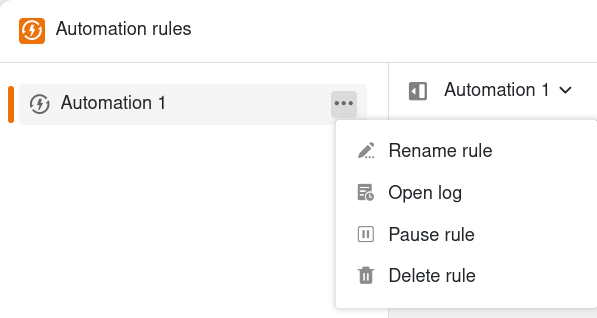
- Move the mouse pointer over the corresponding automation rule and click on the three dots.
- Make the desired adjustments to the automation.
Once you have selected an automation rule, you can also open the same menu by clicking on the title in the central area.
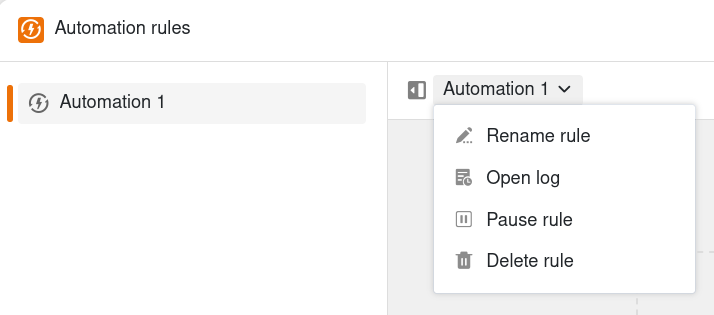
The following management options are available for each automation rule:
- Rename rule
- Open log
- Pause rule
- Delete rule
You can find out more about the individual options in the linked articles.
Group automation rules
To combine automation rules into groups, you can create corresponding folders.
To do this, click on Add rule or folder and then on Folder.
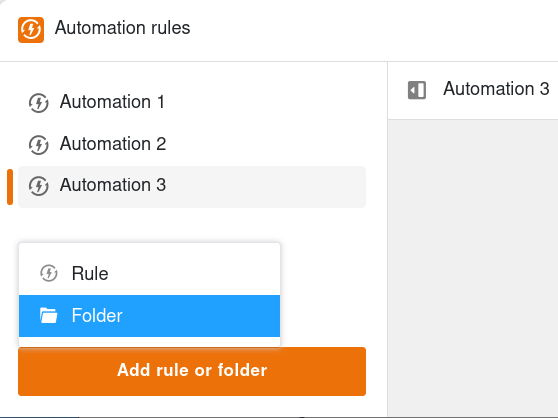
Give the folder a name and confirm with the Enter button.
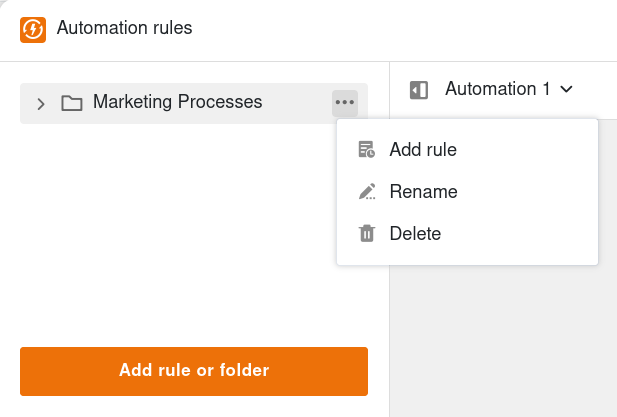
Move the mouse pointer over the folder and click on the three dots to rename or delete the folder. You can also add a new automation rule directly in the folder.
Move automation rules
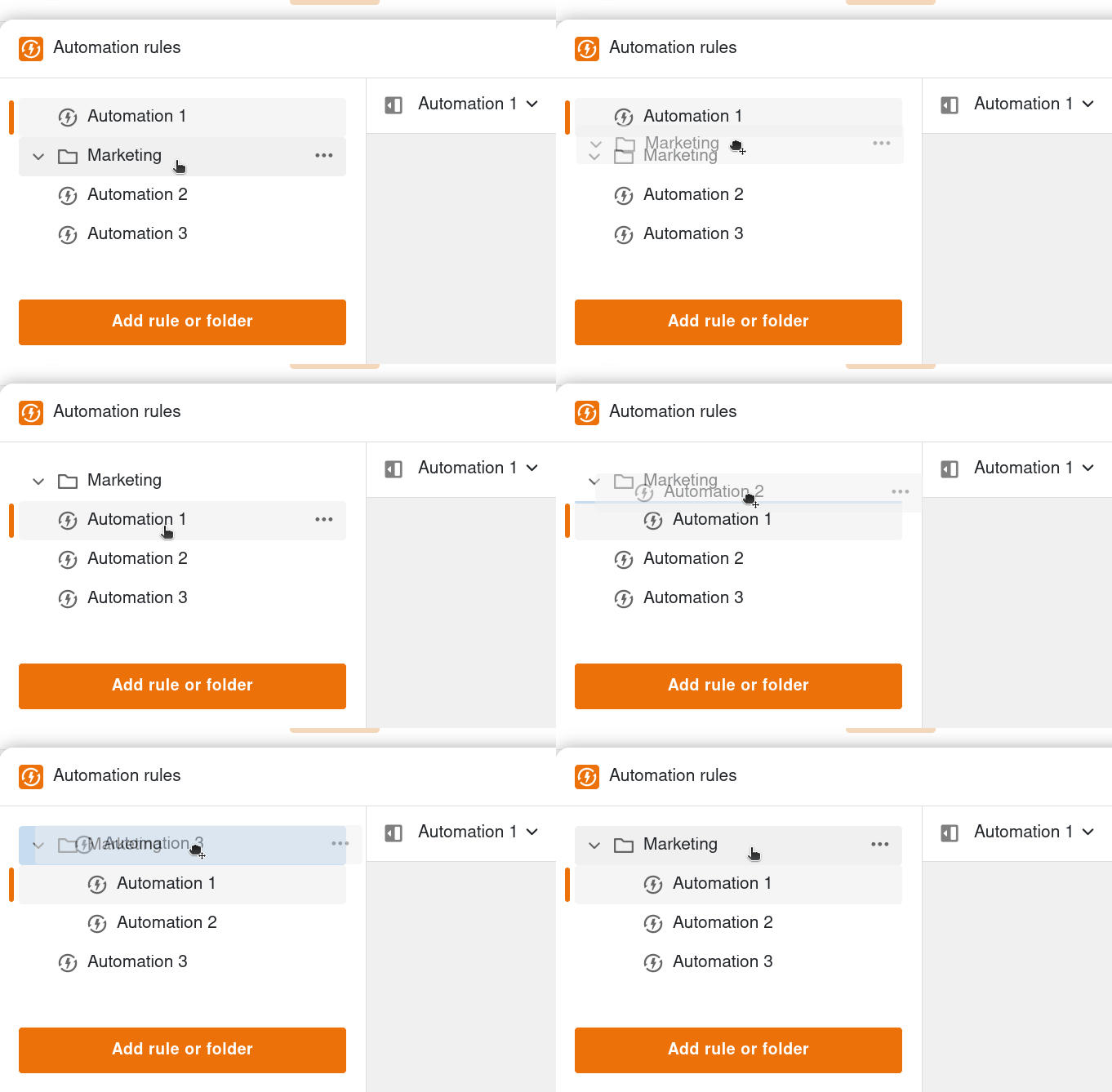
To change the order of the automation rules or move them to a folder, hold down the left mouse button and drag and drop the rule to the desired location. You can move folders in the same way.