Table of Contents
Available with Enterprise
Automations are a useful feature of SeaTable that helps you automate work processes. Consequently, with the help of automations you can not only save time, but also minimize the number of human errors in maintaining your data, since automatically completed process steps no longer need to be performed manually by a user.
Accordingly, automations have a particularly large impact in large data sets where they can handle a high number of work processes.
The following article is intended to give you an overview of the topic of automations in SeaTable and includes links to the various help articles related to this feature.
The SeaTable automation editor
You can access the automation editor of a base via the corresponding icon in the base header.

The automation editor extends across the entire width of the window and therefore enables a clear layout: The list of all existing automation rules is located on the left-hand side. Switching between two rules is therefore just a matter of one click. You can also add new rules and manage existing ones here.
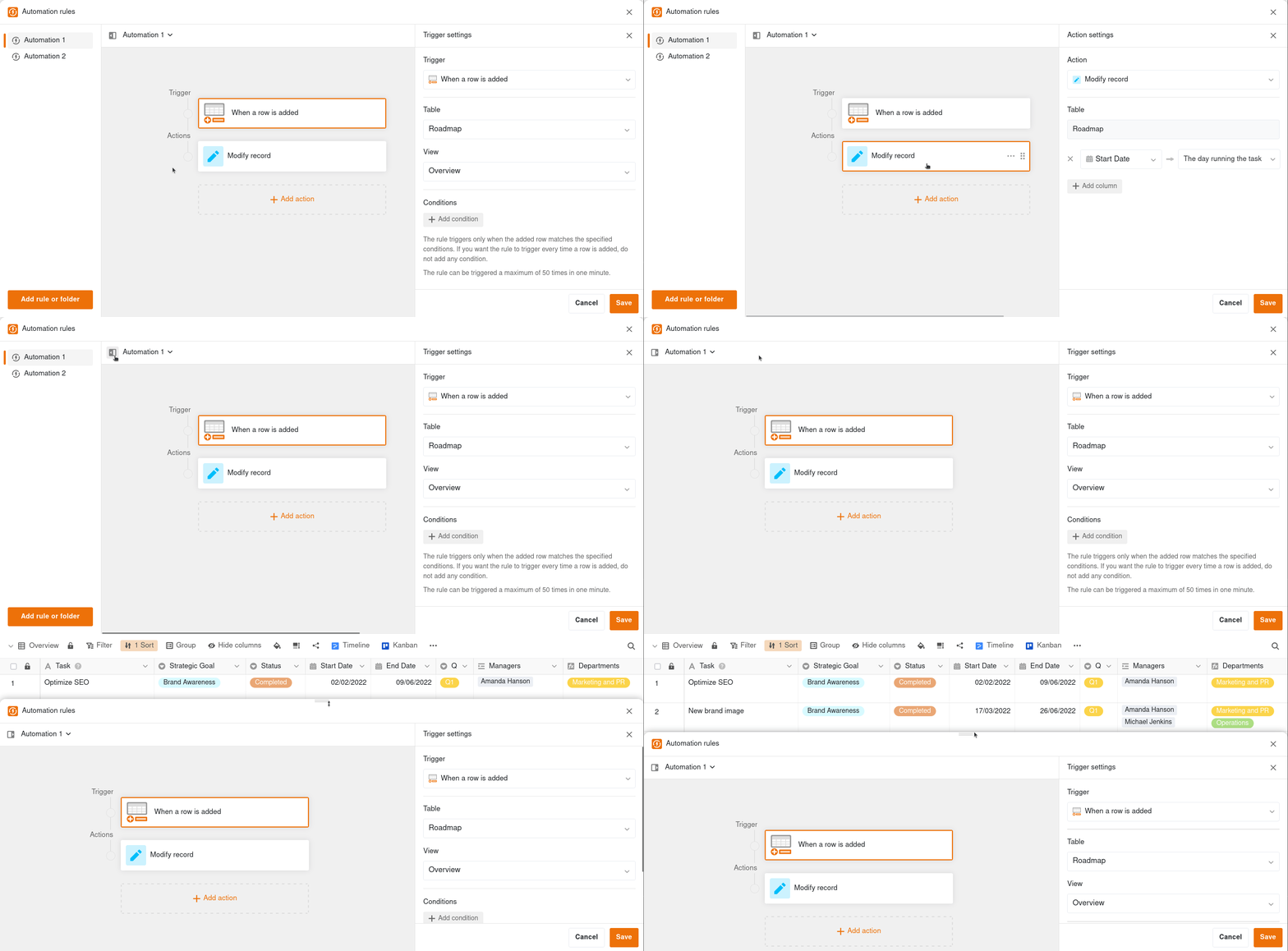
In the central area, you can see the configuration of the currently selected automation. This consists of a trigger and one or more actions. The settings of the trigger or actions are displayed dynamically on the right-hand side – depending on which element you have just clicked on.
You can also collapse the list of automation rules to create more space in the central area. Another convenience factor is the variable height of the editor panel. This allows you to see the view, column names and data records while you are working on an automation.
Create an automation
The first step towards automated work processes is the creation of an automation. To ensure that everything goes according to plan and that the automation rules created have the desired effect, we have summarized the most important information for you in this article.
Learn how to create an automation here .
Manage automations
Of course, you can manage already created, active automations afterwards. In this article, we will introduce you to the settings you can make when automating your work processes.
Learn more about managing automations here .
How automation works
This article basically explains how automations work in SeaTable and is therefore suitable for getting started with the topic of automations.
Learn more about how automations work here .
Automation triggers
Automation triggers represent the first of the two essential components of automations. The triggers, which you can set individually for each automation, trigger different types of automated actions.
Learn more about automation triggers here .
Automation actions
Automated actions represent the second of the two essential components of automations. The actions are triggered by the defined trigger events. Depending on the trigger, SeaTable can perform different automation actions.
Learn more about automation actions here .
Show execution log of an automation
To check the execution of automations, you have the option of displaying the execution log for each automation rule. In this log, you can view information about each automation run.
Learn more about the execution log of an automation here .
Stop automations
Active automations that you no longer need for a certain period of time can simply be paused and reactivated as needed.
Learn how to stop automations here .
Delete automations
You can also delete automations that are no longer needed. Please note that you cannot restore deleted automations.
Learn how to delete automations here .
Lock rows by automation
With the help of automations, you no longer have to manually lock rows in your tables, but can have this lock executed automatically. This is very useful if you always want to prevent a row from being edited further after a certain point in time (e.g. when a process has been completed).
Learn how to lock rows with automation here .
Add rows via automation
With the help of automations, you no longer have to manually add rows with certain values to your tables, but can have these steps performed automatically. This is especially advantageous if you want to automate various process steps in your tables.
Learn how to add rows via automation here .
Add records to other tables via automation
With the help of automations, you no longer have to add records in other tables manually, but can have these steps performed automatically. The great advantage of this is that the trigger does not have to be in the same table as the action that is triggered. This automation is especially beneficial when you use different tables whose contents are related to each other.
Learn how to add records to other tables via automation here .
E-mail dispatch via automation
With the help of automations, you no longer have to send e-mails manually to selected users, but can have them sent automatically. This is especially helpful if, for example, you want to inform users immediately about changes to the data in certain tables.
Learn how to send e-mails via automation here .
Linking records via automation
With the help of automations, you no longer have to link records in your tables manually, but can have these steps performed automatically. This is useful when you need certain data across multiple tables.
Learn how to link records via automation here .
Why can’t I find the automations in my base?
Can’t find the automation function in your bases? It might have something to do with your SeaTable subscription.
Find out here why this may be the case.