Table of Contents
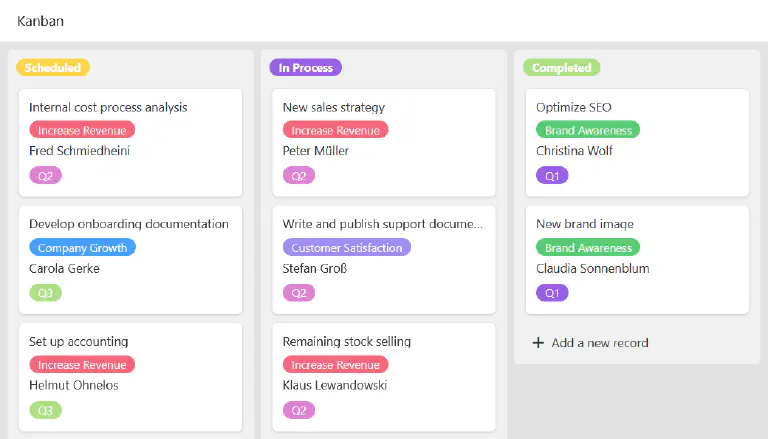
This page type offers you the option of displaying records as cards on a Kanban board. A specific use case could be the visualization of workflows and project progress, for example.
Change page settings
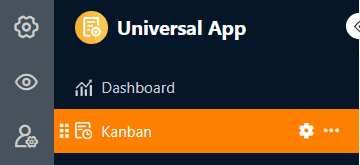
If you want to change the settings of a page, click on the corresponding cogwheel symbol in the navigation bar.
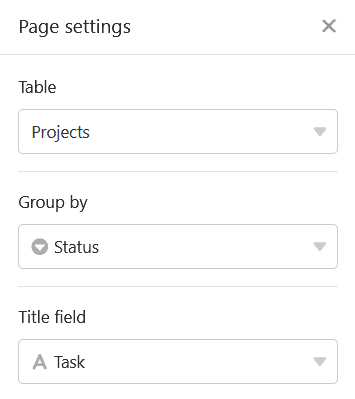
In the page settings, specify which table the Kanban board is based on, which column the entries are grouped by and which column the titles come from.
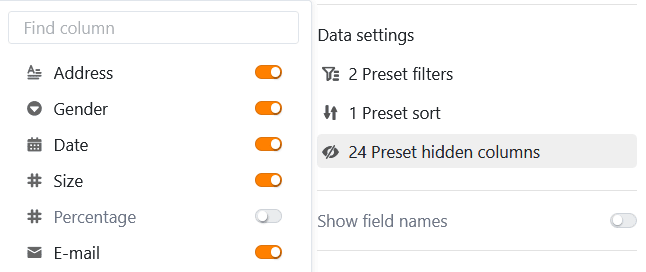
Preset filters, sorting and hidden columns
You can also define preset filters, sorting and hidden columns to limit and organize the data displayed for users. To filter or sort, click on Add filter or Add sorting, select the desired column and condition and confirm with Submit.
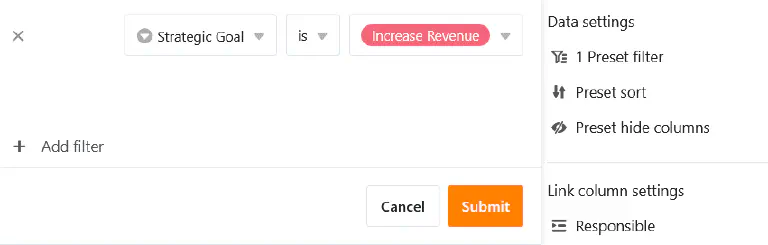
Users can view more information about an entry by clicking on a tab. Therefore, decide which data should be visible and show or hide the corresponding columns using the sliders.
Link column settings
In the settings for the link column, you can define for each linked table which data is visible and editable and which operations are permitted. Depending on the configuration, users may create new records in the linked table as well as link, modify and remove existing records. This allows you to control the respective permissions precisely.
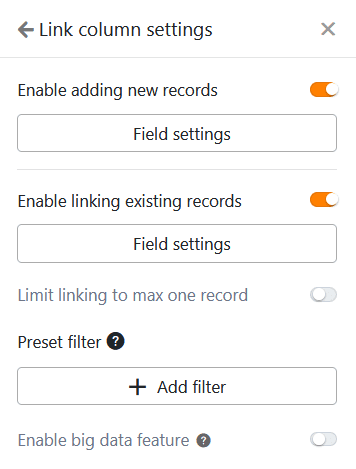
- Column settings for the linked table: Here you can define exactly to what extent the following authorizations apply to specific columns.
- Create and link new records: If you activate this slider, users can add new entries to the linked table. You can use the column settings to define which columns are visible and which columns are required, i.e. must be filled in.
- Link existing records: If you activate this slider, users can link existing entries in the linked table. You can use the column settings to define which columns are visible.
- Preset filters: If you add a filter here, only options that fulfill the filter conditions will be displayed when linking entries.
- Enable big data feature: If the big data function is activated, users can search through more than 20,000 data records, provided there are this many entries in the linked table.
- Modify linked records: If you activate this slider, users can edit existing records in the linked table. You can use the column settings to define which columns are editable.
- Remove existing records: This authorization lets you specify whether users are allowed to delete existing links.
- Limit links to a maximum of one row: If you activate this slider, users can only link to one row of the linked table in the cells of the link column.
Further page settings
With three further sliders you can set SeaTable not to display empty rows , to display the column names on the index cards and to wrap text.
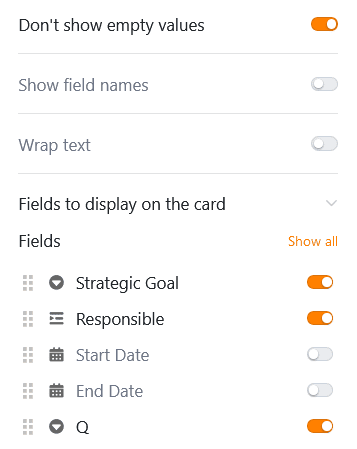
You can also display other data from the underlying table on the index cards: Activate any number of fields to be displayed.
Page authorizations
You can define the following page authorizations for Kanban pages:
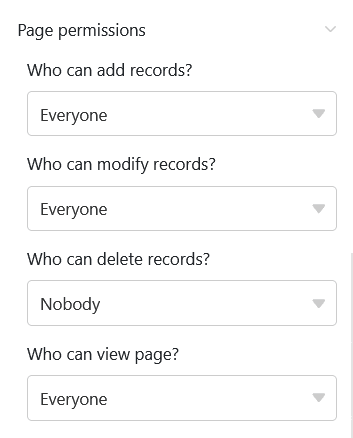
Decide who can view, add, edit and delete the Kanban page rows. Thanks to the differentiated authorization options of this page type, you can set this precisely.