Table of Contents
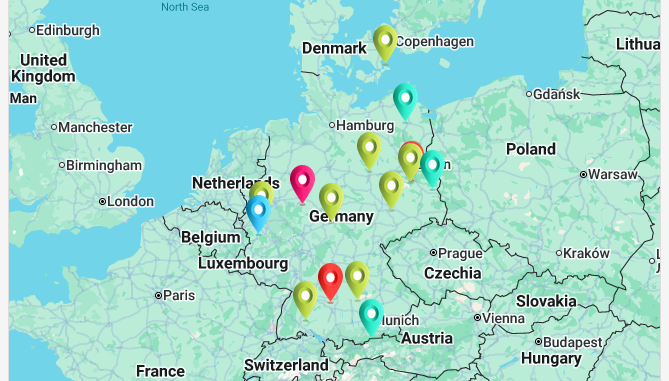
This page type allows you to display locations, using geoposition or address data from a table, on a world map within the app.
Page settings
If you want to change the settings of a page, click on the corresponding gearwheel icon in the navigation bar.
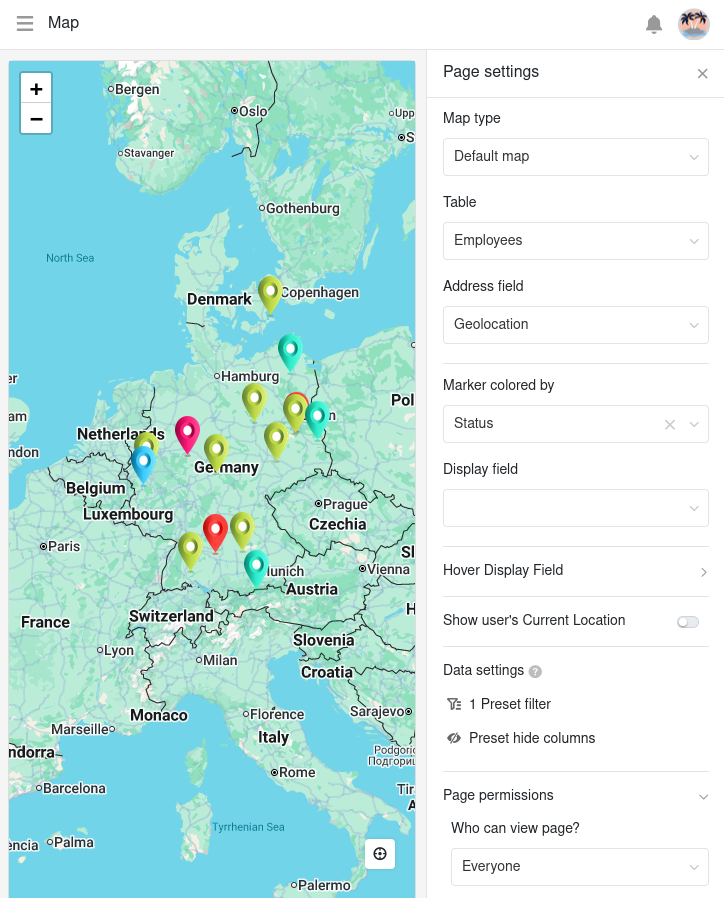
In the page settings you can select the map type (standard or images), the table, and a column for the address field and the marker color. Please note that only certain column types can be used to provide this information.
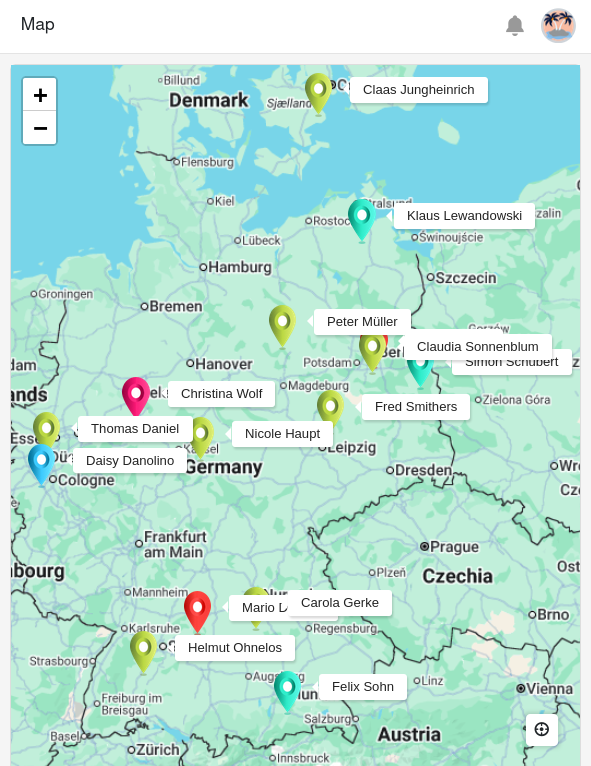
If you specify a column for the display field, a label for the locations will be permanently displayed on the map.
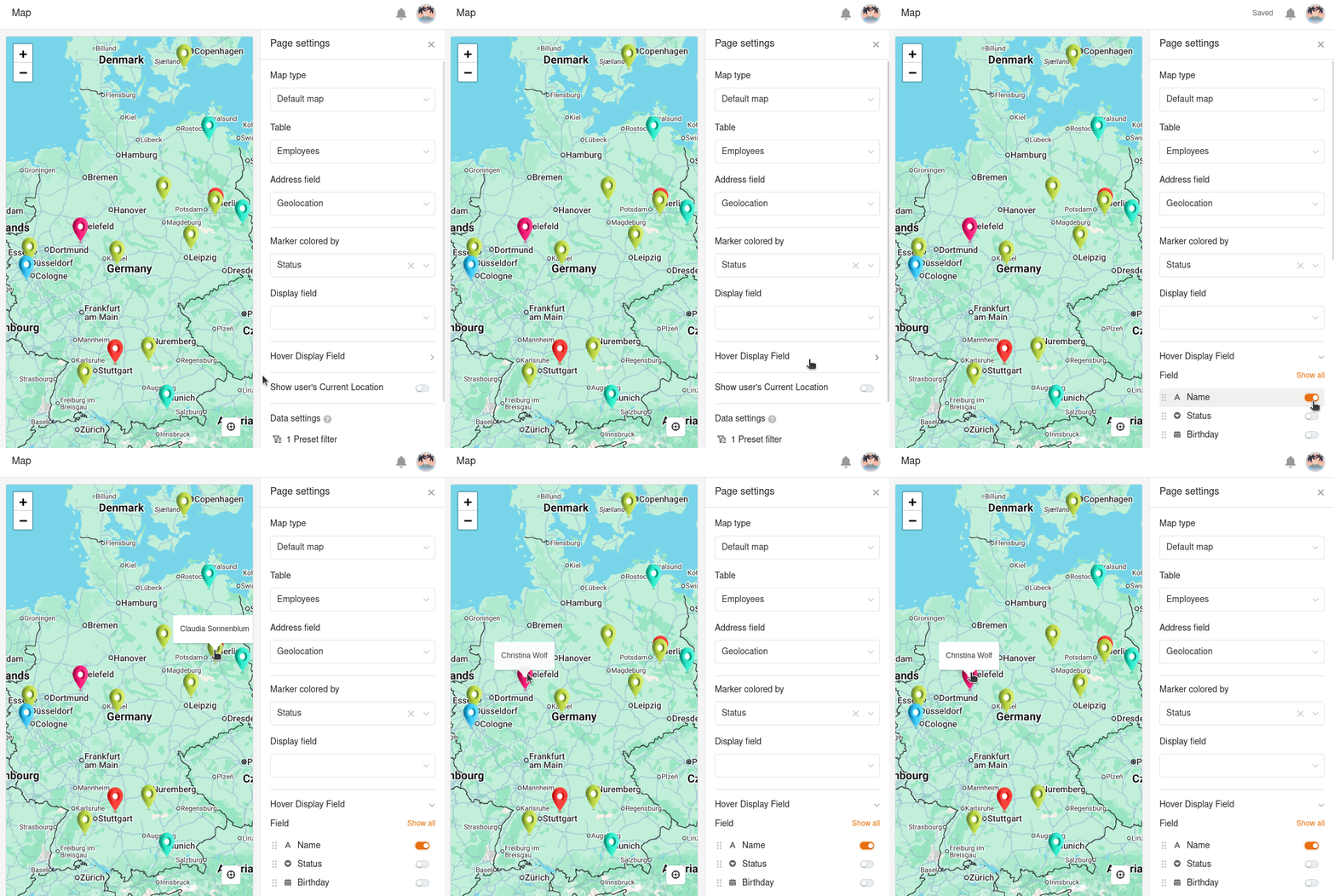
However, you can also define columns to be displayed flexibly, which only become visible through a hover effect. Activate the sliders for the columns that should be visible when you move the mouse over a marker.
Preset filters and hidden columns
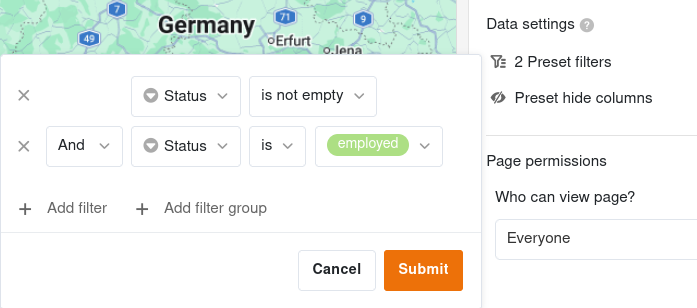
You can also define preset filters and hidden columns to limit the data displayed. To filter, click on Add filter, select the desired Column and Condition and confirm with Submit.
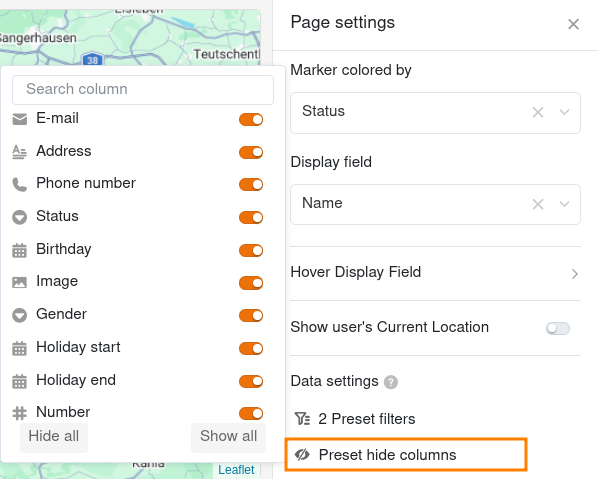
Hide the columns that should not be available for the map page using the slider.
Page permissions
For map pages, you can only set one page permission – namely who is allowed to see the map page. This is because you cannot add, edit or delete rows on map pages.