Table of Contents
You can use snapshots to save the current version of a universal app. You can create, view, restore and delete snapshots in the version management of the Universal App Builder. You can also make notes on the individual snapshots to record information about a version.
When app snapshots are useful
App snapshots are snapshots of the state of a universal app and work in a similar way to base snapshots . You can use app snapshots to save the current version of a universal app as a backup copy, which can be useful, for example, if you want to make extensive changes and possibly restore a previous state.
What an app snapshot saves
An app snapshot saves the following elements and settings:
- Settings such as name, icon and color scheme of the app
- Pages and folders of the app
- Settings and authorizations for the individual pages
What an app snapshot does not save
An app snapshot does not save:
- the user-defined URL of an app
- the data of the underlying base
- the comments on individual data records
- the app’s user roles and invitation links
Create app snapshot
- Open a universal app in edit mode .
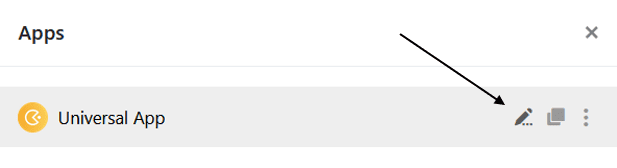
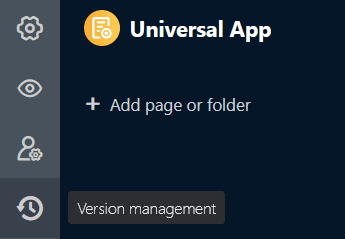
- Click on Version management at the top left of the page.
- A window opens. Create a new snapshot there.
- Optionally, you can add a note to the snapshot.
- Confirm with Submit.
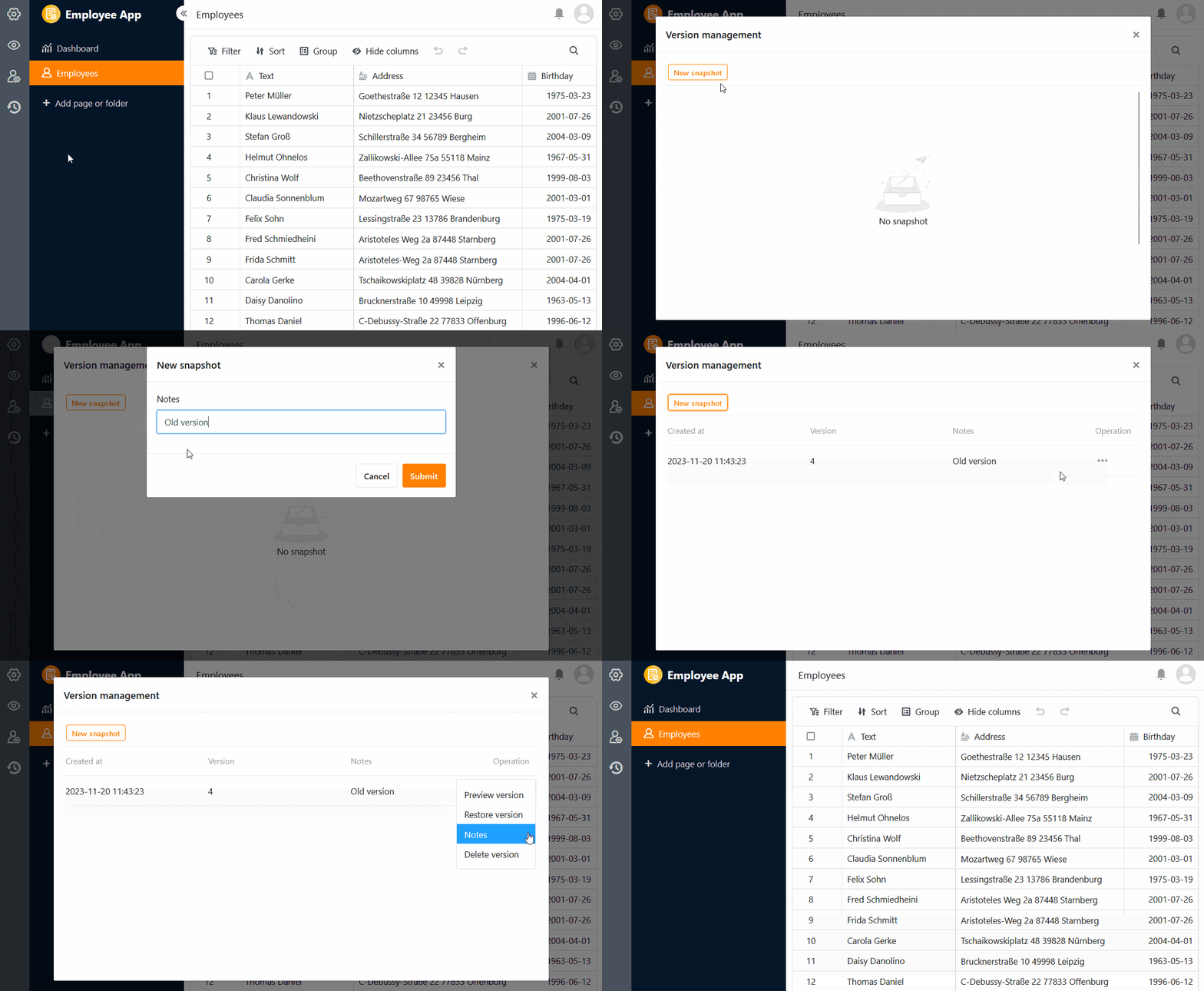
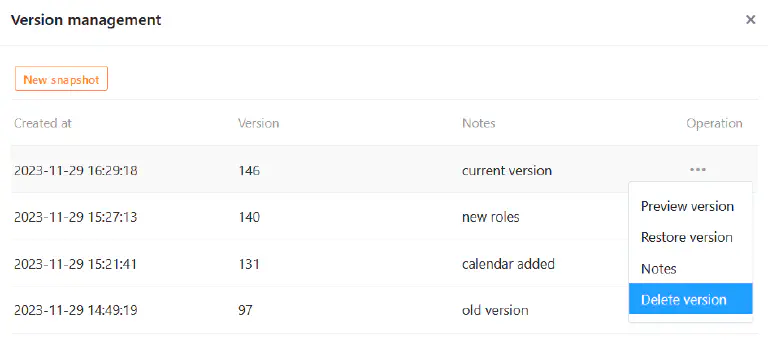
As soon as you have created a snapshot, you have four operations to choose from:
- View version
- Restore version
- Note
- Delete version
View app snapshot
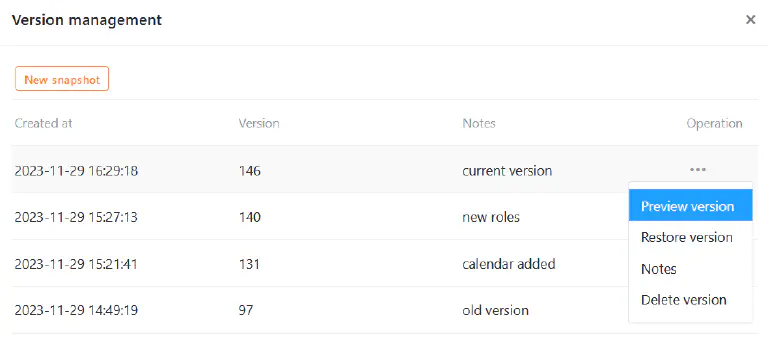
Before you restore a snapshot and hastily jump back to another version, you should first take a look at this version. To do this, follow the same procedure as above: Click on the three dots at the right-hand end of a snapshot and select the View version operation from the drop-down menu.
Restore app snapshot
To restore an app snapshot, click on the three dots and select the corresponding operation from the drop-down menu.
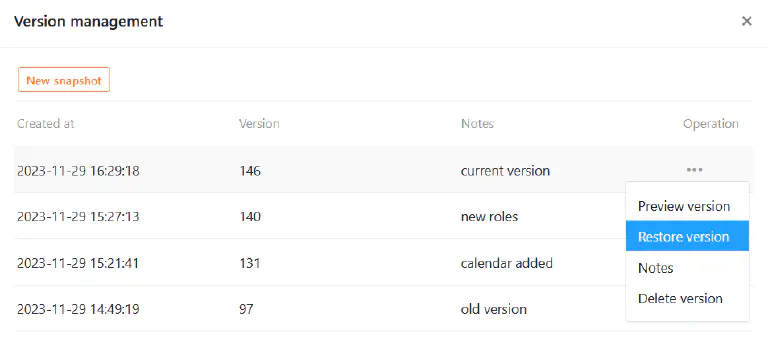
As soon as you restore a snapshot, the app is reset to the memory status of this earlier version. Any changes you have made to pages, folders and settings in the app since then will be lost. It is therefore advisable to also save the current version in a snapshot before restoring a snapshot. This allows you to jump back and forth between different versions.
Edit note
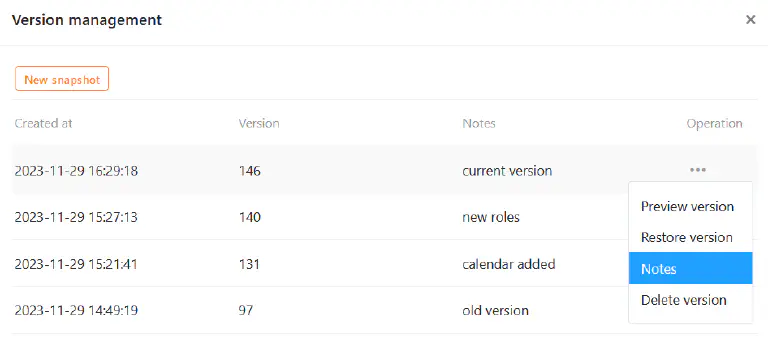
If you want to add, change or delete the note for a version at a later date, you can do this at any time. Open the corresponding text field by clicking on the three dots at the right-hand end of a snapshot and selecting Note from the drop-down menu. Save your changes by clicking Submit.
Delete app snapshot
You can delete a snapshot that you no longer need at any time. Click on the three dots at the right-hand end of a snapshot and select the Delete version operation from the drop-down menu.