Table of Contents
A Kanban view is predestined to visualize dynamic processes with different phases. In this respect, it allows you to visualize workflows and project progress, for example. It is particularly helpful for project planning , software development or task distribution within a team.
Structure of a Kanban view
A Kanban view consists of pillars that stand for different steps or phases in a process. In a workflow, for example, these can be “idea”, “planned”, “in progress” and “done”.
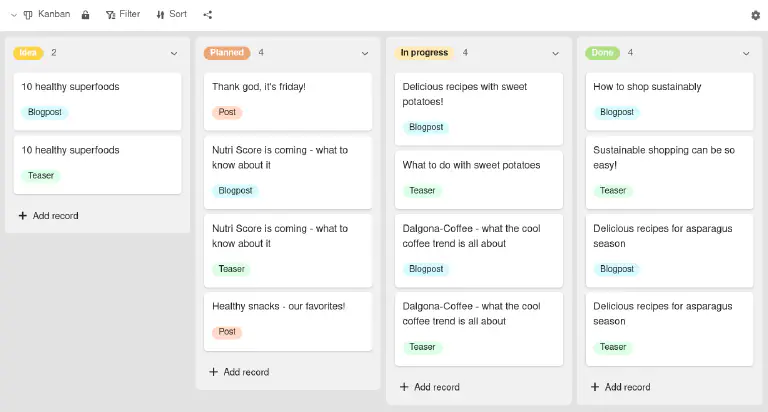
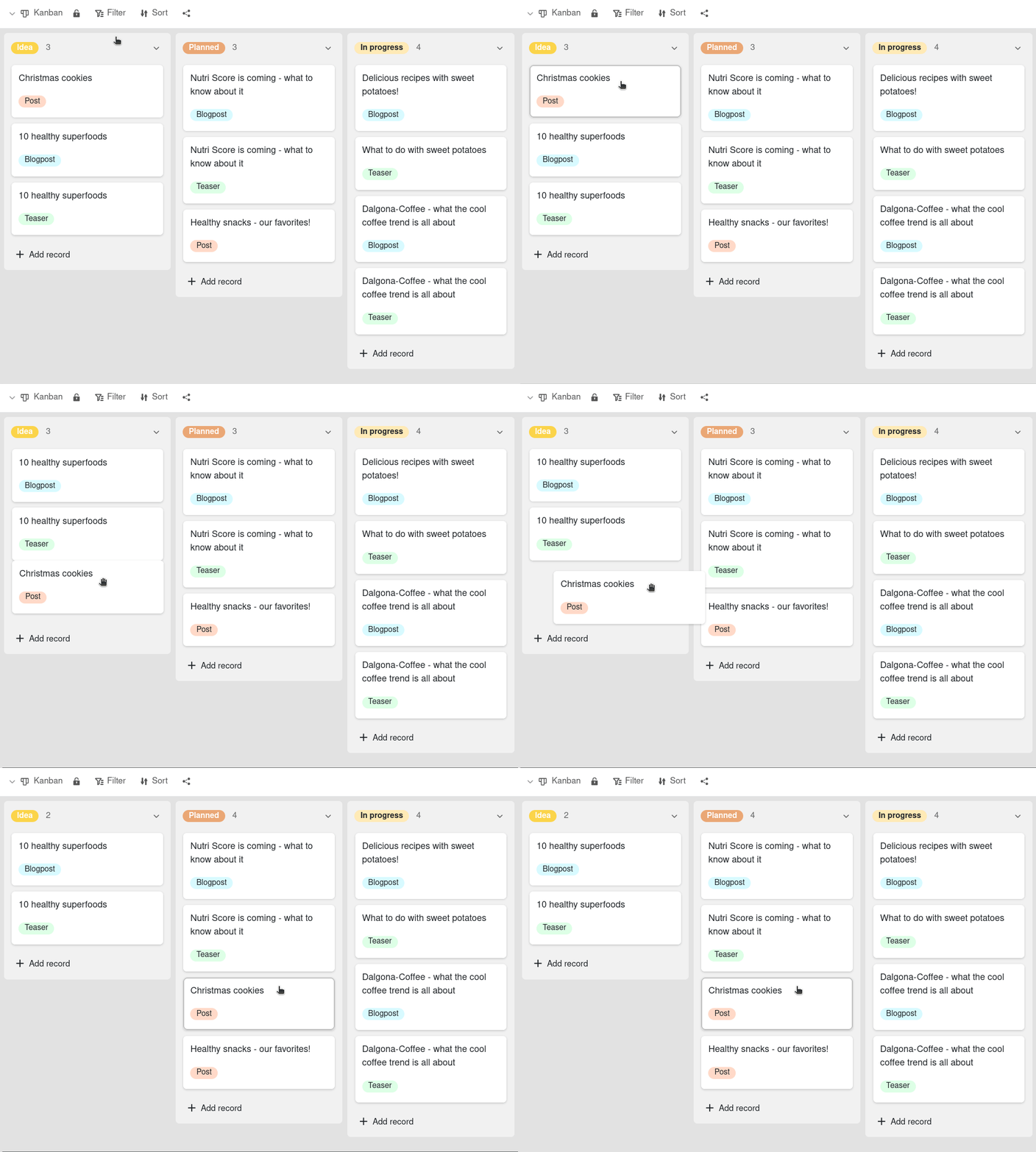
You provide the columns with movable cards that you can move both within a column and from one column to the next. A Kanban card can represent a work package or a task, for example.
How to create a Kanban view

- Click on the Name of the current view.
- Click on Add view or folder and select the desired View type.

- Give the new view a name.
- Activate the slider if the new view should not be visible to everyone but private.
- Confirm with Submit.
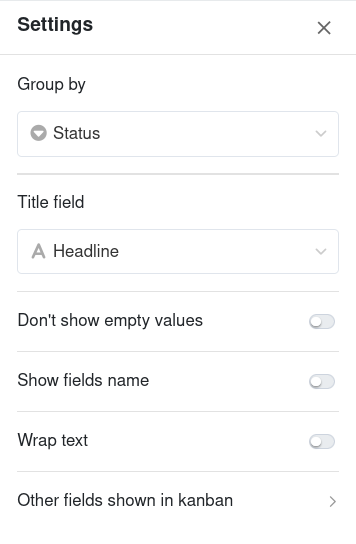
- Specify which column you want to use for the grouping, i.e. the definition of the columns. The Kanban view is then generated automatically.
- In the Title field, enter the column with which you want to label the Kanban cards.
- Optionally, you can also activate sliders to activate certain functions or display more columns.
If you want to change something later, click on the gearwheel icon in the top right-hand corner and adjust the settings.
Settings of the Kanban view
You can use the slider options to change the visual display of the Kanban view.
- You can use the Don’t show empty values slider to remove grayed-out placeholders on the Kanban cards.
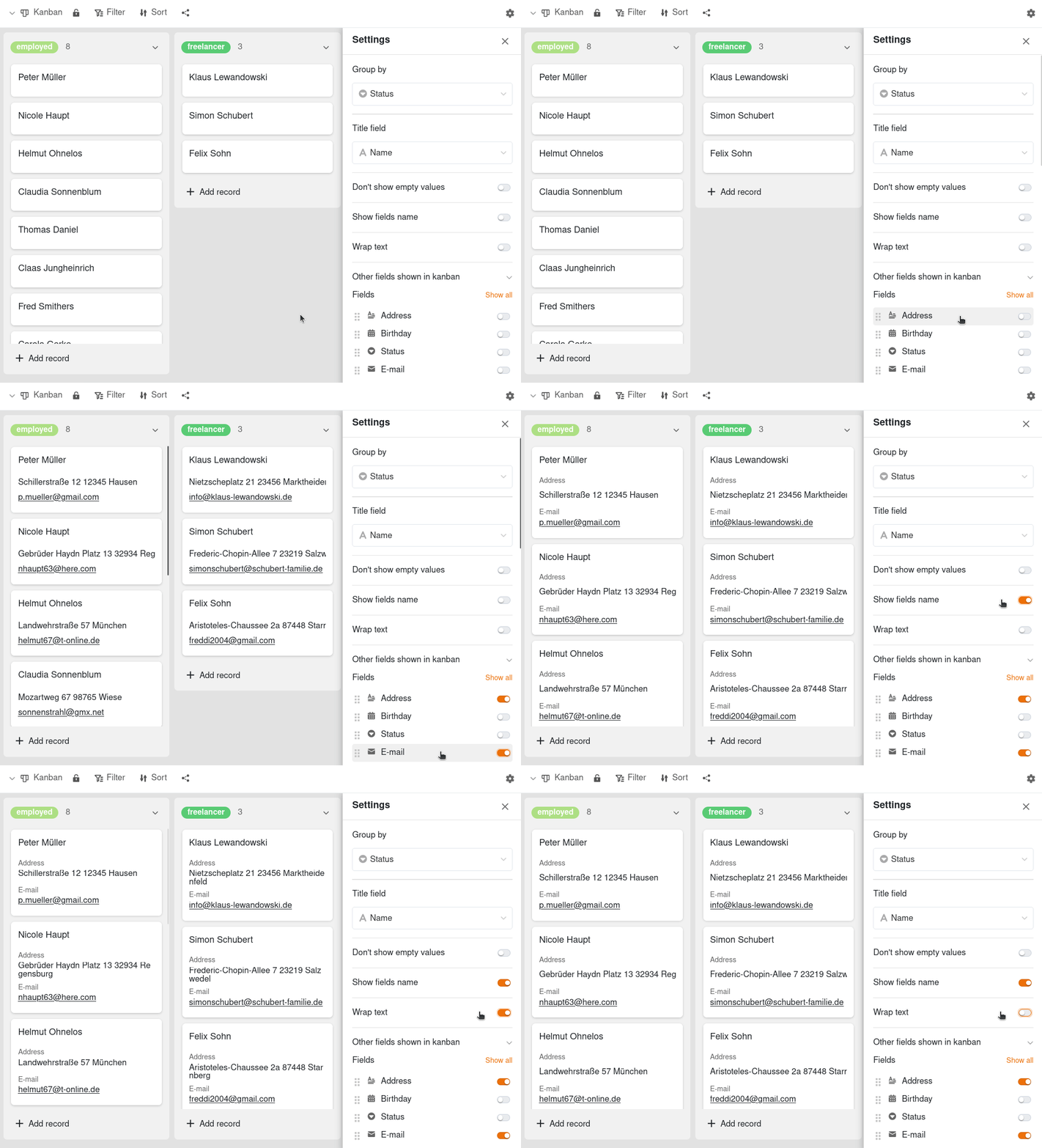
- The Show field names slider shows the column names above all activated information.
- The Wrap text slider formats texts so that they are fully legible on the Kanban board cards.
Show and hide other columns
All columns that you have created in your table are listed in the lower section. By activating the individual controllers, the entries in the respective columns become visible as informative notes on the cards.
View options
You can use the following options in a Kanban view:
- Lock view
- Filter or sort by any value
- Share view with others
Add a new record in the Kanban view
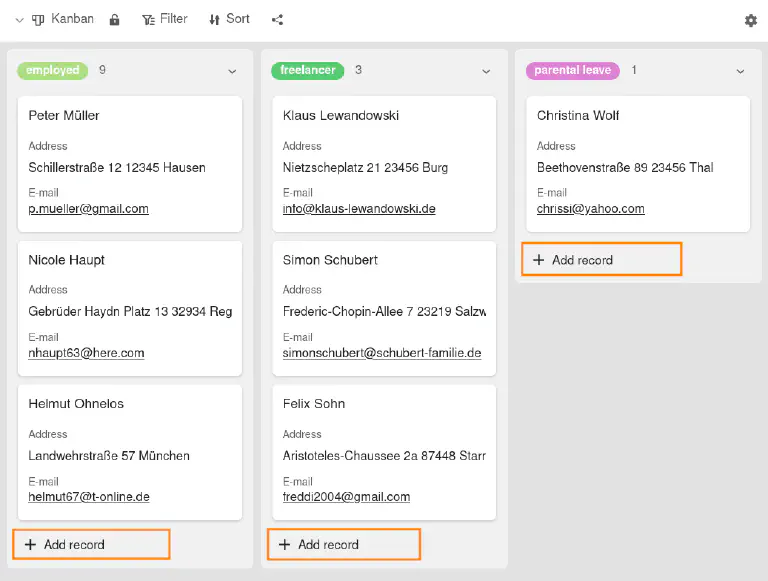
Click on Add record at the bottom of a column. A new window opens. Create a new data record in the Row details and enter the required information. The changes are saved automatically when you close the window.
Edit data records in the Kanban view
Click on a Kanban card and a window with the Row details opens. Make the desired adjustments to the data record. The changes are saved automatically when you close the window.