Table of Contents
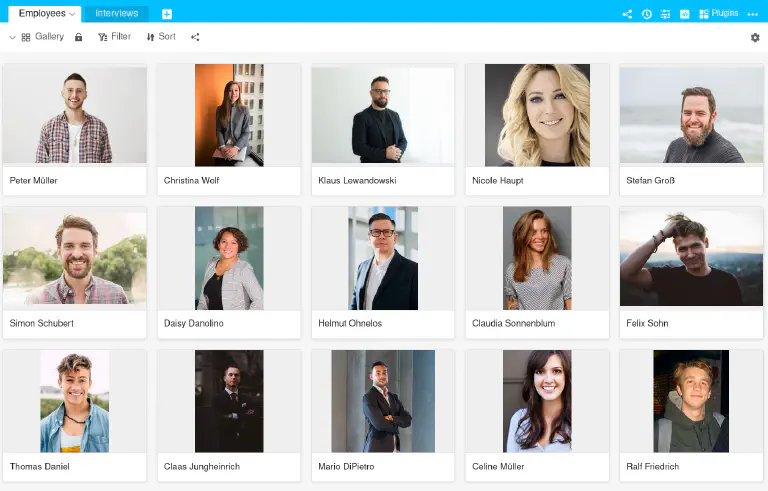
The Gallery view uses preview images from an image column to arrange data records clearly in tiles. Several images are combined in an album. This display is suitable for a variety of use cases, for example employee profiles , product libraries , inventory lists or the management of collections .
How to create a Gallery view
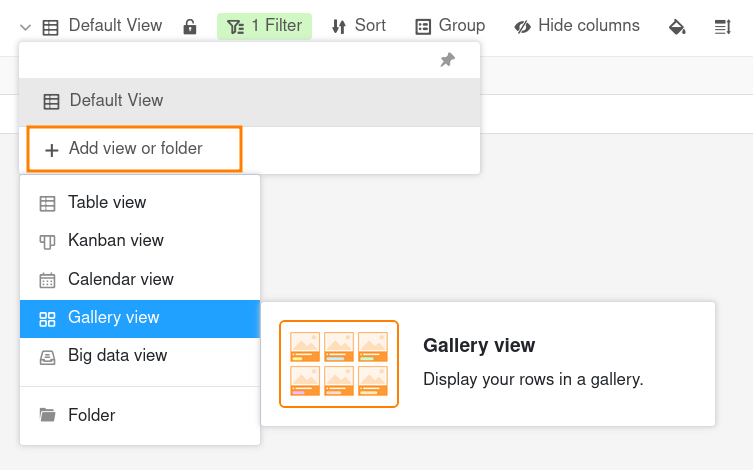
- Click on the name of the current view.
- Click on Add view or folder and select the desired view type.
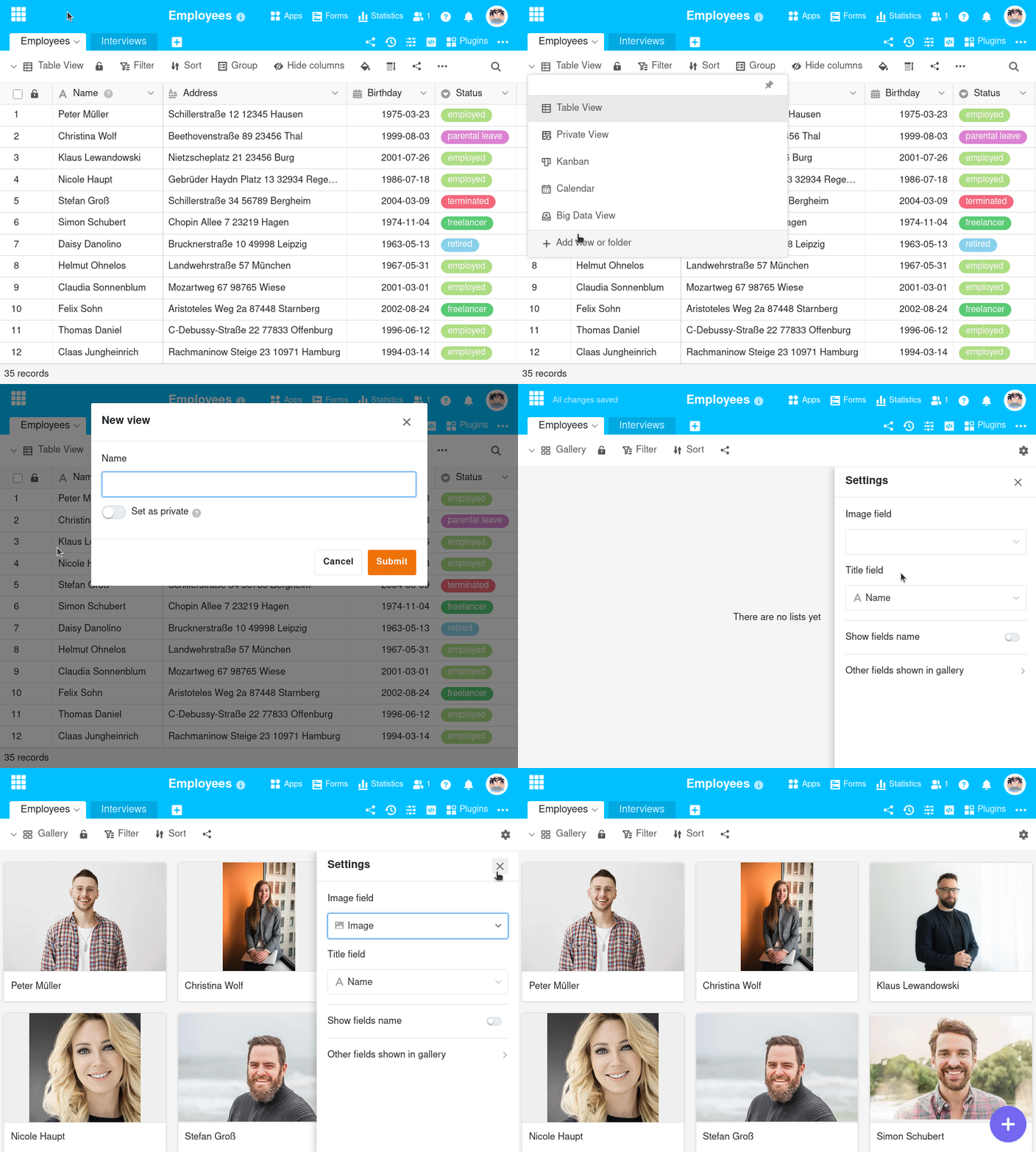
- Give the new view a name.
- Activate the slider if the new view should not be visible to everyone but private.
- Confirm with Submit.
- Then specify in the settings which image column the images should come from. The new view is then generated automatically.
- In the Title field, enter the column whose entries you want to use as the album title.
View options
You can use the following options in a Gallery view:
- Lock view
- Filter or sort by any value
- Share view with others
Show and hide information
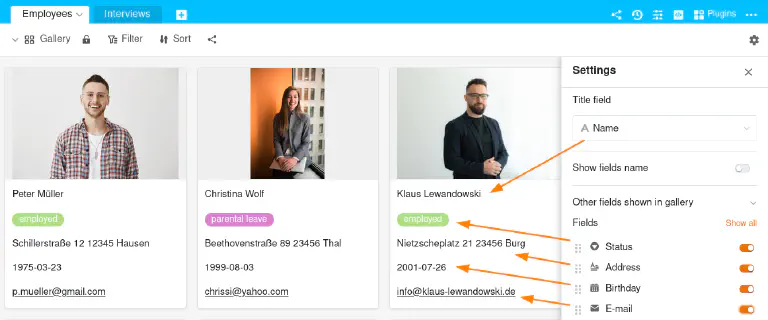
In the Gallery settings, which you can access via the gearwheel icon , you can display more or less information by showing or hiding columns. Activate the sliders of the respective columns to display more information from the data records in the gallery.
Multiple images in one album
The number of images per album is displayed in the gallery with a grey highlighted number. Logically, the number is only displayed if there is more than one image in an album.
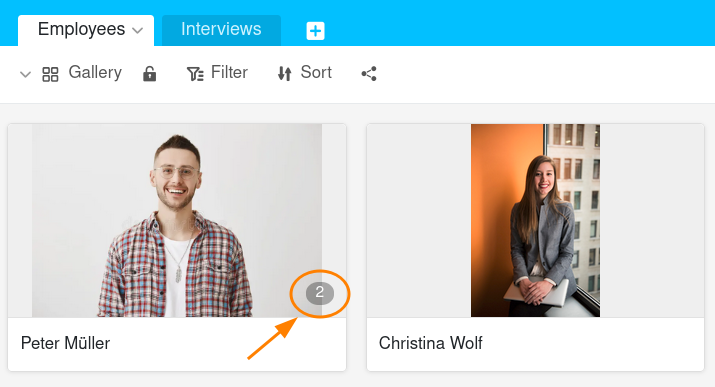
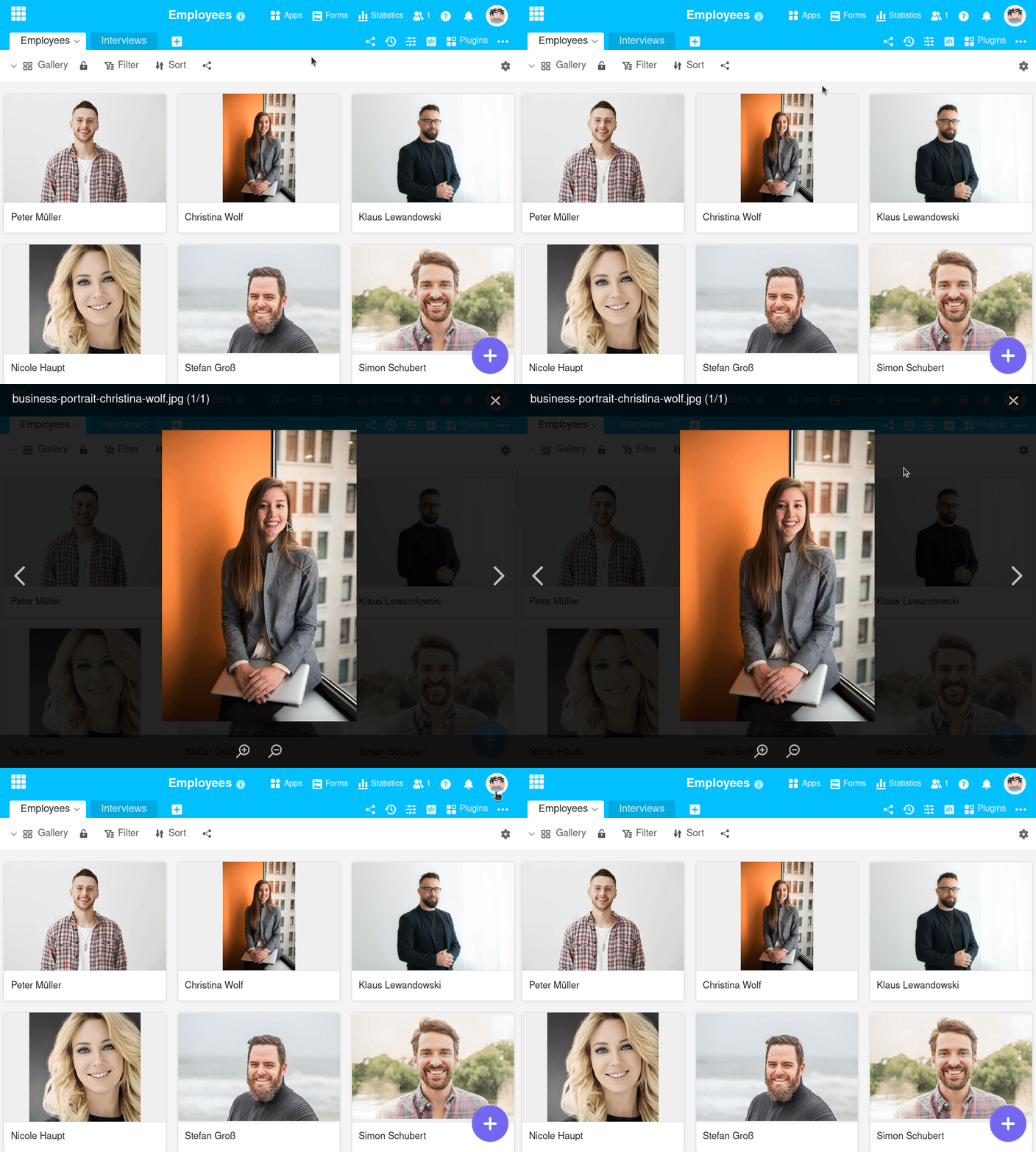
Click on the preview image to open the album in full screen mode, in which you can enlarge and reduce the images using the magnifying glasses and switch between the images using the arrows.
Add a new record in the Gallery view
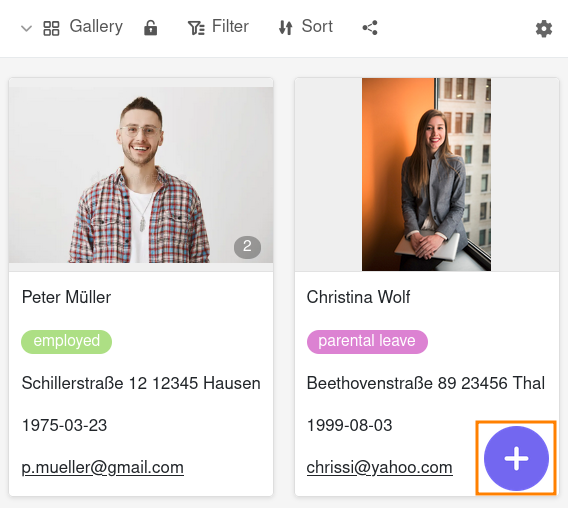
Click on the purple circle with the plus symbol in the bottom right corner. A new window will open. Create a new data record in the row details and enter the desired information and images. The changes are automatically saved when you close the window.
Edit data records in the Gallery view
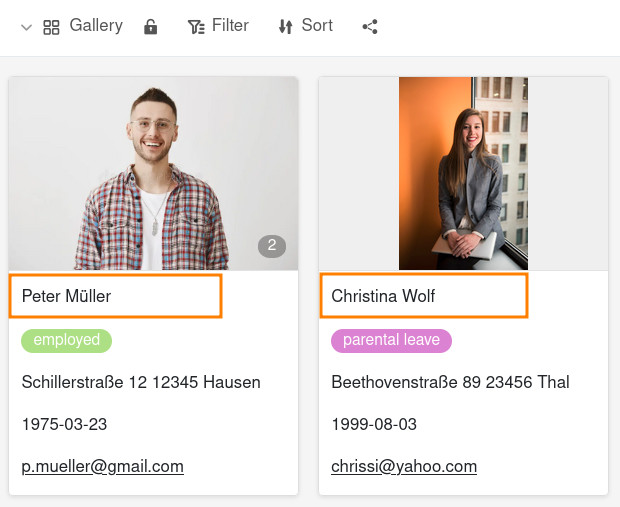
Click on the title of an album and a window with the row details will open. Make the desired adjustments to the record. The changes are saved automatically when you close the window.