Table of Contents
Unlike Excel, you can’t just color cells arbitrarily in SeaTable, you have to color them either by rules you set or based on the values in a column. Sounds complicated? But it isn’t.
Coloring by rules or by values
Each column offers the option Format cells of the column an:
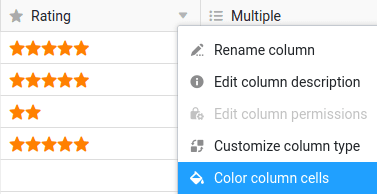
SeaTable will behave differently depending on the column type for which you call this option. For number columns , you can use both rules and values for coloring. For all other column types, only the rules for coloring are available.
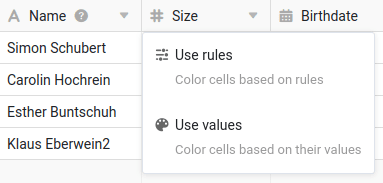
To color cells by a rule
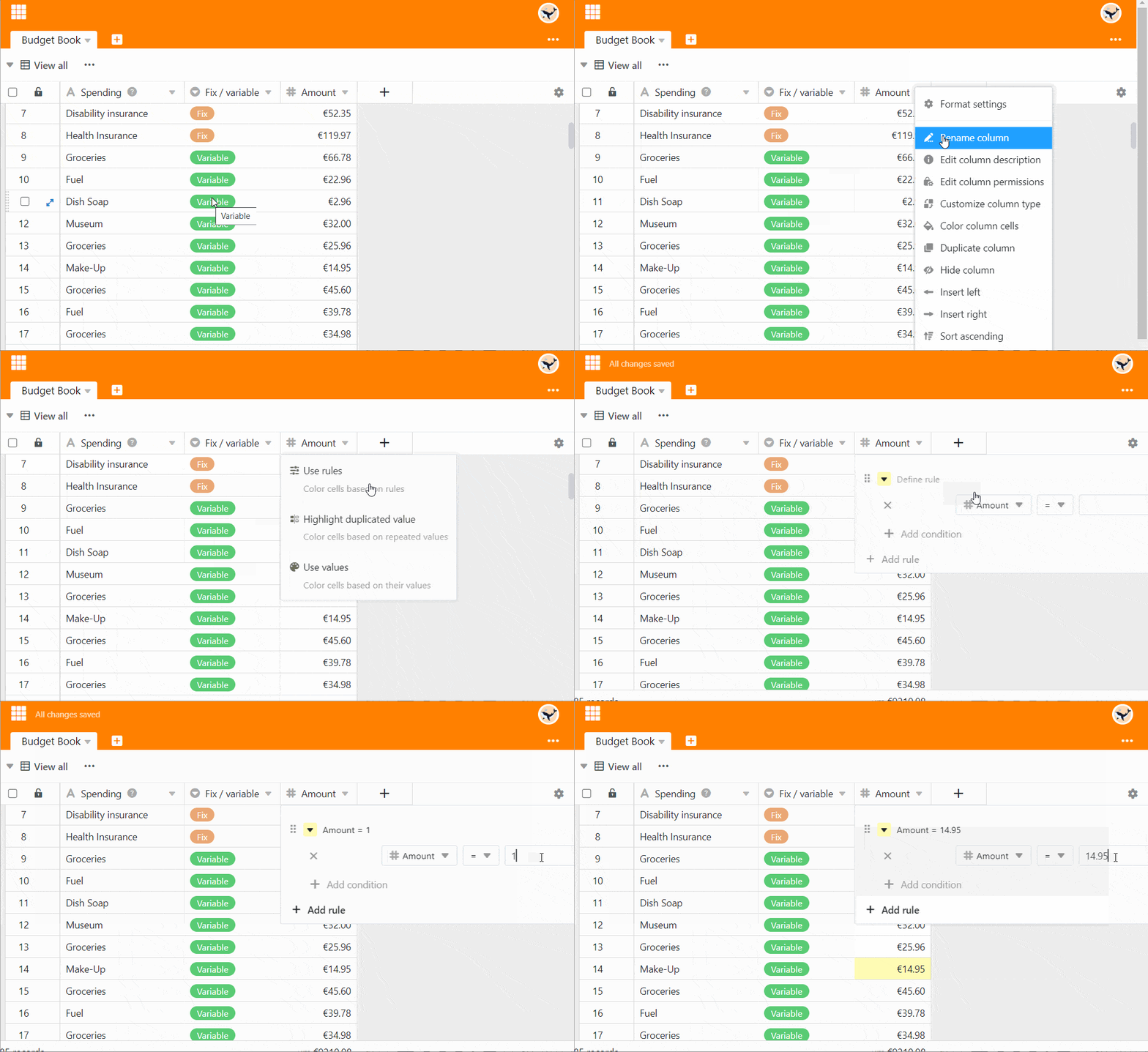
- Click the triangle icon in the table header of a column.
- Select the Format cells of the column option.
- Go to Use rules.
- Click Add Rule.
- Click on the newly appeared row to define the rule.
- Select a column and decide on a condition in the middle field.
- Enter the value to which the condition is attached.
- Click the colored triangle icon in front of the rule to open the color picker and change the color of the cells to which your rule applies.
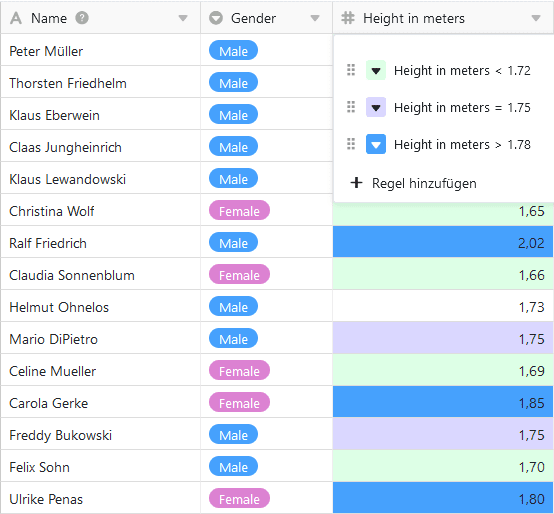
By a rule you color all cells in a column to which a rule applies. For example, such a rule could be: “Color all cells with a rating of three or more stars yellow.”
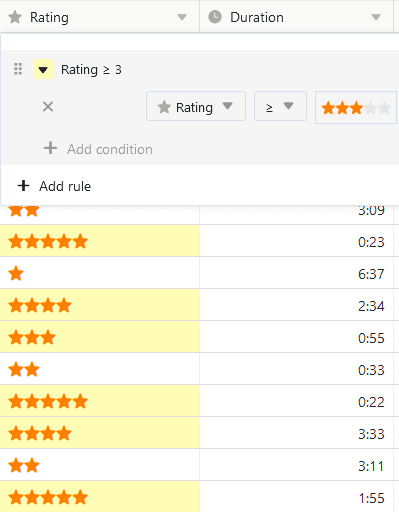
You can create several rules with different colors per column.
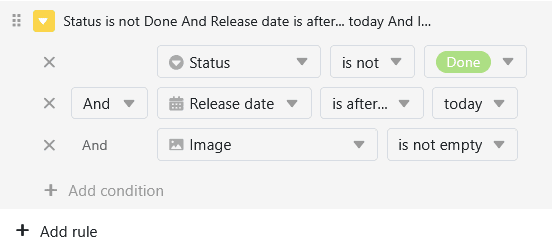
You can also define several conditions per rule, which can apply to all columns in the table. For example, color the text column with the headline of an article if the status is not “finished”, the publication date is in the future and an image is already available.
To color cells by values
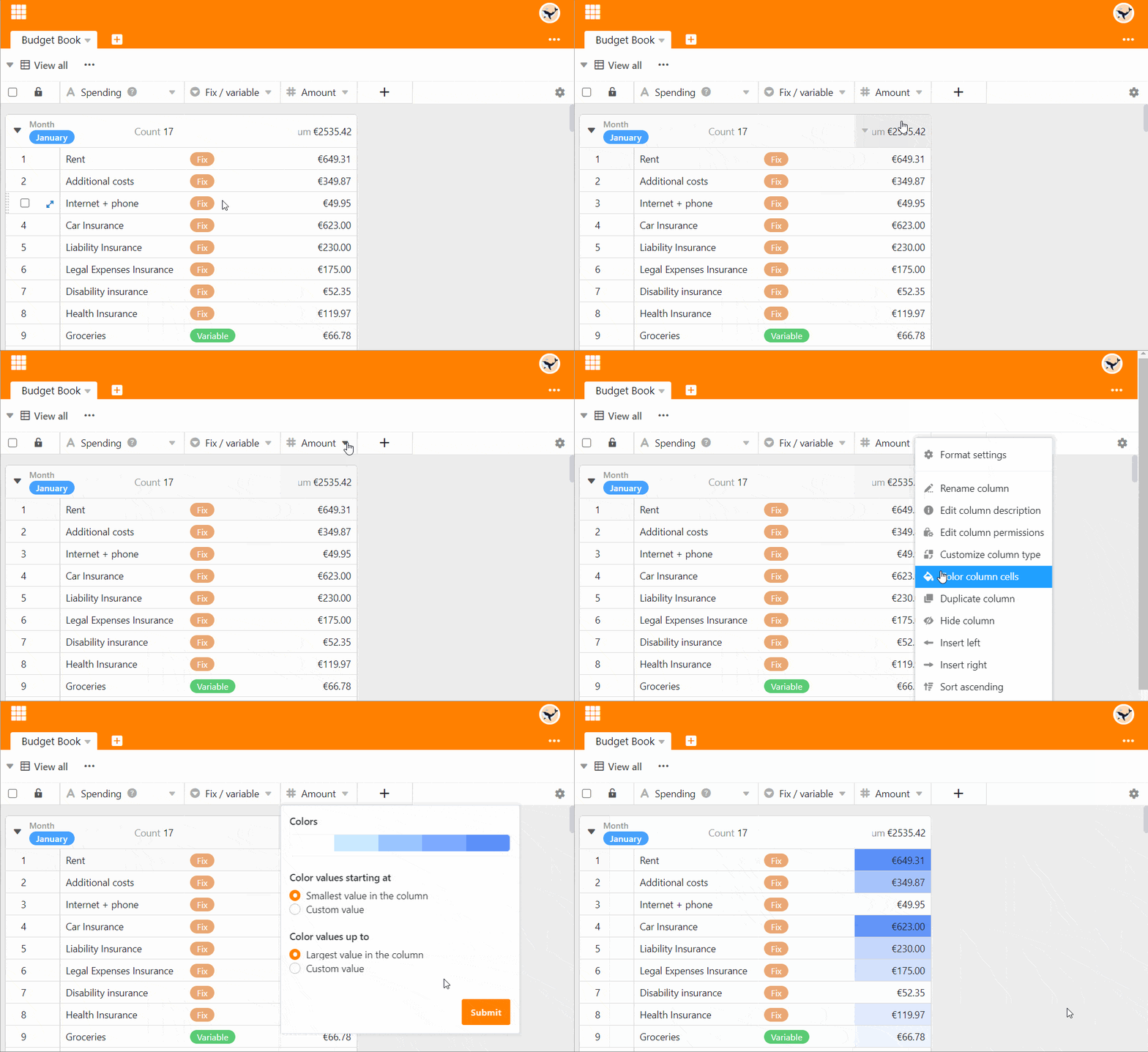
- Click the triangle icon in the table header of a column.
- Select the Format cells of the column option.
- Go to Use values.
- Click on the color selector to choose from more colors
- Decide from which and up to which value you want to format the cells.
- Click Submit.
Use values option colors the entire column. The larger a value is in the entire spectrum, the darker or lighter the color of the cell.
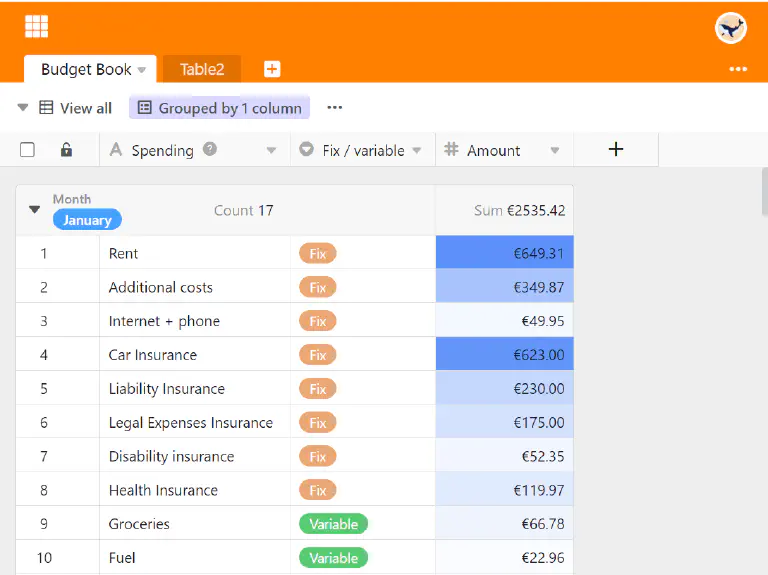
This type of coloring helps you to quickly and easily make outliers (i.e. particularly small or particularly large values) visible in a column.
Locate duplicates
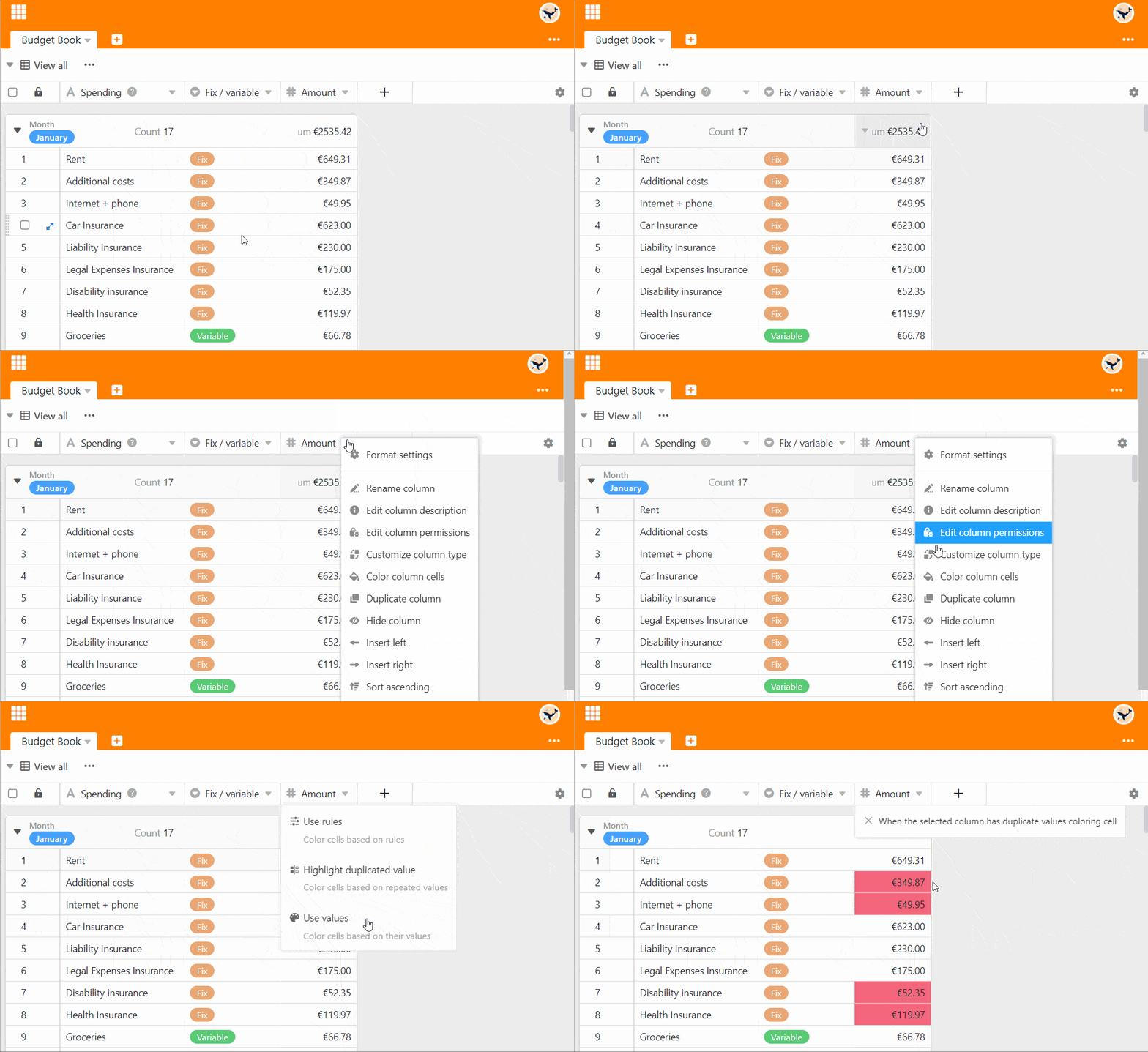
- Click the triangle icon in the table header of a column.
- Select the Format cells of the column option.
- Go to Highlight Duplicates.
Using the Highlight Duplicates option, you can quickly find identical values in a column.
Frequently asked questions
Fill all cells with the same color
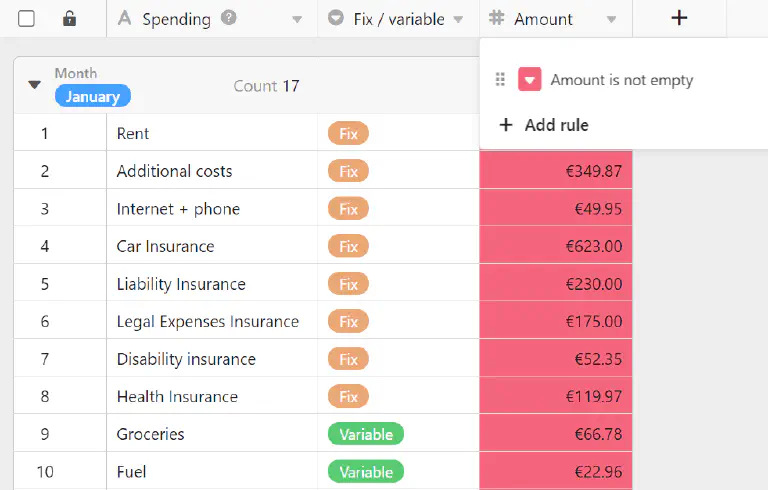
To do this, define a rule that applies to all the desired cells. For example, you can color all filled cells of a column by selecting the condition is not empty.
Colorize upcoming appointments
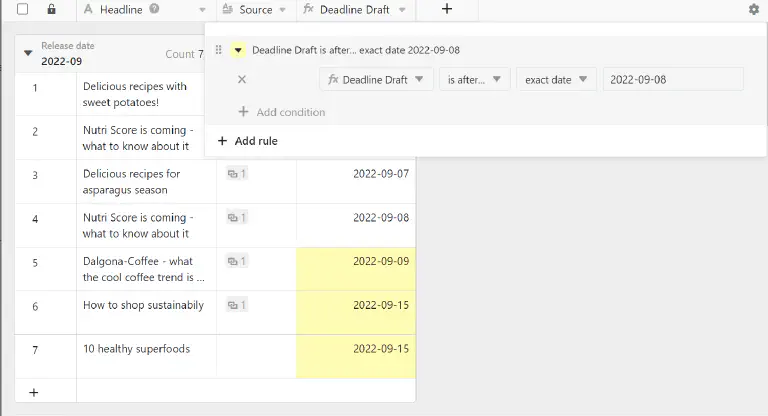
Here you have two options to color the respective cells of a date column. Either you select the condition is on or after and an exact date - or you select the option is within and a period in the future.
Color a specific date
Select the option is equal to and specify the respective date.