Table of Contents
When building an app, you can let your creativity run wild. The app has a number of page types a custom page, you can create dashboards with meaningful statistics from your data that you can share with other (external) users.
Creating the app
In order to use an app in your base, you must first add it to your base.
Learn how to add an app to your base here.
Design of the app
After you have successfully created your app, you can start designing it. Make sure to always use the pencil icon to enter the editing mode of the app.
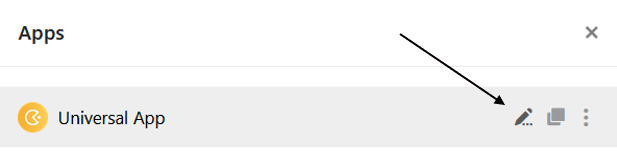
An app consists of several pages that you can group into folders.
Learn how to add new pages and folders to your app here .
To prepare the data in your base in an appealing way, the app offers a variety of page types with different design elements.
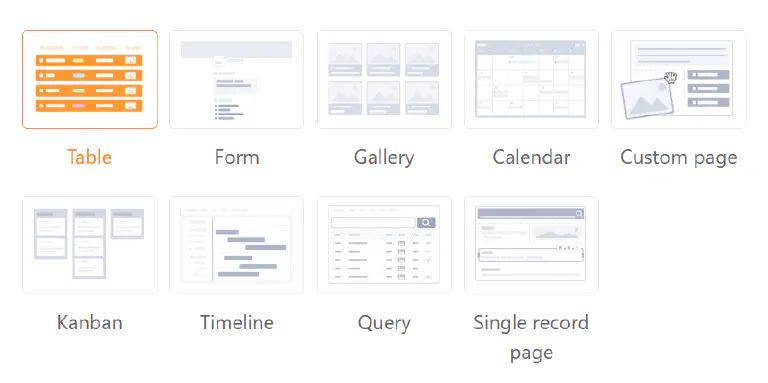
Preview of an app
When designing an app, you’ll want to test how the app looks to users in between. To do this, you can simply preview in Edit mode.
Change settings of an app
Within an app, you can make various global settings. For example, you can change the name, color, and URL of your app. You can make the desired adjustments with just a few clicks via the app settings.
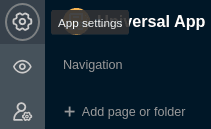
Learn more about the global settings of the app here.
Saving versions of an app
The version management of each app offers you the option of saving snapshots of the structure of an app. You can find out how to create an app snapshot here . Please note what an app snapshot saves - and what it does not save.
Page permissions in an app
To precisely control access to your data, you can set individual page permissions for each page you have added to an app. Editing page permissions is always done through the page settings, which you can access via the gear icon .
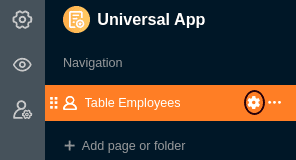
Learn more about the different page permissions in the app here.
User and role management of an app
Add new users, create and assign roles - in the user and role management of an app you can perform various administrative activities.
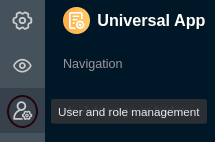
Learn more about the user and role management of the app here.
Share an app
You can also share an app with other users via the user and role management . To do this, simply generate an individual invitation link or use a QR code.
Copy an app
Have you built an app that you would like to use in a similar form for another user group? Then just copy the existing app and customize the copy as you like. You can learn how to copy an app here .
Disable an app
If you’ve created an app that you want to temporarily disable, you can disable it with just a few clicks to revoke access to all user groups. You can find out how to do this here .
Delete an app
You can delete an app that you no longer need at any time. Please note the consequences of the deletion.
Learn more about deleting an app here.
No collaborative work in apps
While the app has many advantages over working in the base, there is a big difference if you want to work on the data together in a team. In a base, every change made by other users is displayed immediately. The entries change in real time. This type of collaborative work is not supported in the app.
Comments in apps
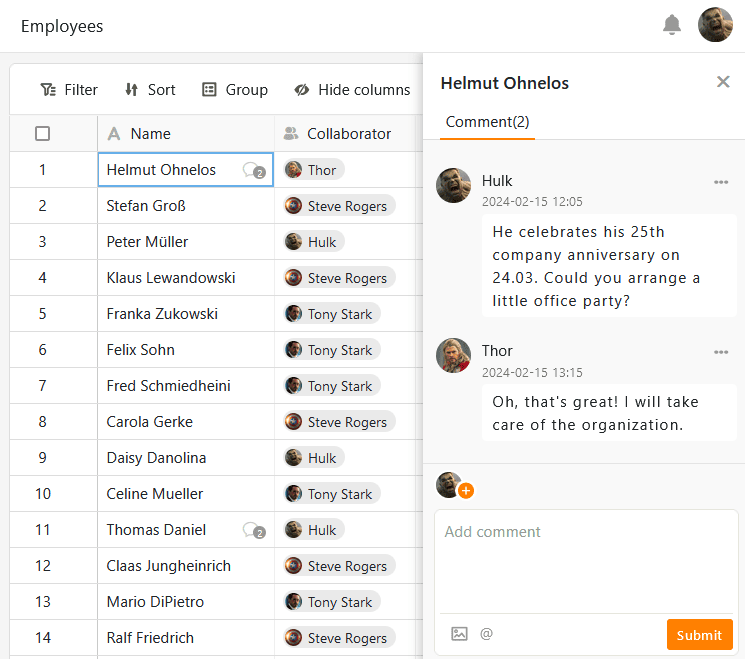
Nevertheless, you also have the option of communicating with other team members in an app. To do this, use the comment function that you already know in the same form from base. Record your feedback or additional information on the data records for the other app users and hold discussions on the spot.