Table of Contents
The sort function allows you to display the unordered records in a table in an ordered sequence.
Sort records in a view
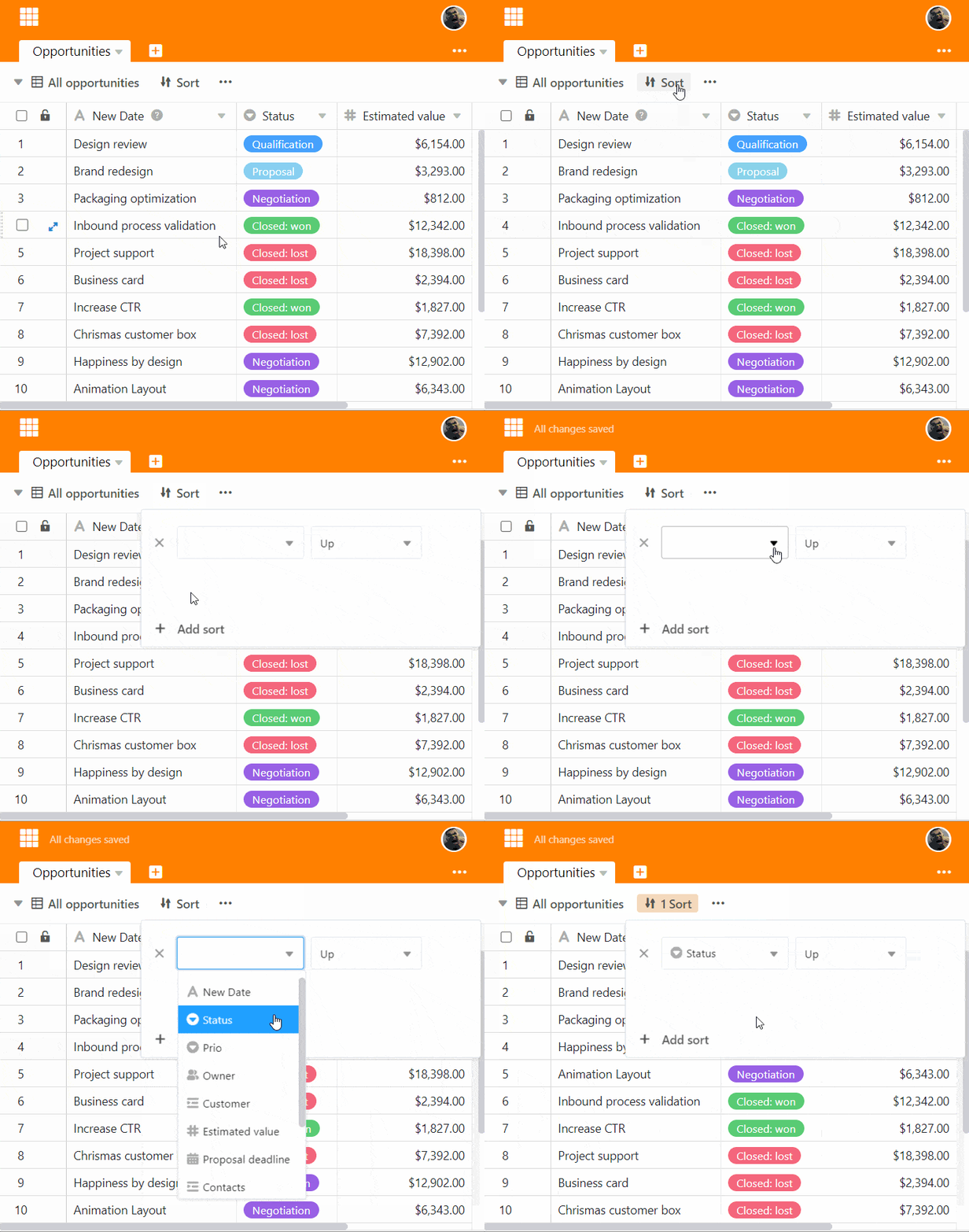
- Create a new view or select the view you want to sort.
- Click the Sort option in the view options above the table.
- Go to Add sort.
- In the empty field, select the column you want to sort by.
- In the second field, decide whether the data should be listed in ascending or descending order.
Repeat the process for multi-level sorting. To change the hierarchy of the sorting rules, hold down the left mouse button on the six-point gripping area and drag the rule to the desired position.
The sorting is carried out in real time, i.e. the data records are sorted before the window is closed. This allows you to see immediately whether you have achieved the desired result and make any necessary adjustments.
Sorting behavior according to column type
SeaTable supports sorting by all column types with the exception of the column types Long text, File, Image, Geolocation, Creator, Last modifier, Button and Digital signature.
Sorting is based on the following sorting principles:
- Text, Collaborator, E-mail, URL, Phone number: alphabetical or alphanumerical
- Number, Duration, Rating, Autonumber: numerical
- Date, Created, Last modified: chronological
- Single and multiple select: according to the order of the options
- Checkbox: dichotomous
- Formula: depending on the data type of the result
- Link: depending on the data type of the referenced column
All rows with empty cells in the sorting column are displayed at the bottom of the view.
Remove a sort
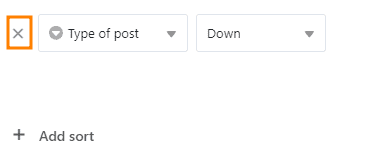
You can delete a created sort by clicking the x icon.
Subsequent addition of rows
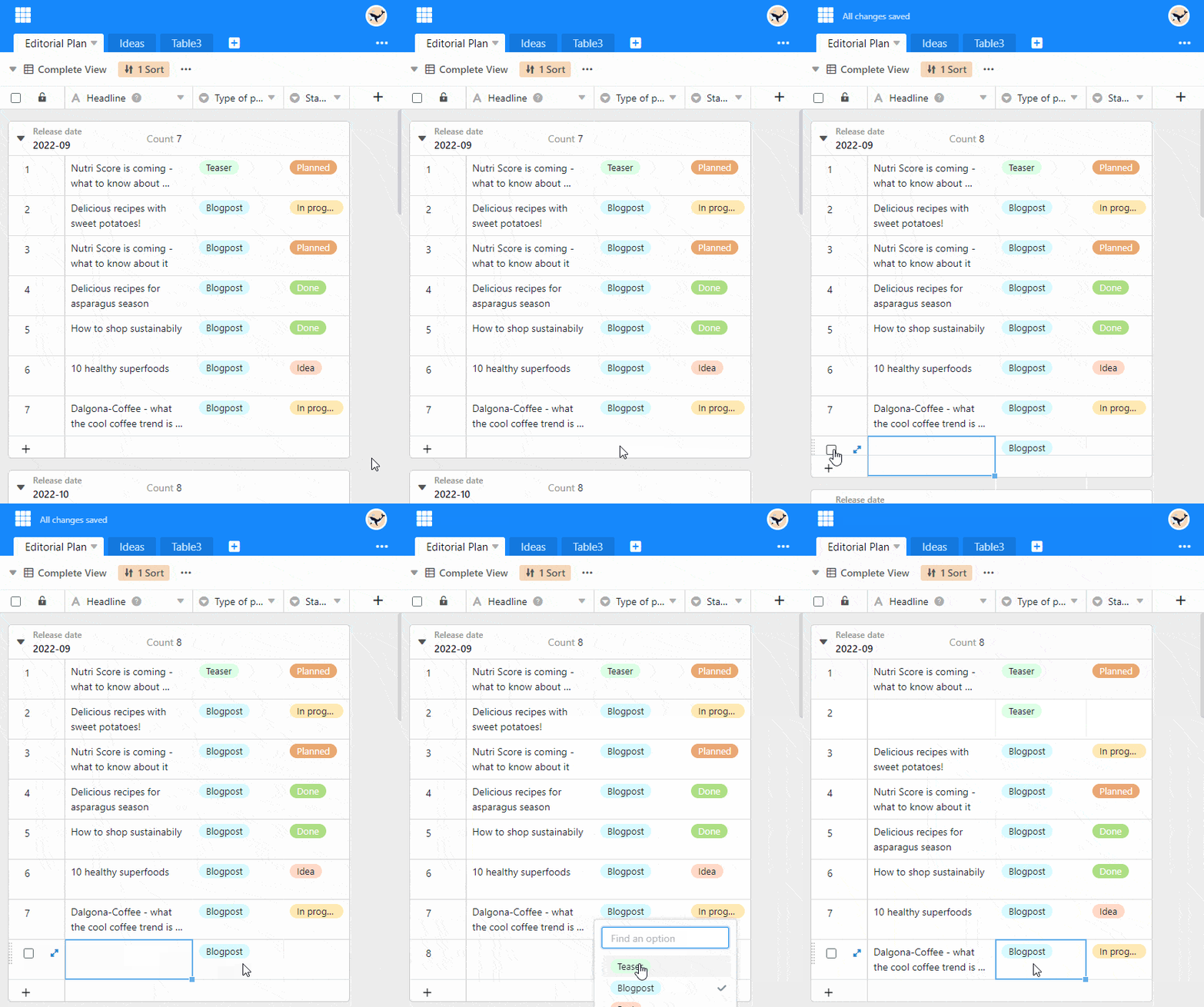
An activated sorting is automatically applied to newly added rows.
Apply multiple sorts
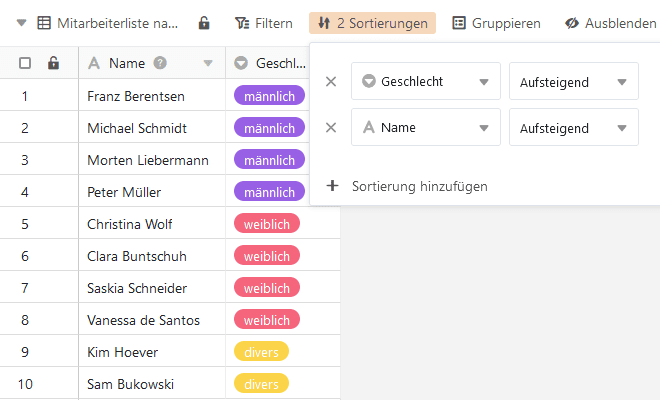
By applying multiple sorts, you can order records that have the same entry in a previous sort. For example, you can first sort a list of employees by the options “female”, “male”, “miscellaneous” via a single selection column and then sort the names of the females, males and miscellaneous each alphabetically via a text column.