Table of Contents
You can lock views of a table in SeaTable. This feature is especially useful for working in groups. Here, users with owner or admin rights have the ability to lock a view for all other group members who do not have one of these two permission levels. This means that these members can no longer make changes to the view options.
Among others, filters, sortings and groupings of a view are affected by the lock. The selected configuration remains in place until the lock is removed by a user with owner or admin rights.
Note, however, that locking a view generally has no effect on data editing. Data that is in a locked view can still be edited by all group members.
Lock view
- Open the view that you want to lock.
- Click on the lock icon in the view options above the table.
- The lock of the corresponding view is now active and can be unlocked again by clicking on the lock icon.

Impact
When a user with owner or admin rights locks a view, it freezes the current configuration of the view and prevents setting changes by group members without these rights.
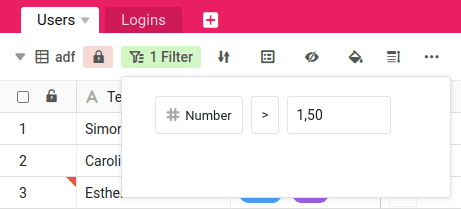
In the locked view, the following settings can no longer be changed:
- Filter
- Sort
- Group
- Hide columns
- Color highlighting
- Adjusting the row height
Application examples
Generally, it makes sense to resort to locking a view when last-minute and unforeseen changes to a view’s configuration could affect your team’s workflow.
Concrete examples where blocking a view can be useful:
- You have created a filtered view that you need to present to one of your clients, and changing the filter conditions on short notice would expose sensitive data.
- You have created a view for your company’s new recruiting campaign that can be accessed by numerous potential applicants. If the appearance of the view now changes, this would lead to misunderstandings.
- You have carefully created a new calendar view. A change to the configuration of this view could lead to unwanted data being transferred to the calendar.