Table of Contents
In addition to changing the order, you can also arrange your views more clearly using folders. To do this, create as many view folders as you like and move your views using drag-and-drop.
Grouping views in folders
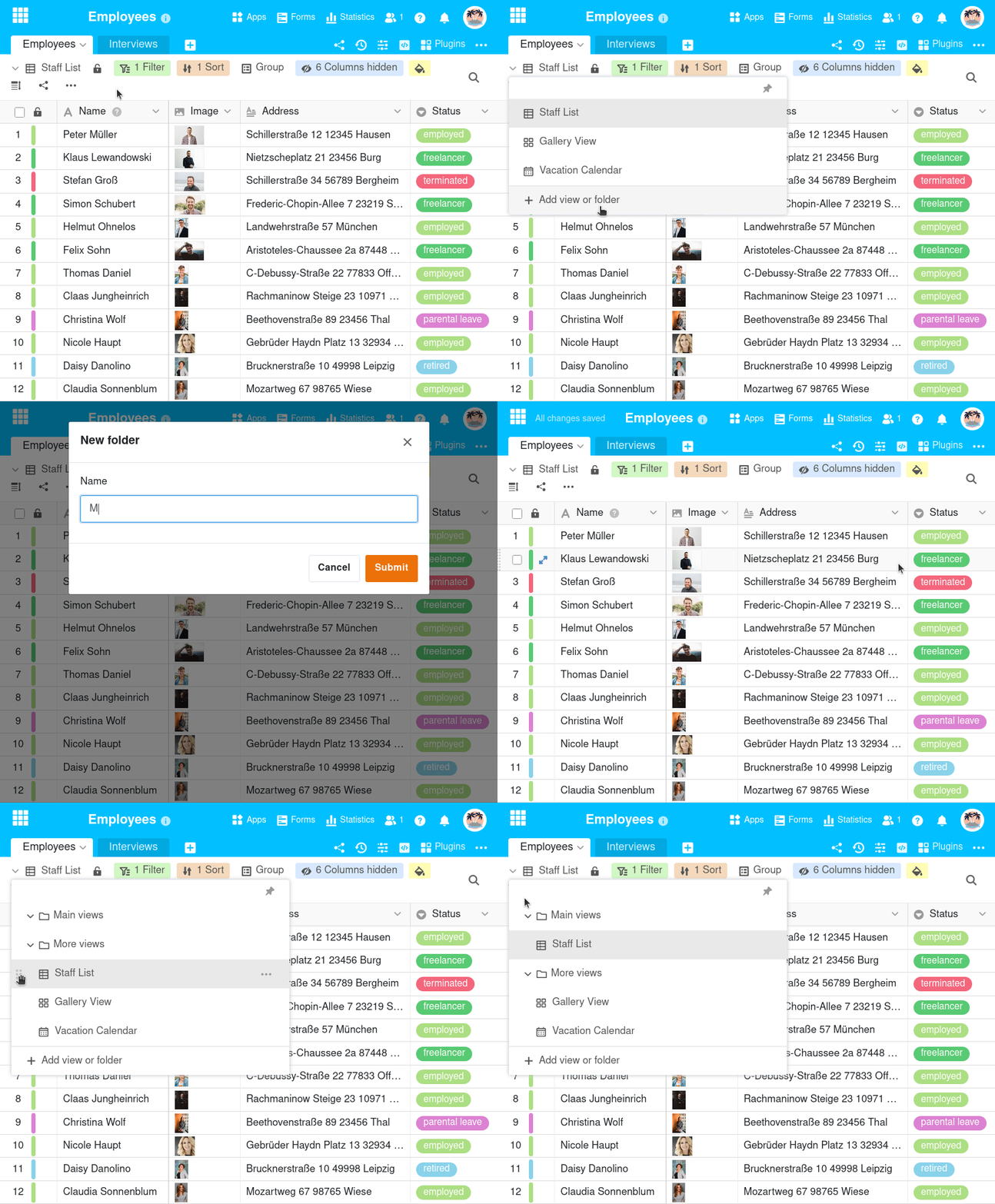
Create a new folder
- Click on the name of the current view.
- Go to Add view or folder.
- Select the lowest option called Folder.
- Give the folder a name and confirm with Submit.
Move views to a folder
- Click on the name of the current view.
- Move the mouse pointer to the view that you want to move to the created folder.
- Hold down the left mouse button on the six-dot grab area and drag the view to the desired folder.
Managing your own view folders
Once you have created your own folder, you can also rename it, delete it or add new views directly in the folder. To do this, move the mouse pointer over the folder and click on the three dots.
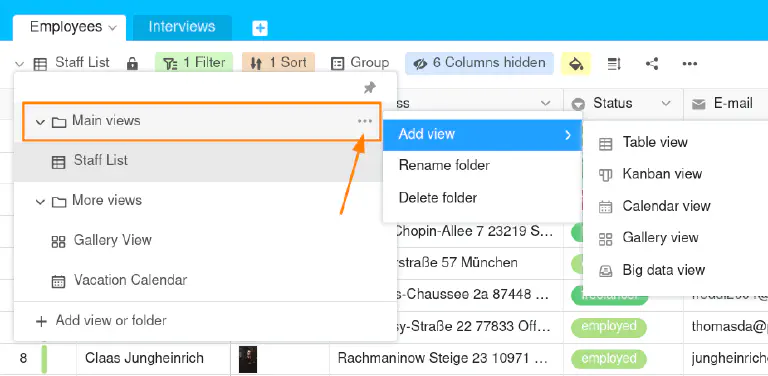
However, you cannot edit the system folder More views.