Table of Contents
SeaTable’s filter function allows you to use filter rules to filter out the desired records from a table and display only those records that meet certain criteria. The set filter refers only to the active view.
Filter records in a view
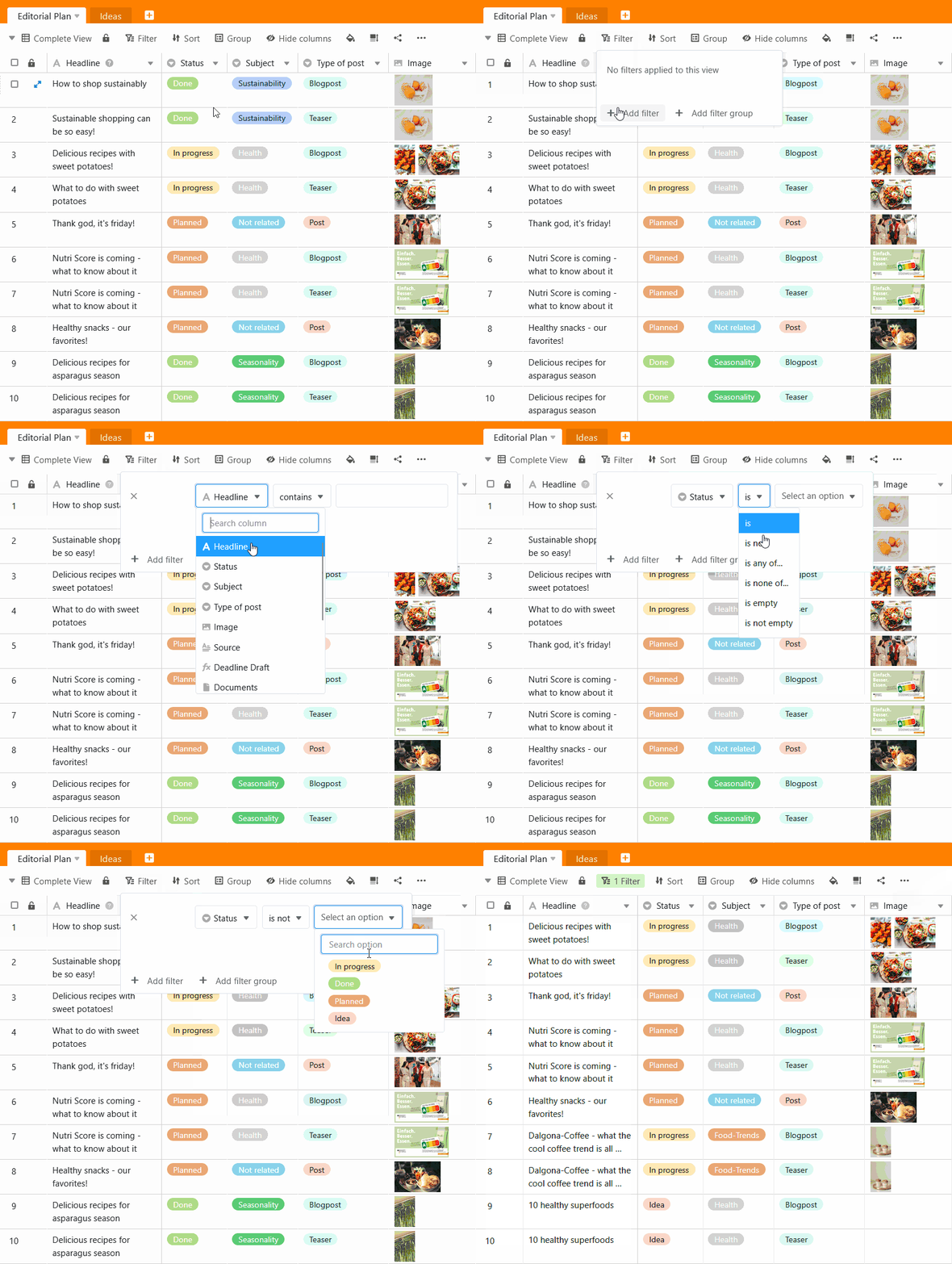
- Select the view in which you want to set a filter.
- Click Filter in the view options above the table.
- Go to Add filter or Add filter group.
- In the first field, select the column for which you want to define a filter rule.
- In the middle field, specify the condition according to which the records are to be filtered.
- In the last field, decide which option or value the condition should refer to.
The different conditions when filtering
SeaTable supports filtering by all column types except buttons.
Depending on the column type you want to filter by, the conditions you can select will also adjust.
Here are some examples
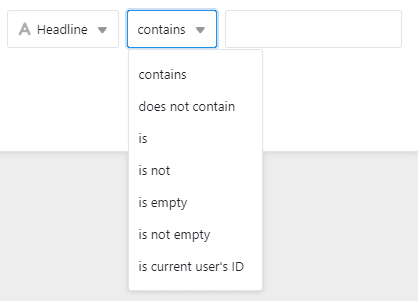
You have these condition options with a Text column :
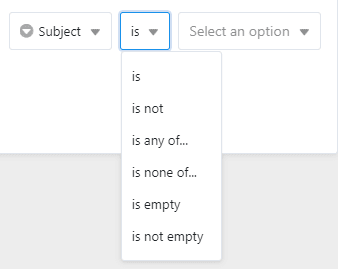
You have these condition options with a Single selection column :
You have these condition options with a Image column :
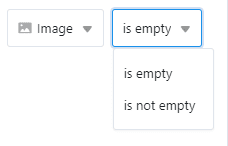
Rows with empty cells in the filter column are generally not displayed unless “is empty” is explicitly searched for.
Remove a filter
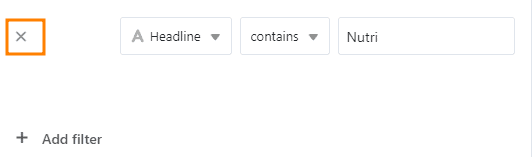
You can delete created filters by clicking on the x symbol.
Apply multiple filters
You can create one or more filters that further restrict the first condition. Read more about this in the article Linking filter rules with AND and OR.
Rearrange filters
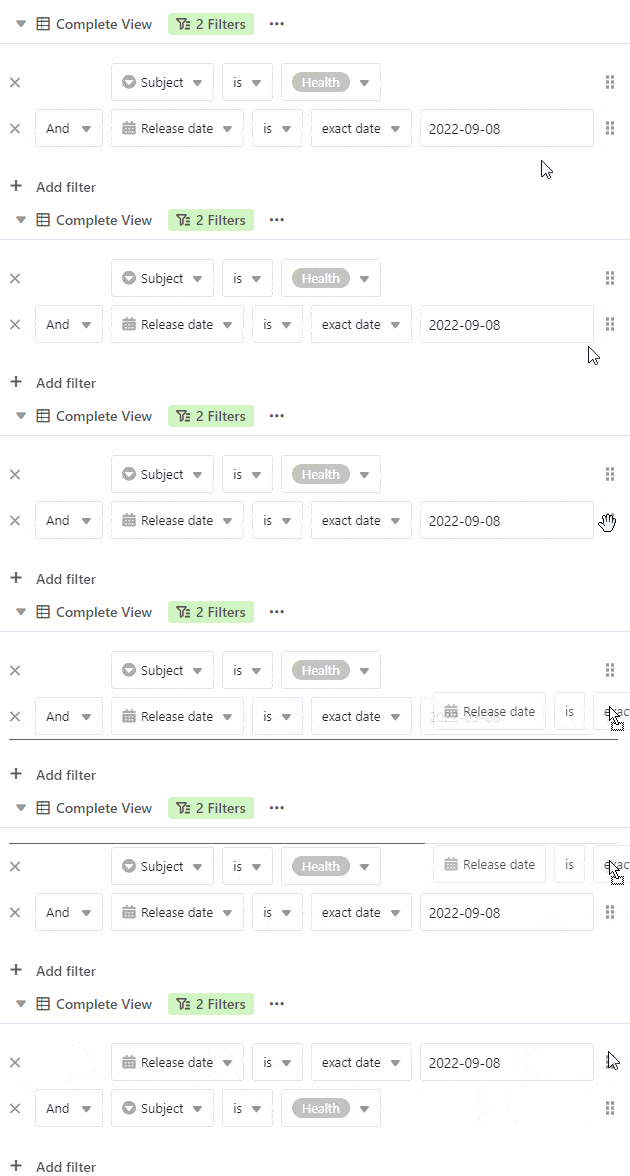
You can move and rearrange filters by moving the mouse on the six-dot gripping surface, press and hold, pull and release.