Table of Contents
You can export a base as a DTABLE file at any time and thus save a comprehensive backup on your device. You can find out how this works and what you should bear in mind in the following article.
To export a base
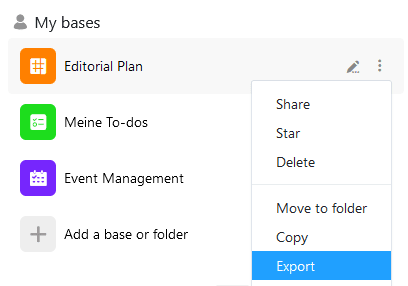
- Go to the home page of SeaTable.
- Move the mouse cursor to the name of the base you want to export and click the three-dot icon that appears on the far right.
- Select the Export menu item.
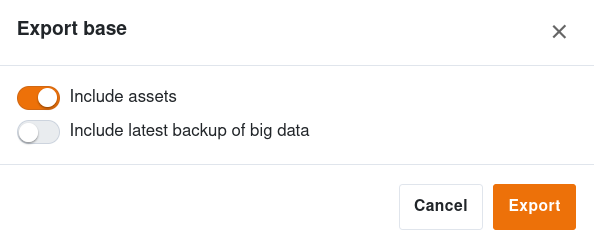
- Decide whether you want to include Assets (e.g. images and files) and the latest Big Data backup in the export file by activating or deactivating the toggles.
- Confirm with Export.
Depending on your browser settings, the download will either start automatically or you will be asked where you want to save the export file. If necessary, select a suitable location and confirm the selection.
As soon as your file with the extension .dtable appears in the specified location, the export of the base is completed.
What does a DTABLE file store?
The exported DTABLE file contains the current state of your base, including all the
- Tables and views,
- Rows, columns and values,
- Images and files,
- Web forms,
- Statistics,
- Scripts,
- Plugins and
- Apps.
Restore a base from a DTABLE file
You can always import a DTABLE file back into SeaTable as a new base. You can learn more about this in the article Creating a base from a DTABLE File .