Table of Contents
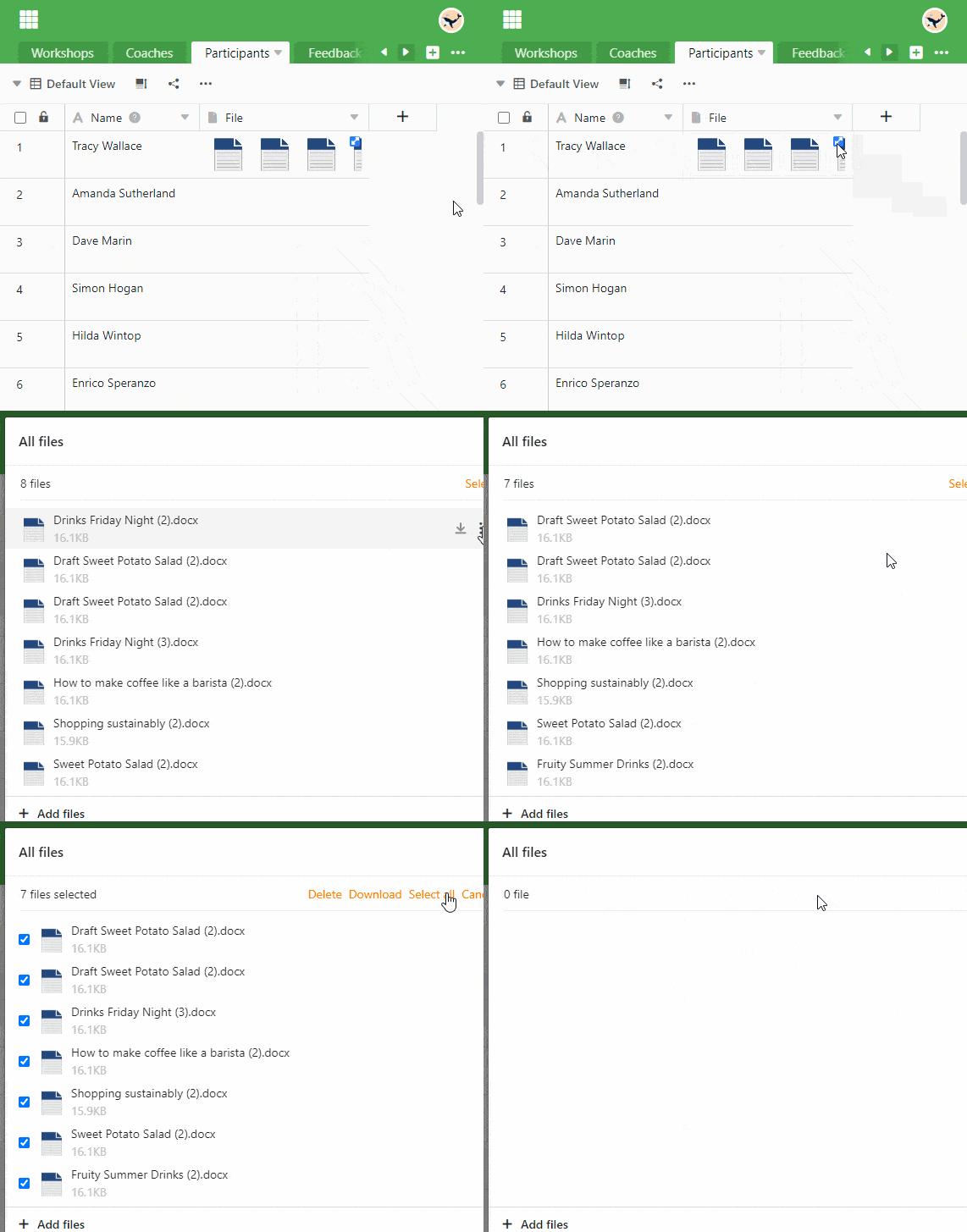
SeaTable allows you to delete files and images in several ways. The following instructions apply to both image and file columns.
Remove files and images via the row details
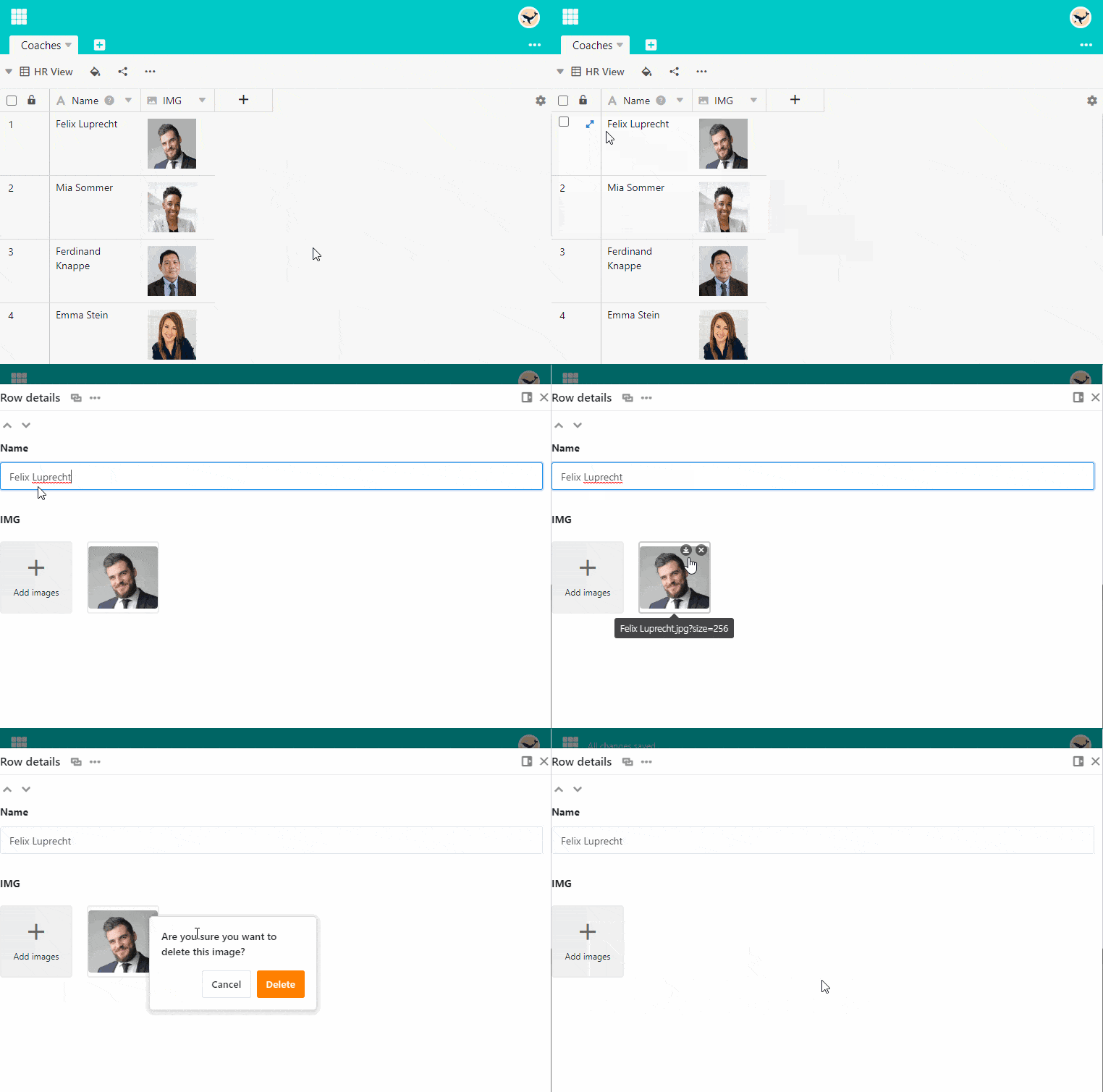
- Open the detailed view of a row, by clicking on the double arrow icon, which appears as soon as you move the mouse over the numbering of the row .
- In the row details window, hover over the image or file you want to delete.
- In the upper right corner of the miniature, a will now appear. Click on this.
- A dialog opens with the question Do you really want to delete this file/image? If yes, click Delete.
Delete via the cell
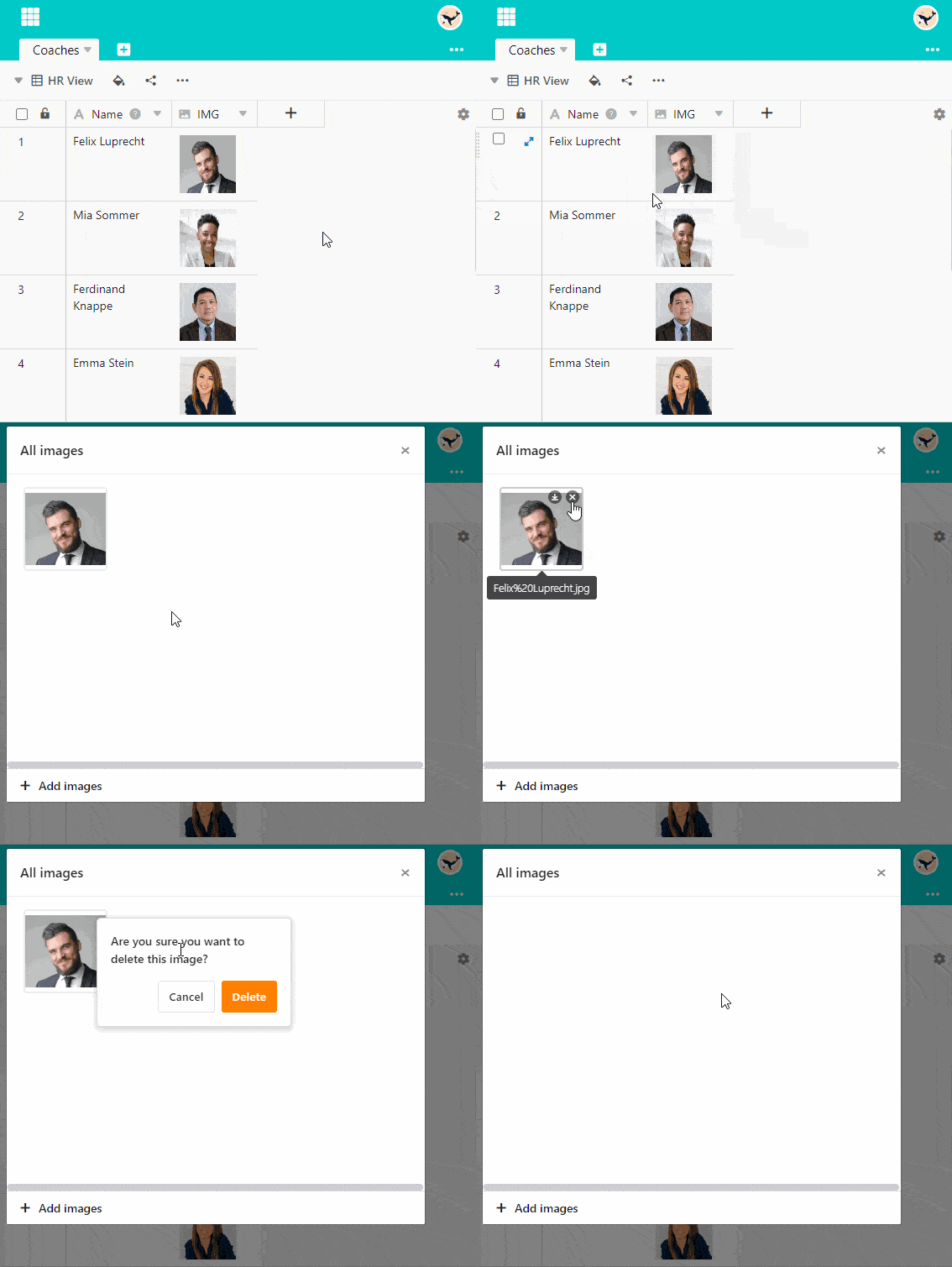
- Open the All Images or All Files window by double-clicking the cell in an image or file column.
- For images, deleting works the same as using the row details. For files you have the following options:
- Click Select and select all the files you want to delete. Confirm with Delete.
- Hover the mouse cursor over a file and click the three-dot icon to select the Delete option.