
If you prefer to keep your data on your own server, SeaTable Server is the ideal solution. Thanks to Docker, the installation is straightforward and can be completed in just a few minutes – regardless of which Linux distribution you use.
The complete step-by-step installation guide can be found in the SeaTable Admin Manual: Go to the installation guide at admin.seatable.com
Read on to learn what you need for the installation, how the process works, and what SeaTable as a platform can do for you.
Why self-host SeaTable? #
SeaTable is available as a cloud solution at cloud.seatable.io. However, many companies and organizations prefer to run their data on their own infrastructure – whether for data privacy reasons, internal compliance requirements, or simply to maintain full control. SeaTable Enterprise Edition makes exactly that possible: you install SeaTable on your own server and can configure and operate it according to your needs.
What you need #
The requirements for a SeaTable installation are manageable:
- A Linux server with at least 4 CPU cores, 8 GB RAM, and 10 GB of free storage (plus storage for your data)
- Root access to the server, via SSH or console
- A (sub)domain with DNS pointing to your server’s IP address
- Reachability on ports 80 and 443 via this domain
It doesn’t matter which Linux distribution you use – whether Ubuntu, Debian, Rocky Linux, or another variant: as long as Docker runs on it, SeaTable will work. A static IPv4 address is helpful but not required. It maximizes your server’s reachability, as some mobile networks still lack IPv6 support.
What’s under the hood #
SeaTable uses Docker to run its services across multiple containers. In addition to the SeaTable Server itself, there’s a MariaDB database for data storage, Redis for fast caching, and a reverse proxy that accepts incoming requests and forwards them to SeaTable. All these components are managed together via Docker Compose – you don’t need to deal with each one individually.
By default, SeaTable ships with Caddy as its reverse proxy. Caddy’s big advantage is that it automatically requests and renews HTTPS certificates via Let’s Encrypt. As long as your domain points to the server and ports 80 and 443 are open, you get encrypted connections without any manual configuration.
How the installation works #
The entire installation consists of five steps:
- Install Docker – If not already present, Docker is set up on the server.
- Download compose files – SeaTable provides ready-made YAML configuration files that define all required components.
- Adjust configuration – In a central
.envfile, you enter your domain, passwords, and basic settings. - Request a license – SeaTable Enterprise is free to use with up to three users. You’ll receive a license file conveniently via email.
- Start the server – A single
docker compose upcommand starts all containers and SeaTable is ready to go.
The entire process typically takes no more than 10 minutes.
Running SeaTable behind your own web server #
Caddy is the recommended and easiest option, but not the only one. If you already have a web server like nginx, Apache, or Traefik running on your server, you can run SeaTable behind it instead. In that case, you disable the included Caddy proxy and configure your existing web server as a reverse proxy for SeaTable. Your web server then forwards incoming requests on the SeaTable domain to the SeaTable container – a common pattern that most administrators are already familiar with.
In this scenario, you handle HTTPS certificates yourself, for example via Let’s Encrypt and Certbot or an existing SSL certificate from your organization. The official documentation describes this setup in detail.
Easy updates #
The Docker architecture also pays off after installation: updating to a new SeaTable version takes just a few commands. You pull the latest Docker image, restart the containers – done. Your data and configuration remain intact.
What you can build with SeaTable #
SeaTable is much more than a database. It’s a platform that enables even users without any IT experience to build custom solutions in no time.
A real-world example: a university administration needs to manage incoming grant applications. With SeaTable, a staff member creates a base, generates a web form for submissions, and sets up an AI automation that automatically extracts key information from uploaded documents. Notifications keep the team informed about status changes, and a custom app lets applicants check the status of their application at any time. All of this is possible without programming skills and can be set up within a few hours.
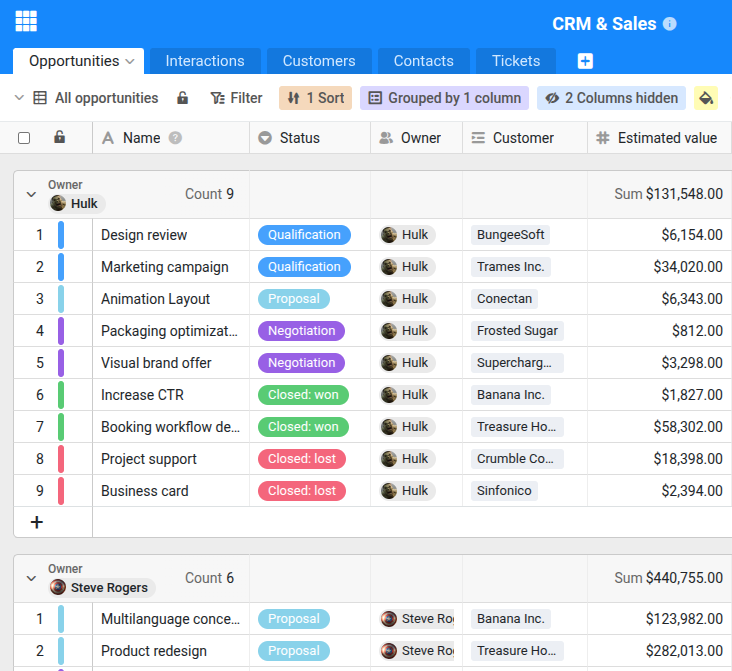
Whether it’s project management, inventory tracking, CRM, or event planning – the use cases are as diverse as the needs of your organization.
Get started for free #
You can use SeaTable Enterprise Edition with up to three users permanently for free – for both personal and commercial use. The free license is conveniently delivered via email.
If you need more users, you can purchase licenses for 10, 25, or 50 users directly on the SeaTable pricing page. For larger installations, please reach out via the contact form.