Table of Contents
With the AI Chat Plugin, you can chat directly with your data in SeaTable. This guide shows you how to install the plugin, enter an API key, and start your first conversation. For a general overview of the plugin, see the introduction article .
Prerequisites
- A SeaTable account with access to at least one base
- An API key from one of the supported AI providers:
Step 1: Install the plugin in your base
- Open the base where you want to use the AI Chat Plugin.
- Click Plugins in the base header.
- Search for AI Chat in the Plugin Manager and click Add.
The plugin now appears in your plugin bar and can be opened at any time.

Step 2: Select an AI model and enter your API key
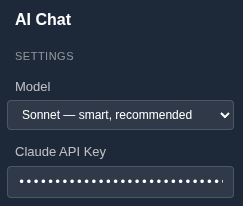
- Open the AI Chat Plugin.
- Select the desired model from one of the three AI providers (Anthropic, OpenAI, or Mistral). More powerful models generally deliver better results but incur higher costs per request.
- Enter your API key in the designated field.
Step 3: Start your first conversation
Enter your first question in the input field and press Enter.
The plugin analyzes the structure and data of your base and answers your question in the chat window.
Tips for getting started
Start with a simple question to test the connection and familiarize yourself with the plugin. Good first questions include:
- “What tables are in my base?”
- “How many records does the table [table name] have?”
- “Summarize the data in the table [table name].”
The more precisely you formulate your question, the more accurate the answer will be. Whenever possible, mention the specific table or column name your question refers to.