Table of Contents
In team administration, as a team administrator, you can make changes to the subscription at any time. Learn how to make changes, when they take effect, and what effects they have on the term in this article.
Effectiveness of changes
Basically, upgrades take effect immediately, whereas downgrades are always made at the end of the current term. The following table shows this in overview. You can view the respective remaining term of your SeaTable subscription in the team administration at any time.
| Action | Effectiveness |
|---|---|
| Free → Plus | Immediately |
| Free → Enterprise | Immediately |
| Plus → Free | At the end of the term |
| Enterprise → Free | At the end of the term |
| More team members | Immediately |
| Fewer team members | At the end of the term |
| Monthly → annual billing | Immediately |
| Annual → monthly billing | At the end of the term |
Term and the pro rata payment of changes
Changes to your subscription usually do not affect the term. The only exception is a change from monthly to annual payment. In this case, the new term starts with the change.
| Change | Effect on the runtime |
|---|---|
| Number of team members | none |
| Subscription upgrade | none |
| Change from monthly to annual payment | new term |
Of course, you also only pay the respective pro-rata amount for each change. For example, if you add an additional team member, you only pay the prorated price based on the remaining term. If you upgrade your subscription, the remaining value of your current subscription will be deducted from the new price.
Customize current subscription
-
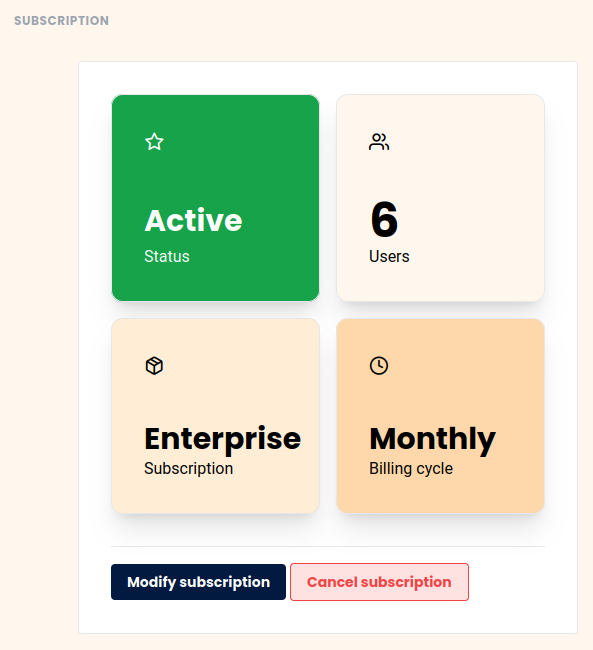
Open the Team Management.
-
Switch to the Subscription section.
-
Click on Edit Subscription.
-
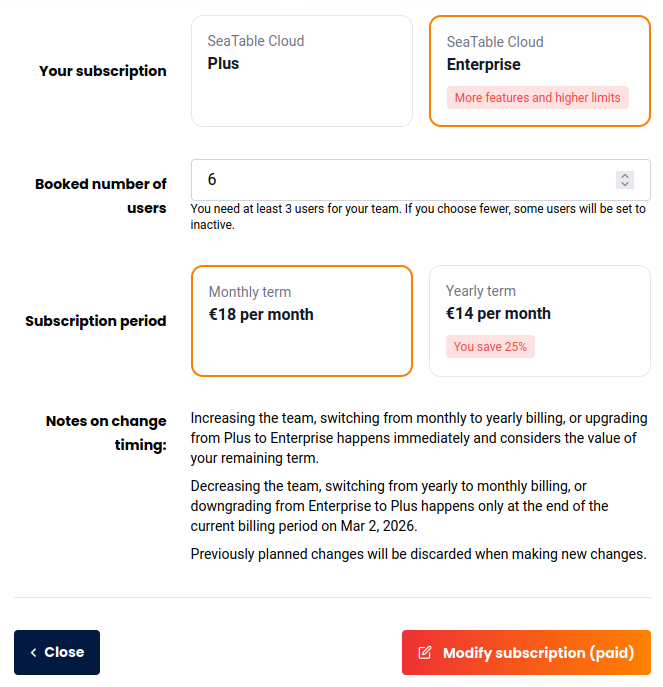
Make the desired changes to the subscription, number of users, and billing period.
-
Confirm the change to your subscription with Modify Paid Subscription.
Cancel Your Paid Subscription
You can return to the free Free subscription at the end of the already paid term. To do this, you need to cancel your paid subscription.
- Open the Team Management.
- Click on Subscription.
- Click on Cancel Subscription.
- Carefully read the notes about switching to SeaTable Free.
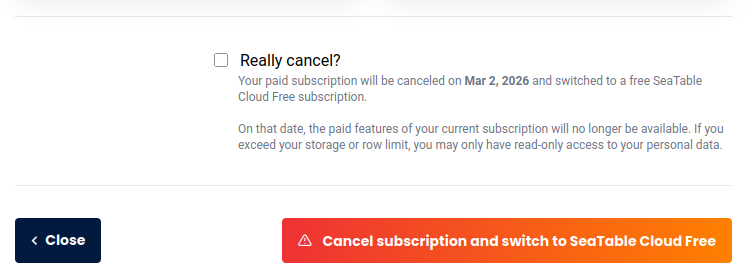
- Confirm the change to your subscription with Cancel Subscription and Switch to SeaTable Free.