Table of Contents
An AI agent can do remarkably much with your SeaTable data — provided it understands what you want. In this article, you will learn how to phrase your questions so the agent delivers the best results. The good news: you don’t need to learn any special syntax. Natural language is perfectly sufficient. A few simple ground rules help avoid misunderstandings, though.
The agent knows your base
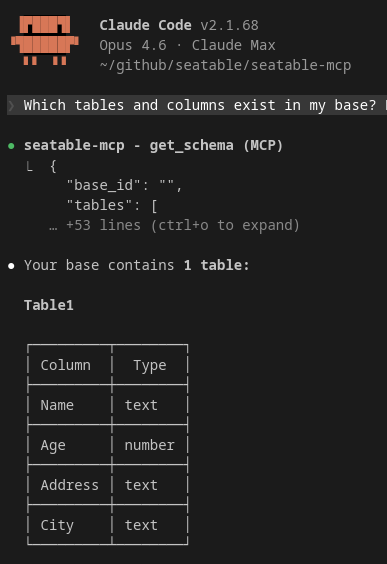
Before you ask your first question, the AI agent has already read the structure of your base. It knows which tables exist, what the columns are called and what data types they contain. You don’t need to explain this. Just start asking — the agent knows what it’s working with.
A good starting point is often:
“What tables and columns are in my base?”
This way you can see how the agent understands your base and tailor your further questions accordingly.
Specific beats vague
The more precise your question, the better the result. This is not because the agent doesn’t understand vague questions — but because vague questions have multiple correct answers and the agent has to guess which one you mean.
| Vague | Specific |
|---|---|
| “Show me the customers.” | “Show me all customers from the Contacts table who are based in Berlin.” |
| “How’s sales going?” | “What was the total revenue in February? Group by sales representative.” |
| “What’s new?” | “Which entries in the Tasks table were created in the last 7 days?” |
You don’t need to use the exact column name. If your column is called “Created date” and you ask about “created in the last 7 days”, the agent understands the connection. Typos in table or column names are also automatically corrected in most cases.
Step by step instead of all at once
For complex tasks, you often reach your goal faster by breaking them into multiple questions. The agent remembers the context of the conversation — so you can build on previous answers.
Instead of:
“Show me all overdue tasks, group them by person responsible, and create a reminder for each one in the Activities table with the text ‘Please check status’.”
Better in three steps:
“Which tasks in the Tasks table are overdue?”
“Group these by the Responsible column.”
“Create an entry in the Activities table for each overdue task with the note ‘Please check status’.”
This way you can verify the intermediate result after each step before the agent continues. This is especially useful for write operations.
Use table and column names
The agent works most reliably when you use the names that actually exist in your base. You don’t need to match the exact spelling — “contacts” instead of “Contacts” or “Projects” instead of “projects” usually works without problems. But it helps the agent if you stick to the terms in your base rather than using paraphrases.
If you’re unsure what a column is called, just ask:
“What columns does the Projects table have?”
What doesn’t work
The agent can only work with data that actually exists in your base. A few typical situations where it cannot help:
Data that doesn’t exist. If you ask about a field that doesn’t exist — such as “Show me the phone numbers” in a base without a phone number column — the agent will let you know. It does not make up data.
Calculations across missing values. If you ask about revenue per customer but your base only contains individual items without customer assignments, the agent cannot establish that relationship.
Actions outside SeaTable. The agent cannot send emails, access external systems or open files on your computer. It works exclusively with the data in your SeaTable base.
Tips for everyday use
Start with read queries. Before having the agent modify data, first run a query to make sure it finds the right entries. So ask “Which of Lisa’s tasks are still open?” before saying “Set the status to Done.”
Use the context. The agent remembers the conversation. After a query, you can refer to previous results with “these”, “of those” or “the same ones” without repeating everything.
Have the structure explained. If you’ve inherited a base or aren’t sure how it’s set up, the agent is an excellent starting point. Ask it about tables, columns, links — it gives you an overview in seconds that would otherwise require clicking through every table manually.
Be direct with changes. When the agent should create or modify something, clearly state what exactly should happen: which table, which columns, which values. The clearer the instruction, the fewer follow-up questions.
“Create a new entry in the Contacts table: Name ‘Müller GmbH’, City ‘Hamburg’, Status ‘New’.”