Table of Contents
The AI function OCR (Optical Character Recognition) recognizes text in images and writes the recognized content into a text column. This allows you to automatically convert scanned documents, photos of business cards or invoice images into searchable text.
Typical Use Cases
- Business cards: Automatically capture photos of business cards as text.
- Invoices and receipts: Convert scanned invoices into readable text.
- Delivery notes: Read text from photographed delivery notes.
- Handwritten notes: Digitize photos of handwritten notes.
- Documents: Make scanned contracts or forms available as text.
Prerequisites
- A table with an image column or a file column containing the images or documents to be recognized.
- A text column or formatted text column for the recognized text.
Step-by-Step Guide
1. Create an automation and choose a trigger
Create a new automation rule as described in the article Set up AI automation . A typical trigger is When a row is added — this way every newly uploaded image is automatically processed.
Alternatively, you can use When a row is modified and define the image column as the monitored column. In this case, OCR recognition is triggered every time a new image is inserted into the column.
2. Add the “Call AI” action
Click on Add action and select Call AI.
3. Select the “OCR” function
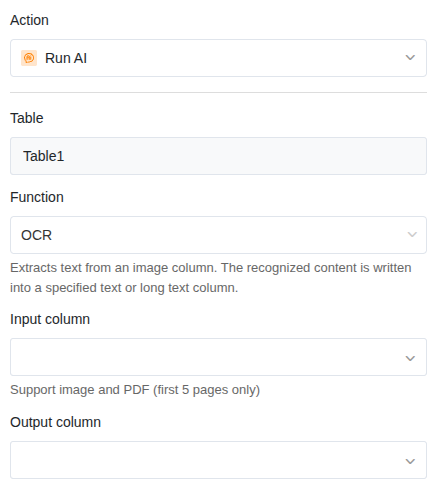
In the action settings, choose:
- Table: The table in which the AI should work.
- Function: OCR
4. Define the input column
Select the column from which the AI should recognize text. You can use an image column or a file column as the input column. With a file column, you can process PDFs or scanned documents, for example.
5. Define the result column
Select the column where the recognized text should be written. This must be of type Text or Formatted Text.
6. Save and test
Click Save and upload a test image with clearly readable text to the image column. After a few seconds, the recognized text should appear in the result column.
Application Example: Digitizing Business Cards
Your sales team photographs business cards at trade fairs and uploads the photos to a SeaTable table. The AI should automatically recognize the text on the business card so you can search the contact details.
Configuration:
- Trigger: When a row is added
- Function: OCR
- Input column: Business card image (image column)
- Result column: Recognized text (text column)
As soon as a new entry with a business card image is created, the AI reads the text from the image and writes it into the result column. From there, you can further process the data — for example, with a subsequent Extract action to specifically read out the name, company and phone number.
Tips for Good Results
- Image quality matters. The sharper and higher contrast the image, the better the text recognition. Blurry photos or poor lighting can lead to errors.
- Printed text works more reliably than handwriting. Machine-printed text is recognized almost flawlessly. For handwriting, quality depends on legibility.
- Keep the image straight. Heavily distorted or rotated images can make recognition more difficult.
- Use common image formats. JPG and PNG work reliably.
Combining OCR with Extract
The OCR function delivers the entire recognized text as continuous text. If you want to extract specific individual pieces of information (e.g. name, address, invoice number), you can add a second action with the Extract function in the same automation. This way, the recognized text is structured into individual columns in a second step.