Table of Contents
The AI function Summarize automatically condenses the content of one or more columns. This is especially useful when your table contains long descriptions, reports, or notes and you need a compact summary in an additional column.
Typical Use Cases
- Support requests: Compress detailed customer problem descriptions into two or three sentences.
- Meeting notes: Condense extensive minutes into a short summary.
- Product reviews: Reduce long reviews to the essential points.
- Job applications: Summarize cover letters or resumes in brief form.
Prerequisites
- A table with at least one Text column or Long text column that serves as input.
- A Text column or Long text column for the result (the summary).
Step-by-Step Guide
1. Create an Automation and Choose a Trigger
Create a new automation rule as described in the article Set up AI automation . Choose an appropriate trigger — for example When a row is added, so that every new entry is automatically summarized.
2. Add the “Call AI” Action
Click Add action and select Call AI.
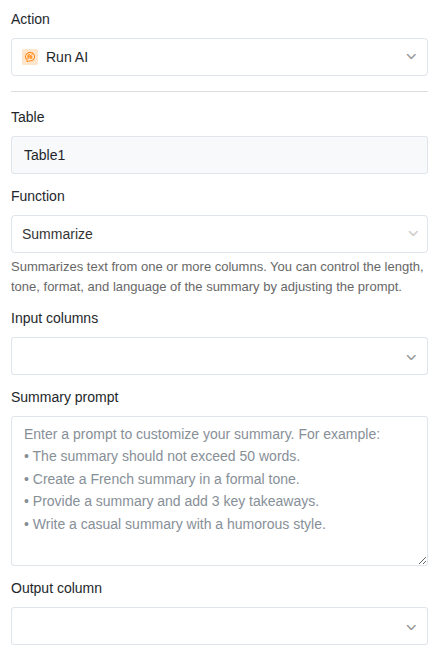
3. Select the “Summarize” Function
In the action settings, choose:
- Table: The table in which the AI should work.
- Function: Summarize
4. Define Input Columns
Select one or more columns whose content should be summarized. If you select multiple columns, the AI combines the content of all columns into one summary.
5. Customize the Prompt
In the Summary prompt field, you can control how the summary should look. If you leave the field empty, the AI creates a standard summary. With a prompt, you can influence length, tone, format, and language.
Example prompts:
| Prompt | Result |
|---|---|
| The summary should be no more than 50 words. | Short, concise summary |
| Summarize the text in three bullet points. | Bullet-point overview |
| Create a formal summary in English. | Formal tone, English language |
| Summarize the key points in one sentence. | One-sentence summary |
6. Define the Result Column
Select the column where the summary should be written. This must be of type Text or Long text.
7. Save and Test
Click Save. Test the automation by triggering the trigger event — for example, create a new row with a longer text. The summary should appear in the result column within a few seconds.
Application Example: Summarizing Support Requests
Imagine a table where support requests are received via a web form. Each request contains a detailed Problem description in a text column. For the team leader, a Short description should be generated automatically so they can review the requests more quickly.
Configuration:
- Trigger: When a row is added
- Function: Summarize
- Input column: Problem description
- Prompt: Summarize the support request in no more than two sentences. Mention the main problem and the affected feature.
- Result column: Short description
As soon as a customer submits the form and a new row is created, the AI automatically writes a short description in the result column.
Tips for Good Results
- Specify the desired length. Without a specification, the summary length can vary. A prompt like “no more than 50 words” ensures consistent results.
- Use multiple input columns when the context is spread across different columns. The AI takes all inputs into account.
- Test with real data. Create a few test rows with realistic texts to assess the quality before using the automation in production.