Table of Contents
The AI function Extract specifically reads certain information from unstructured text and writes it into individual columns. This way, you transform running text into structured data — for example, invoice number, date and amount from an invoice text.
Typical Use Cases
- Invoices: Read invoice number, date, amount and recipient from invoice texts.
- Emails: Extract sender name, subject and core concern from incoming messages.
- Contracts: Capture contract duration, notice period and contracting parties from contract texts.
- Orders: Read article number, quantity and delivery address from order texts.
- Business cards (after OCR): Read name, company, phone number and email from the recognized text.
Prerequisites
- A table with at least one text column containing the text to be analyzed.
- One or more result columns into which the extracted information will be written.
Step-by-Step Guide
1. Create an Automation and Choose a Trigger
Create a new automation rule as described in the article Set up AI Automation . Choose an appropriate trigger — for example When a row is added, so that new entries are processed immediately.
2. Add the “Call AI” Action
Click on Add action and select Call AI.
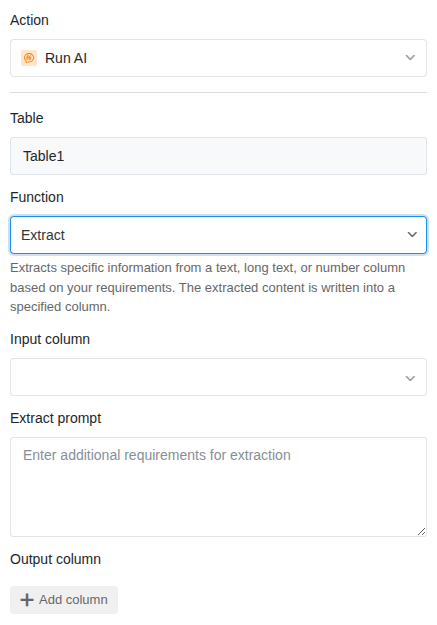
3. Select the “Extract” Function
In the action settings, choose:
- Table: The table in which the AI should work.
- Function: Extract
4. Define the Input Column
Select the column whose content the AI should analyze. This is typically a text column with unstructured text — for example, the full text of an invoice or an email.
5. Define the Prompt
The prompt is particularly important for the Extract function. Describe exactly which information the AI should read out. Be as precise as possible.
Example Prompts:
| Prompt | Extracted Information |
|---|---|
| Extract the invoice number, the invoice date and the total amount. | Three individual values |
| Read the name, the company and the email address from the text. | Contact details |
| Find the start date, the end date and the notice period. | Contract information |
| Extract the item description and the order quantity. | Order details |
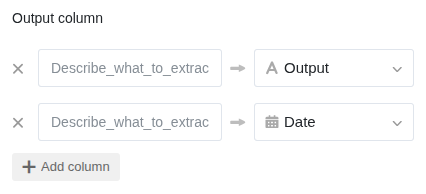
6. Define the Result Columns
Assign each piece of information to be extracted to its own result column. Choose the column type to match the expected content — the AI recognizes the format and writes the values directly into the correct column type. This way, dates reliably end up in a date column and texts in a text column.
7. Save and Test
Click Save and test the automation with an entry that contains the information to be extracted. Check whether the values land correctly in the result columns.
Application Example: Reading Invoice Data
In your table, you store incoming invoices as running text (or after OCR recognition). You want to automatically extract the most important invoice data into individual columns.
Configuration:
- Trigger: When a row is added
- Function: Extract
- Input column: Invoice text
- Prompt: Extract the following information from the invoice text: invoice number, invoice date (in DD/MM/YYYY format), net amount, VAT amount and gross amount.
- Result columns: Invoice number, Invoice date, Net amount, VAT, Gross amount
As soon as a new entry with an invoice text is created, the AI extracts the relevant data and writes it into the respective columns.
Tips for Good Results
- Be specific in the prompt. Instead of “Extract the important information”, write exactly which fields you need. The more precise the prompt, the more reliable the result.
- Specify the desired format. If you need a date in DD/MM/YYYY format, write that in the prompt. The same applies to amounts with or without currency symbols.
- Test with different texts. Invoices from different senders have different formats. Check whether the AI also finds the correct information with varying layouts.
- Combine Extract with OCR. If your source data is in the form of images (e.g. scanned invoices), first use the OCR function and then Extract in a second action.