Table of Contents
In this guide, you will connect ChatGPT to your SeaTable base. Once set up, you can ask ChatGPT questions about your data and have it edit entries directly from the chat. The setup takes about five minutes.
Unlike other clients such as Claude Desktop or Cursor, authentication with ChatGPT is handled via OAuth. You don’t need to manually copy an API token — instead, you sign in to SeaTable directly during setup and authorize access.
Prerequisites
- A SeaTable Cloud account with at least one base
- A ChatGPT account (available at chatgpt.com — the free plan is sufficient)
Step 1: Create an app in ChatGPT
ChatGPT manages MCP connections through so-called apps. To create a new app, proceed as follows:
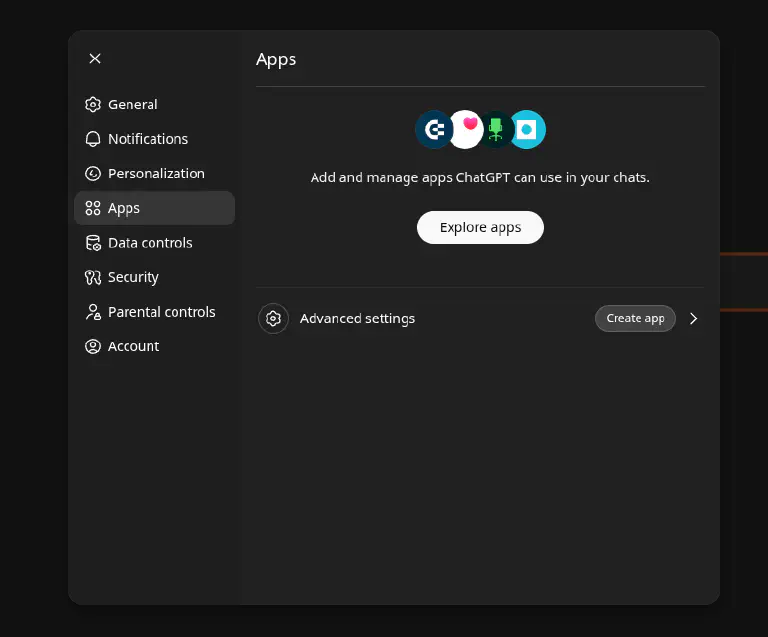
- Open ChatGPT and go to Settings → Apps.
- Click on Advanced settings at the bottom, then click Create app.
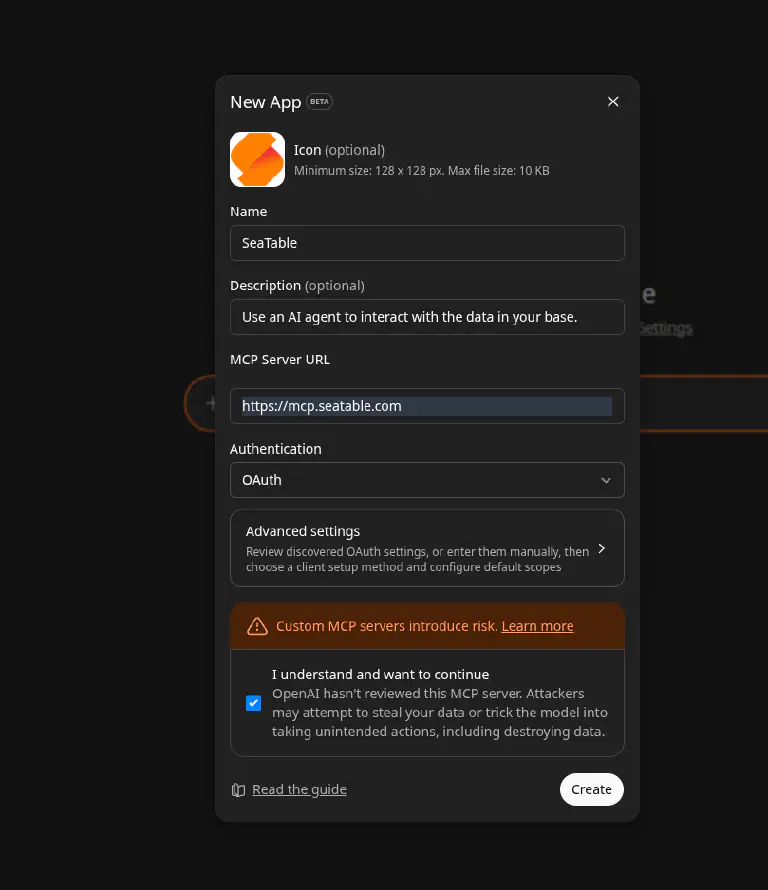
- Fill in the form as follows:
| Field | Value |
|---|---|
| Name | SeaTable (or any name such as SeaTable CRM) |
| Description | e.g. Use an AI agent to interact with the data in your base. |
| MCP Server URL | https://mcp.seatable.com/mcp |
| Authentication | OAuth |
- Check the I understand and want to continue checkbox to confirm that you trust the MCP server.
- Click Create.
Step 2: Authorize with SeaTable
After creating the app, ChatGPT starts the OAuth process. You will be redirected to SeaTable, where you sign in with your SeaTable account and authorize access to a specific base. You decide whether ChatGPT can only read or also write data.
After successful authorization, you will be automatically redirected back to ChatGPT. The connection is now established.
Step 3: Verify the connection
Ask a first test question:
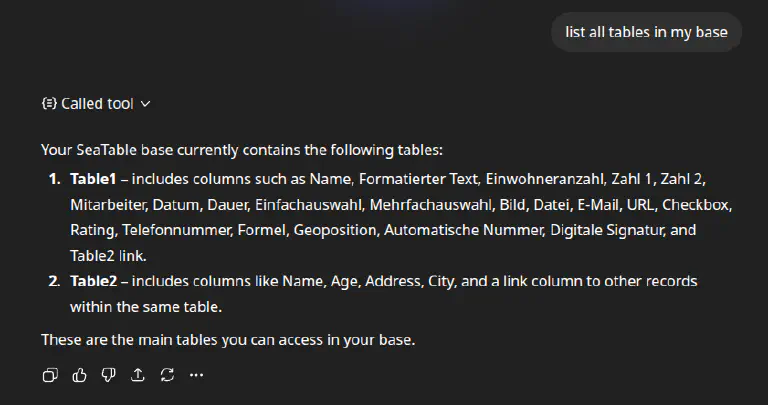
“What tables are in my base?”
ChatGPT will then query the table structure via the MCP server and list all tables with their columns. If this works, the connection is established.
Asking your first questions
You can now ask ChatGPT questions about your data as if you were talking to a colleague. Here are a few examples to try:
- “How many entries does the Contacts table have?”
- “Show me all entries where the status is ‘Open’.”
- “Summarize the data in the Revenue table by month.”
Your questions should refer to tables and columns that actually exist in your base. If you are unsure, simply ask ChatGPT about the structure of the base first. It knows your tables and columns and can point out what is available.
You don’t need to type table and column names exactly. ChatGPT recognizes minor typos and corrects them automatically. Feel free to write “Contacts” instead of “contacts” or “Projects” instead of “projects”. ChatGPT will find the right table.